

Viewing the model catalog
To open the catalog, select Resources > Models in the left-hand navigation. The number next to the Model Catalog heading shows how many models are available to your perimeter.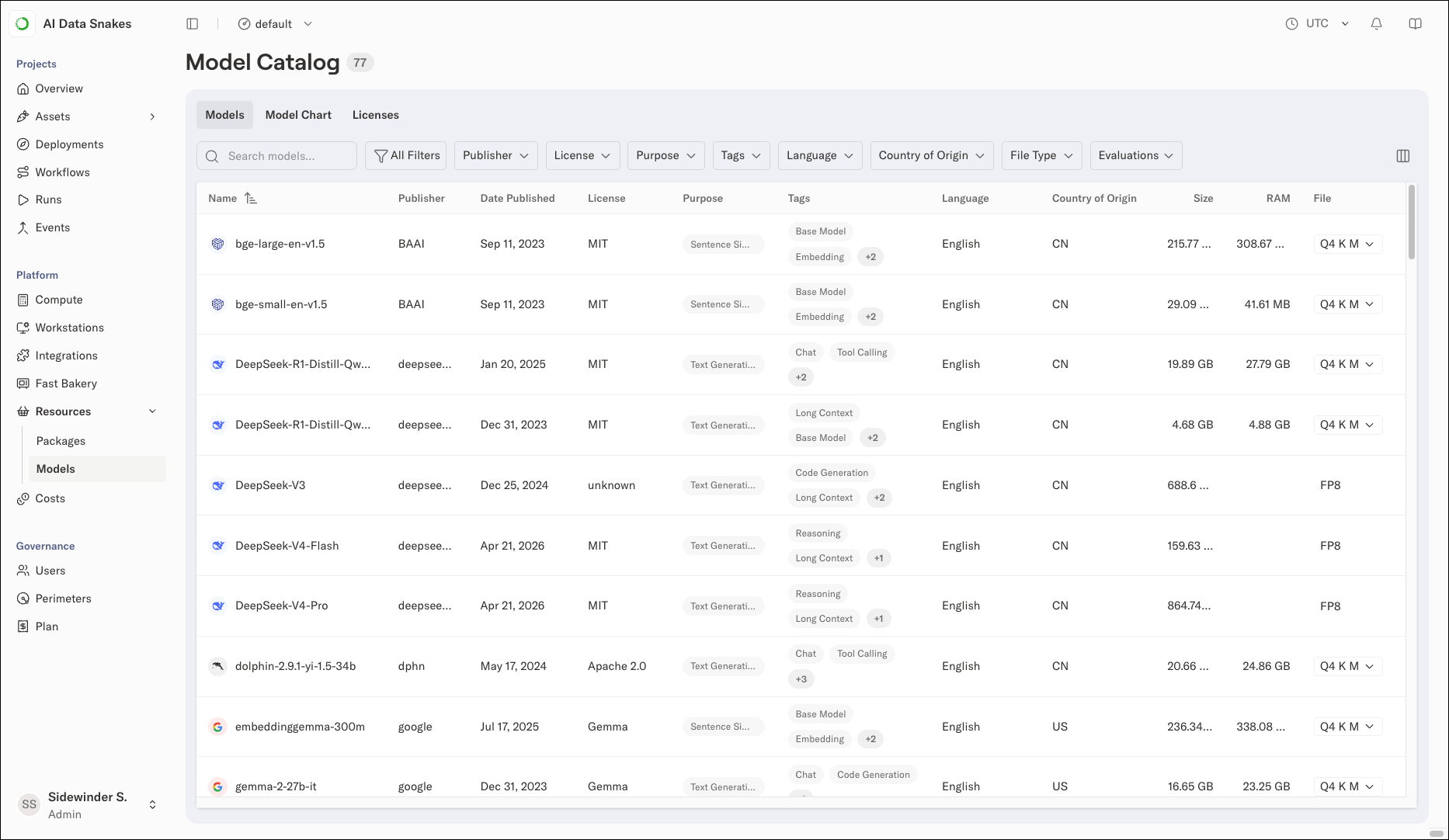
Filtering models
Use the filter dropdowns above the table to show only models with the metadata you select, such as models from a specific publisher or with a specific license. You can control which filters appear above the table by clicking All Filters and choosing which available filter fields you want displayed.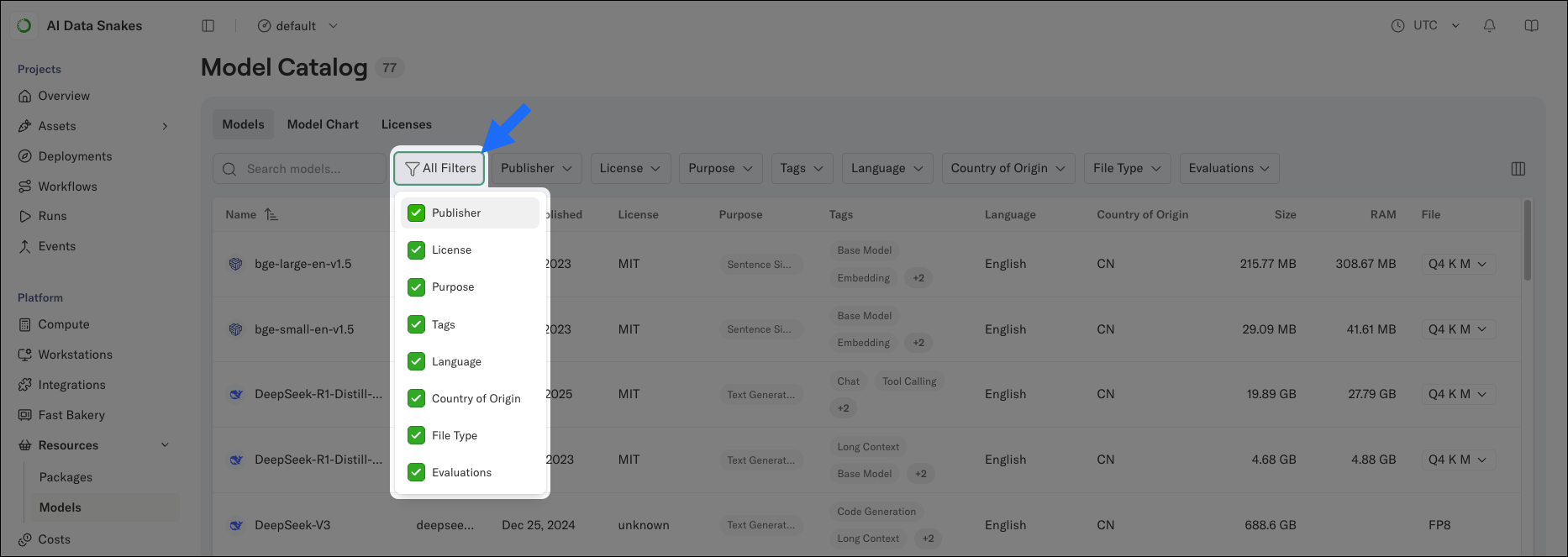
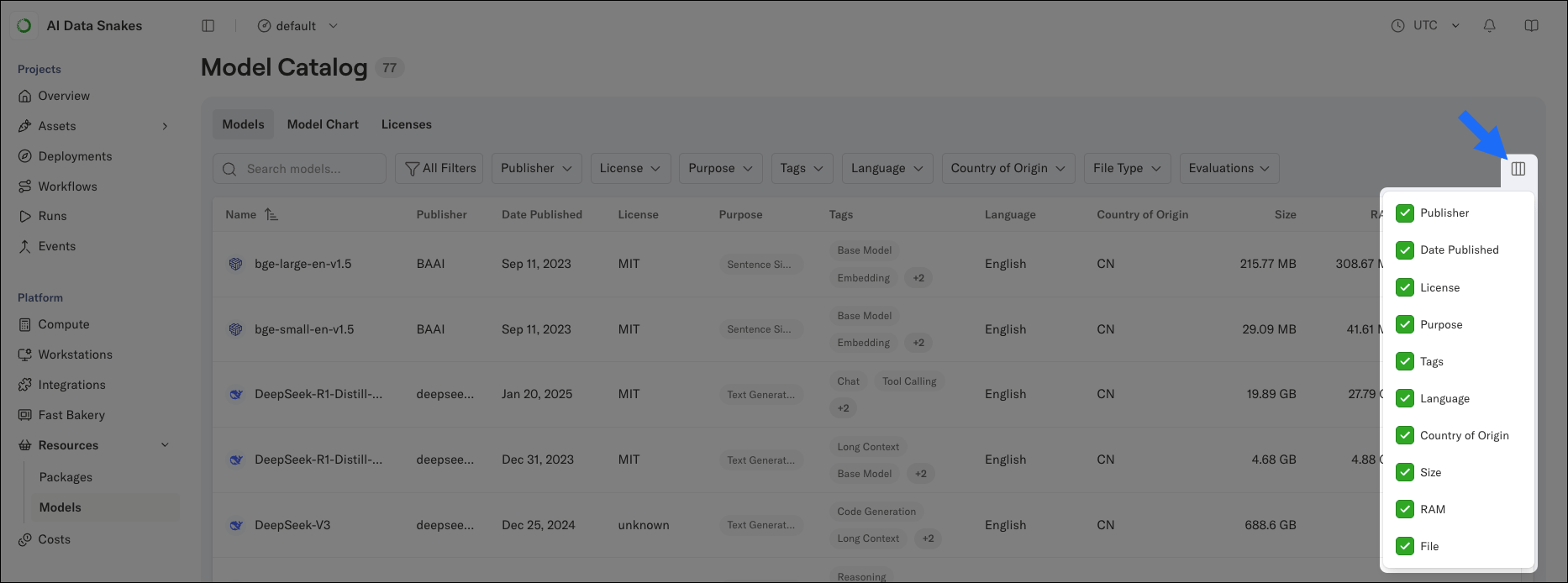
Comparing models with the model chart
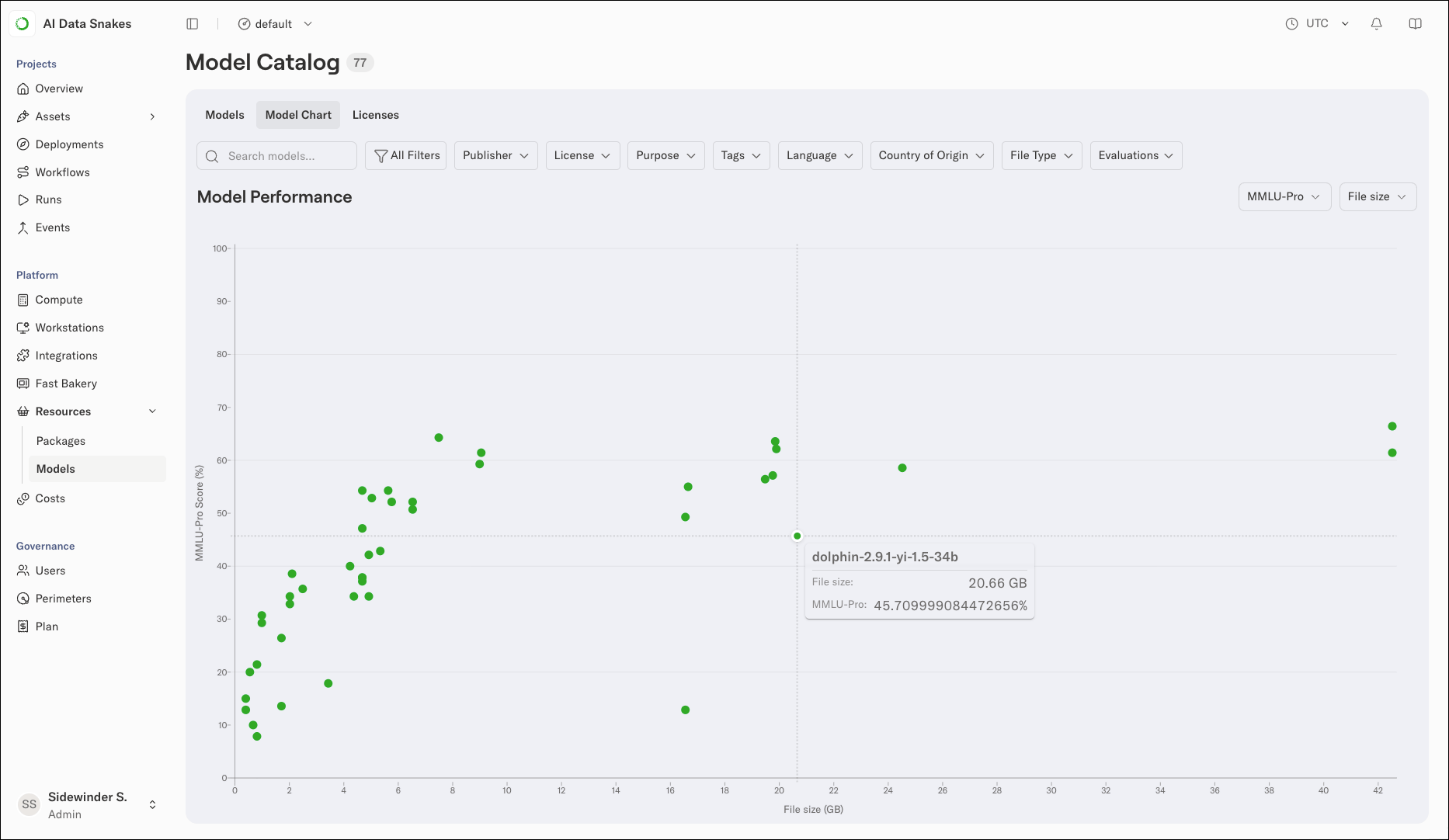
Select the Model Chart tab to compare models visually. The Model Performance chart plots each model as a point, with a benchmark score on the vertical axis and the model’s size on the horizontal axis, so you can see the tradeoff between performance and resource footprint at a glance.- Use the first dropdown to choose the benchmark shown on the vertical axis (MMLU-Pro by default).
- Use the second dropdown to choose whether the horizontal axis shows File size or Max RAM, both in GB.
Viewing model details
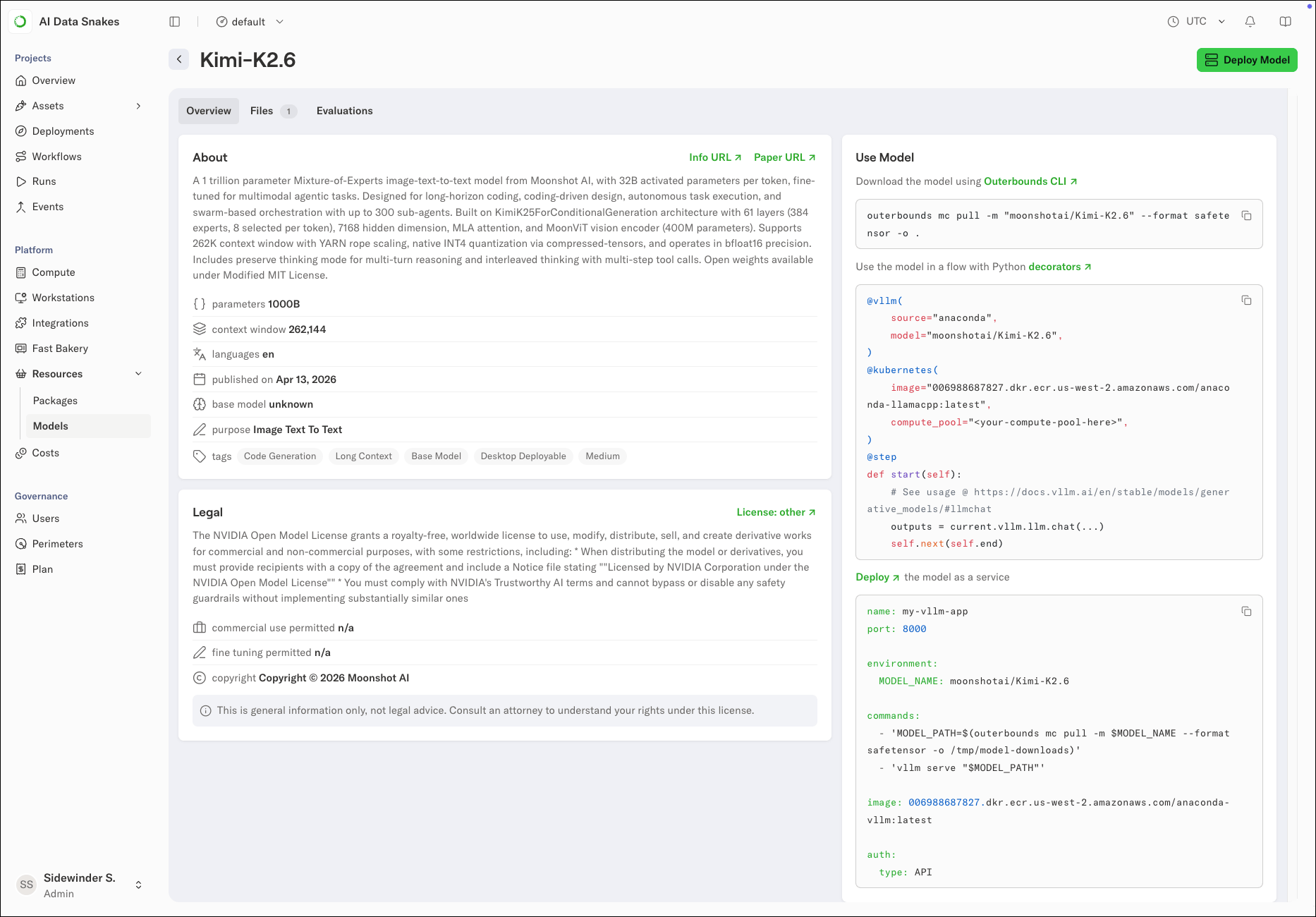
Select a model to open its details. The details page has three tabs:- Overview: The About section describes the model and lists its metadata, such as parameter count, context window, languages, and purpose. The Legal section covers the model’s license, its commercial use and fine-tuning permissions, and the copyright holder. Links such as Info URL and Paper URL open the publisher’s pages for more detail.
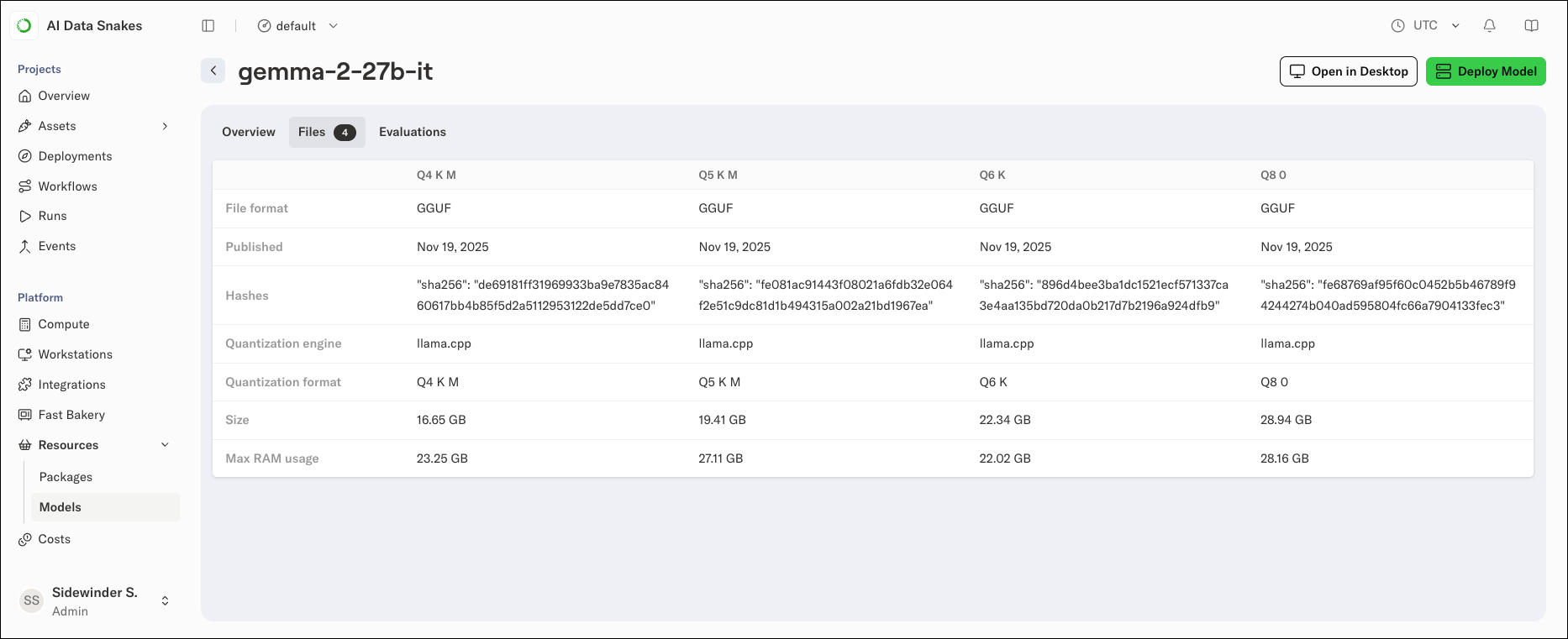
- Files: Compares the model’s available file variants side by side, so you can pick the one that fits your hardware before downloading. Each variant lists its file format, publish date, SHA-256 hash, quantization engine, file size, and expected max RAM usage.
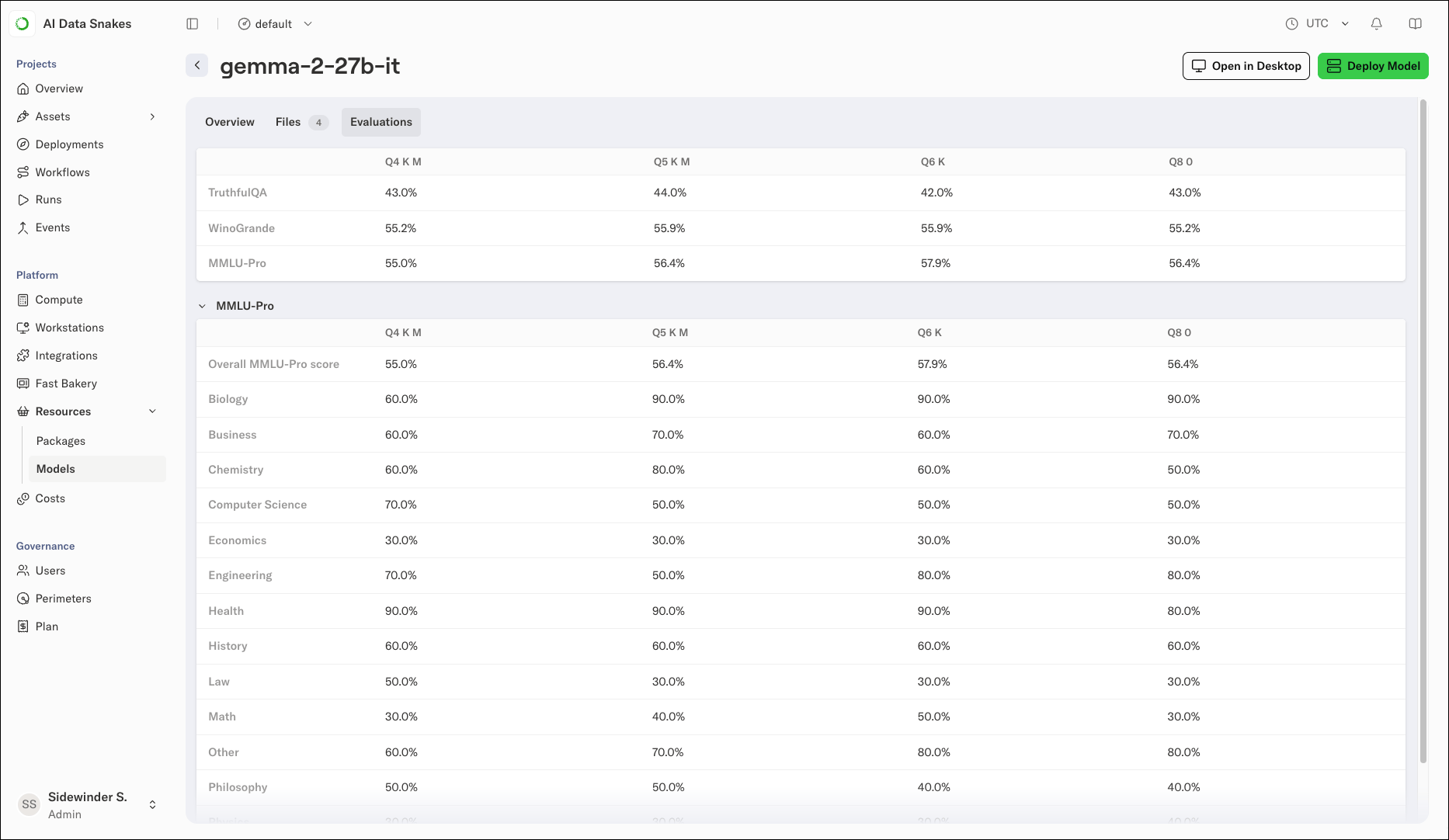
- Evaluations: The model’s benchmark results. A summary table compares scores across benchmarks, such as TruthfulQA, WinoGrande, and MMLU-Pro, for each file variant. Expand a benchmark to see per-subject scores.
Using a model
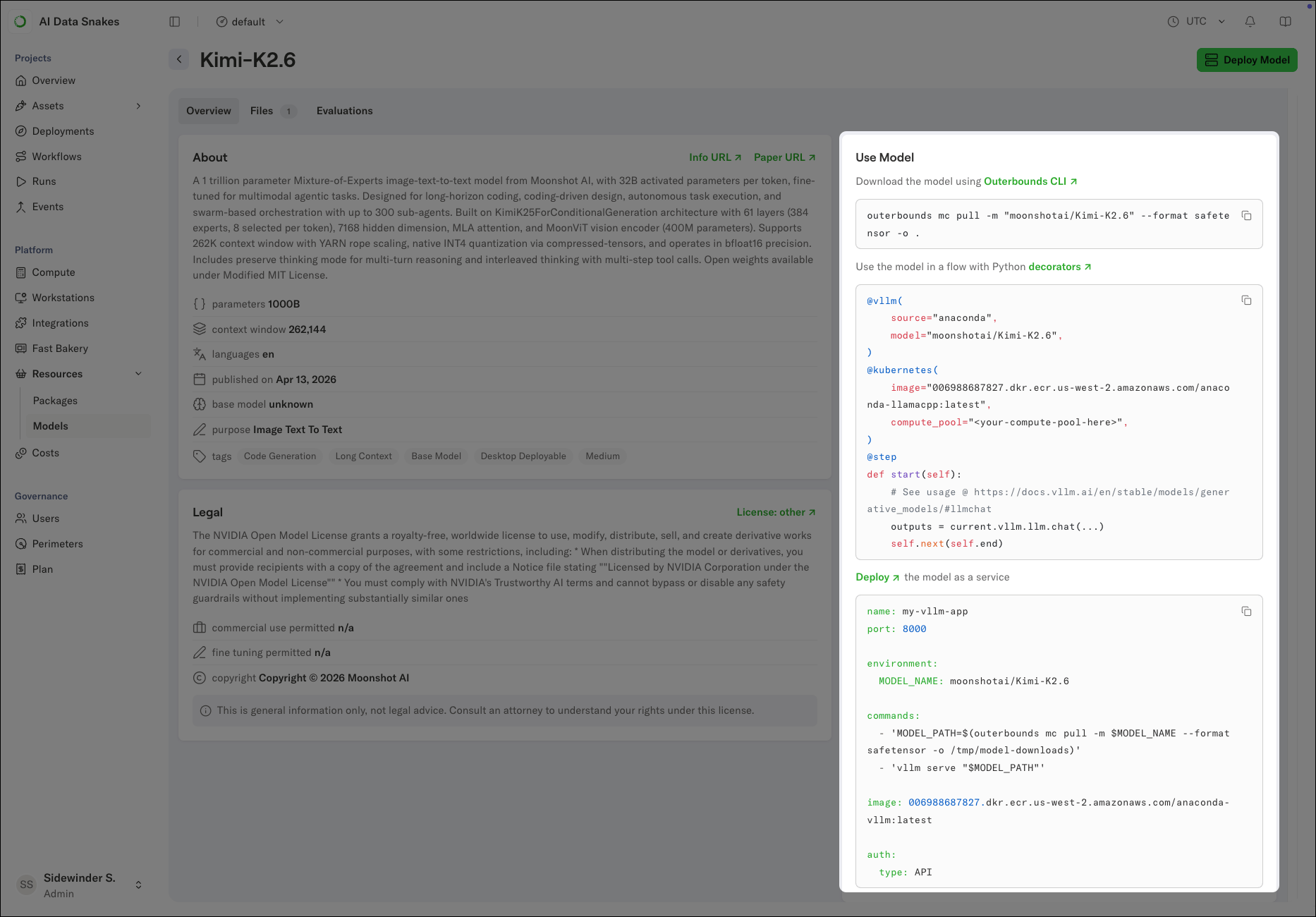
The Use Model panel on the details page provides ready-to-copy starting points for working with the model, including a command for downloading the model with theouterbounds CLI, a Python snippet for using the model in a flow, and a starter configuration for deploying the model as a service.
Reviewing and accepting model licenses
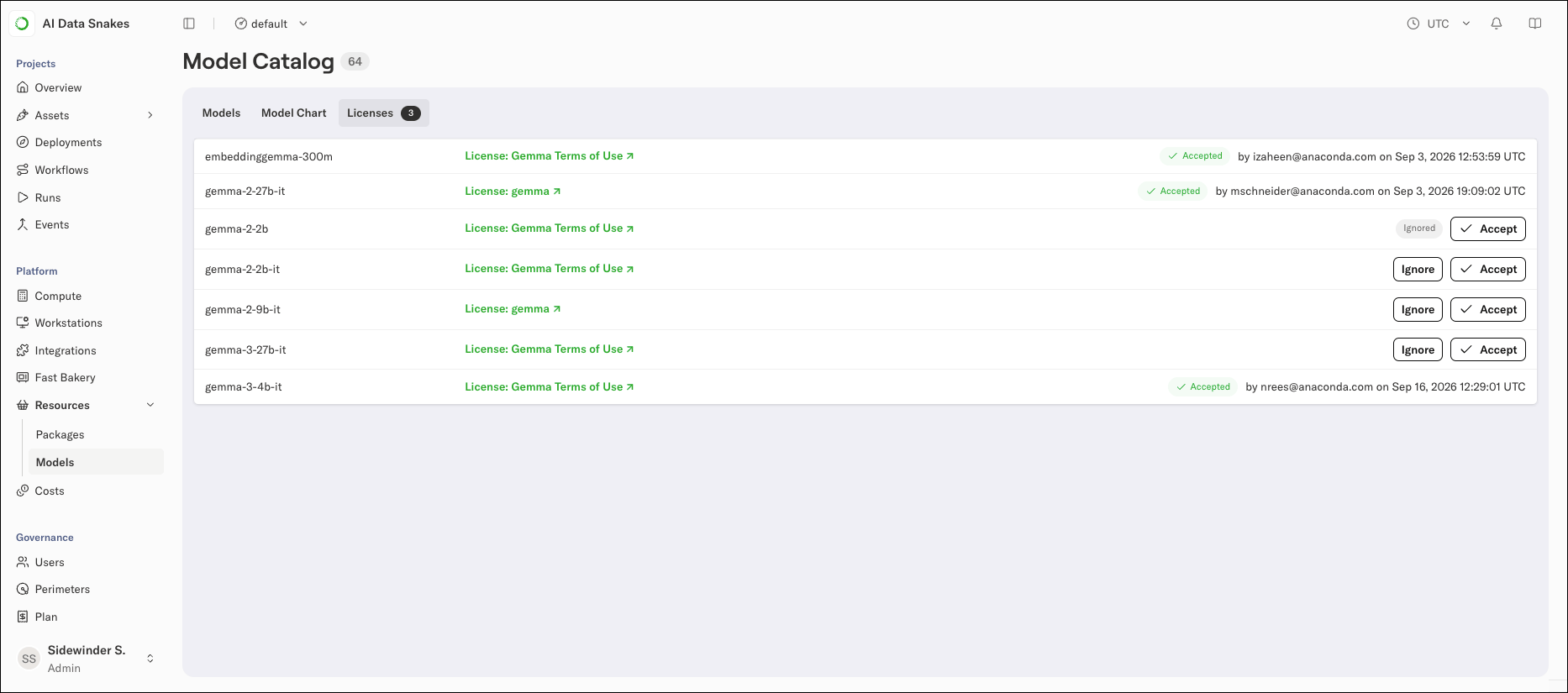
Admin only The Licenses tab lists the models that require license acceptance, with a badge on the tab showing how many are waiting for review. To review a model’s license:- Select Resources > Models in the left-hand navigation and select the Licenses tab.
- Review the license terms using the model’s license link and the Acceptable Use Policy.
- Click Accept to make the model available for download, or Ignore to dismiss it. Ignored models remain unavailable for download.
Administrators control which models a perimeter can access. For more information, see Model governance. For background on the catalog, see What is the model catalog?