Anaconda Platform uses the outerbounds CLI to interact with your organization from a terminal. It enables you to download models from the model catalog, run flows on your organization’s compute, deploy and manage long-running services, and manage platform resources.
Installing the CLI
The outerbounds CLI is available as a conda package from the main channel and as a Python package from PyPI:
The model catalog commands (outerbounds mc) require outerbounds 0.12.45 or later. To upgrade an existing installation, run conda update outerbounds or pip install --upgrade outerbounds.
The open-source metaflow package conflicts with the Metaflow distribution bundled with the outerbounds CLI. If metaflow is already installed in your environment, uninstall it by running python -m pip uninstall metaflow, then reinstall outerbounds.
configure command.
To authenticate the CLI:
-
Log in to your Anaconda Platform organization.
-
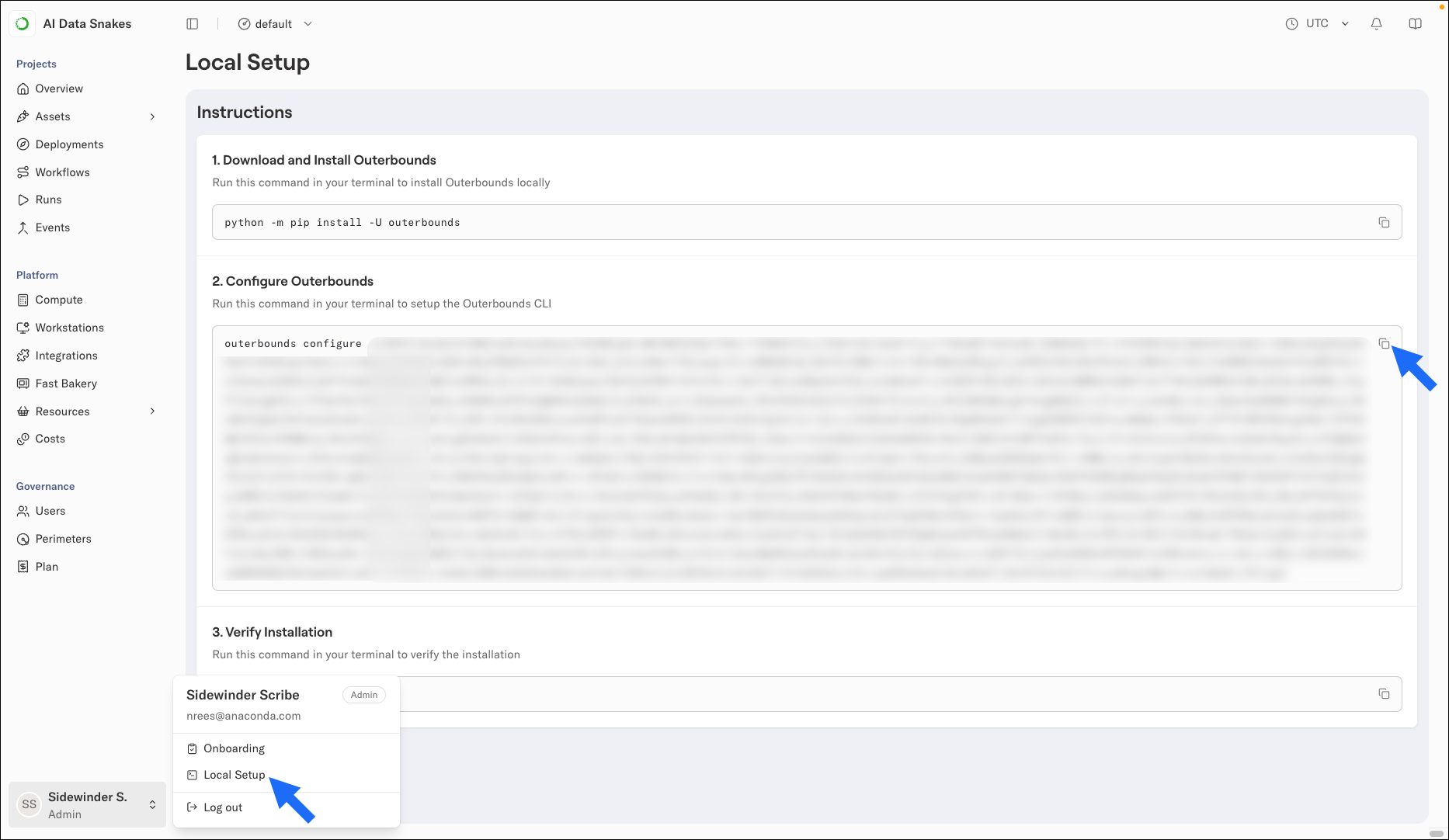
Open your user settings by clicking on your profile in the lower-left corner, then select Local Setup.
-
Under Configure Outerbounds, copy the command shown and run it in your terminal. The command includes your personal configuration string.
-
To verify your installation and configuration, run:
If the check reports a problem, run
outerbounds check --verbose for details.
The configure command decodes the string and writes a configuration file to ~/.metaflowconfig. You only need to configure the CLI once per machine for each organization you belong to. Most users only belong to one organization.
The configuration string is specific to you and to the perimeter selected in the UI. If the Local Setup page does not show a configuration command, you might not have the required access to the perimeter. Contact your administrator.
Working with multiple organizations
To work with more than one organization, write each organization’s configuration to a named profile, then set the METAFLOW_PROFILE environment variable to select the profile the CLI uses:
Authenticating the CLI in CI/CD pipelines
Machine users are identities for automated pipelines and jobs, such as deploying a project from a CI/CD workflow. Unlike human users, machine users authenticate with a token issued by their identity provider rather than a configuration string from the UI.
To configure the CLI for a machine user, run:
If your project contains an obproject.toml file, you can pass --from-obproject-toml instead of --name, --deployment-domain, and --perimeter. The CLI reads those values from the file. For more on project setup, see Working with projects. outerbounds configure command instead, which retrieves the configuration from AWS Secrets Manager and requires IAM credentials in the environment.
For the full CI/CD setup, see Working with projects.
Downloading models from the catalog
The outerbounds mc pull command downloads a model from the model catalog to your local machine or a workstation. For usage, options, and examples, see outerbounds mc pull.
Deploying and managing apps
The outerbounds app commands deploy services on the platform and manage their lifecycle:
The CLI creates deployments in your active perimeter. To change it, run outerbounds perimeter switch. For the full reference, including updating, inspecting, logs, and deletion, see the app commands.
Command overview
The CLI includes command groups for working with platform resources. For the full reference, see the command overview.
The outerbounds package also bundles Metaflow, the framework you use to develop and run flows:
For more information on building and running flows, see Connecting to the platform and running your first flow.