

- You can use cloud workstations through VS Code, Cursor, Windsurf, or SSH, backed by cloud instances hosted as part of the platform in your cloud account.
- You can access the platform from any existing development environment, such as a laptop or a cloud-based environment.
Invite users to the platform
Admin step Before anyone can authenticate, invite them to the platform by adding their email in the user management view. After a user has been invited, they can log in to the platform with the configured SSO provider.Tokens are personal.Users should not share their personal access tokens. If you need shareable access tokens that are not tied to a person, see Programmatic access via machine users.
Connect to the platform
You can connect to the platform from your existing development environment or with a cloud workstation. If you have an existing installation of open-source Metaflow in your environment and you want to use Anaconda Platform in the same environment, use the third tab to avoid conflicts.- Use my existing environment
- Set up a workstation
- I have an existing Metaflow setup
Click your profile in the lower-left corner to open your Local Setup page: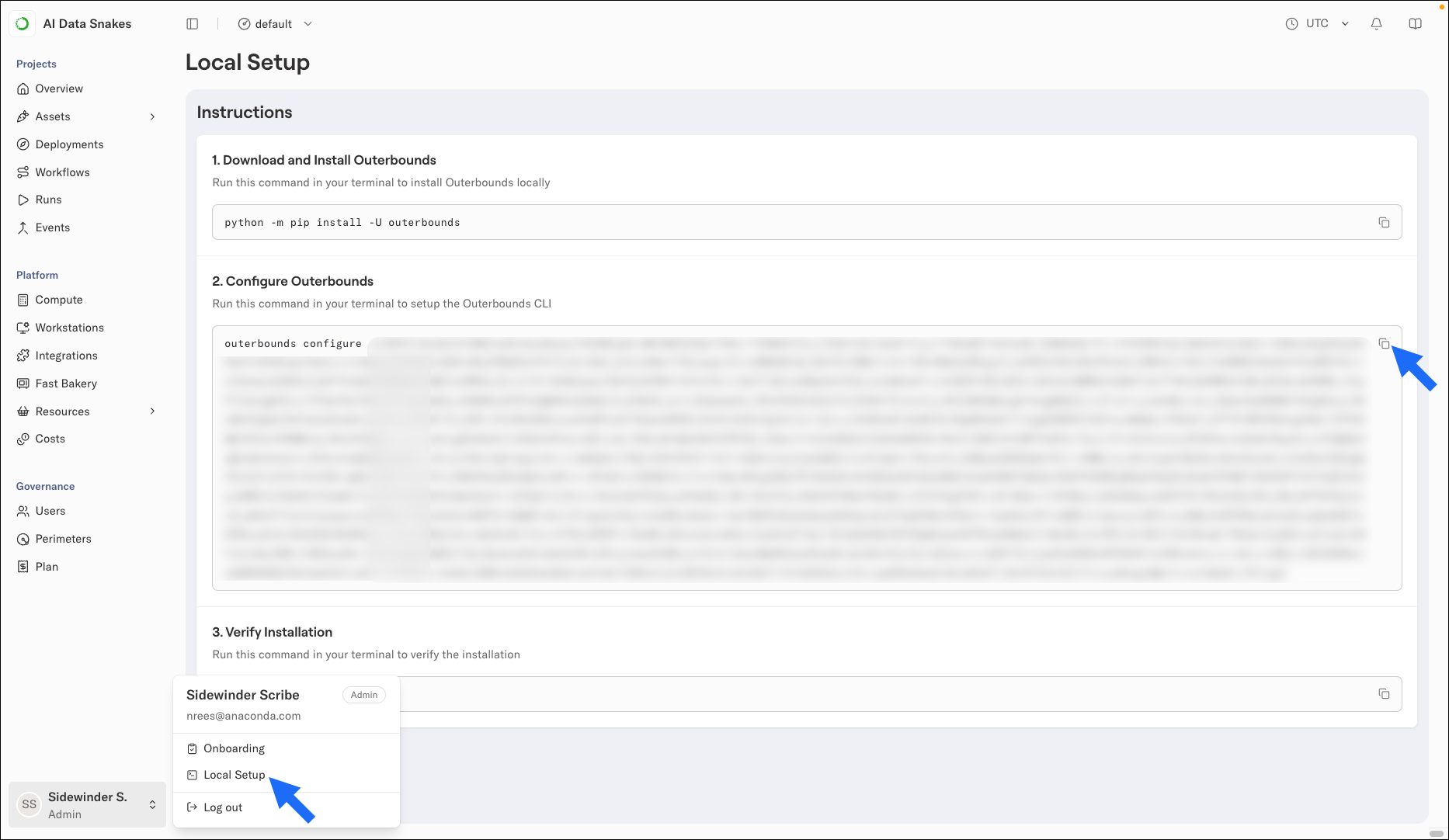
outerbounds package:- conda
- uv
- pip
Troubleshooting the connection.If you ever run into problems with the connection, execute
outerbounds check -v to see details about your setup. You should see a row of OKs if everything works correctly. Otherwise, contact your administrator.Run your first flow
After you have configured access to the platform, run a simple Metaflow flow to confirm that everything works. Save the following code snippet in a file calledhello.py:
Hello World! in the output, the flow ran successfully. In the output, you should also see a link to the Runs view, which shows all executions, both prototyping and production, taking place on the platform. You can click the latest HelloFlow run to explore information about the run that you just executed.
Hello artifacts
Extend the above example with the following lines, storing data inself. variables that are persisted automatically as artifacts, a core concept of Metaflow:
self.x and self.greeting both in the start and end steps. By design, this does not seem that special, but notably the steps could execute on separate cloud instances, as you will see when executing the code in the cloud. The data is moved automatically between steps and stored for later inspection.
Run the flow as before:
start task and observe a new card section in the task view, as shown in this clip:
The card section is produced by the @card decorator, which allows you to attach custom visualizations in the UI. Note how the card shows how the value of x changes between the start and end steps. Metaflow versions data automatically, and you can use this feature to track metrics, models, dataframes, or any other data across prototypes and production runs.
If you are feeling adventurous, explore the options for visualizing artifacts through cards. Feel free to hack HelloFlow. You cannot break anything.