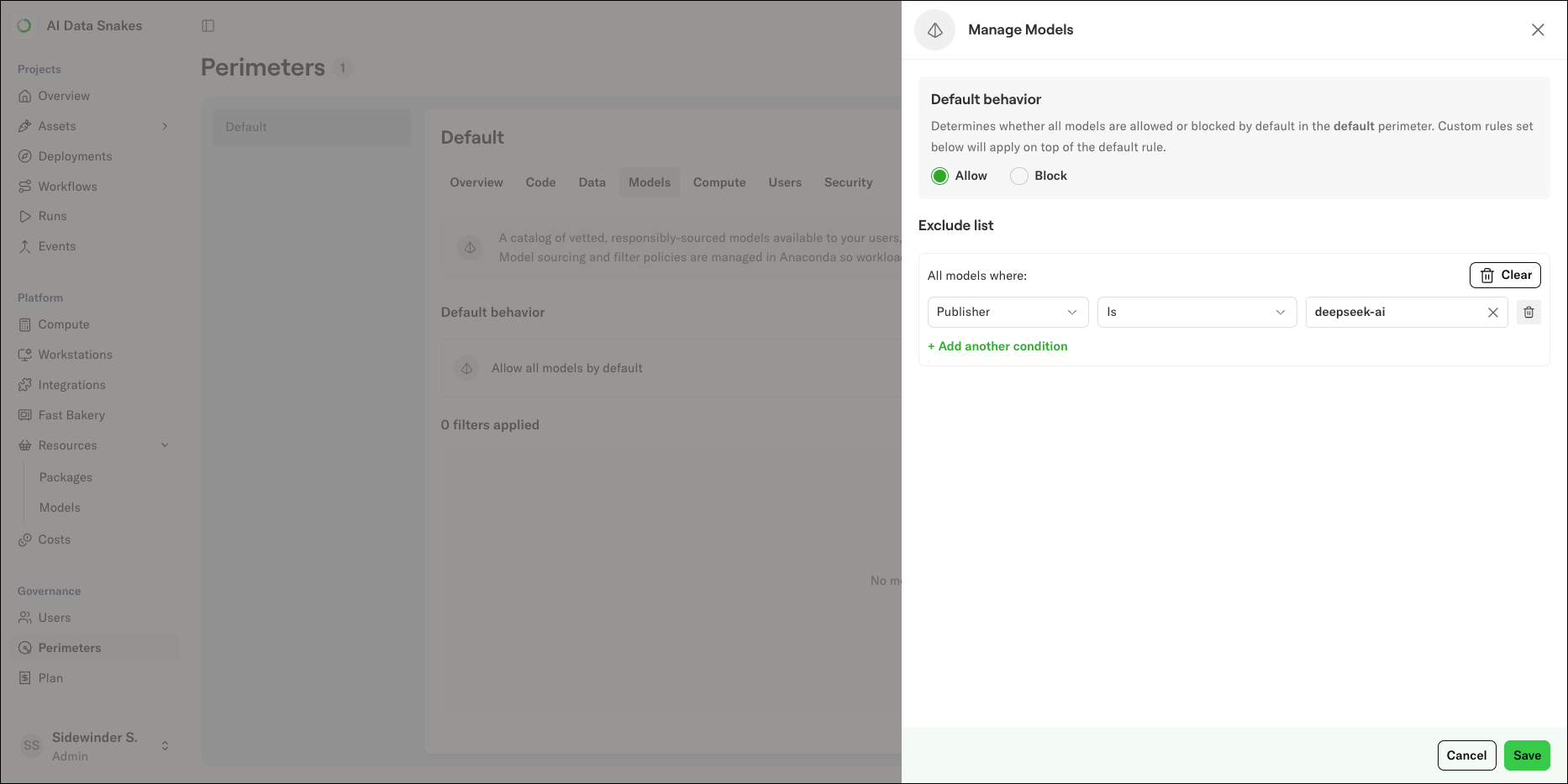
Setting a model access policy
To set a model access policy for a perimeter:- Select Perimeters in the left-hand navigation.
- Select the perimeter where you want to set the policy.
- Select the Models tab.
- Click Manage to open the Manage Models panel.
- Set the Default behavior to Allow or Block.
- Allow means all models are available unless they match a rule in the exclude list.
- Block means all models are blocked unless they match a rule in the include list.
- Add rules to the list. For each rule, select a field, an operator, and a value. See condition fields for the available fields.
- Once you are satisfied with the model policy, click Save.