

This page assumes you have installed the
outerbounds package and connected to your platform instance. If you haven’t, start with Connect to the platform and run your first flow.Deploying a scheduled flow to production
Weather forecasts are a good example of a workflow that needs to run in production at a regular cadence. This example calls the Open-Meteo API to retrieve a forecast for a specified location.-
Create a directory for the example and navigate to it:
-
Create a file named
weatherflow.pyin that directory with the following contents:
@scheduleruns the flow automatically on a cadence. Uncomment it to run hourly. For details, see scheduling flows.@triggerstarts the flow when an external event occurs. For details, see event triggering.@projectisolates deployments by developer, so multiple people can deploy the same flow without interfering with each other. For details, see coordinating larger projects.@retryautomatically retries a step if it fails. This example uses it to handle cases where the forecast API is temporarily unresponsive. For details, see retrying tasks.
Testing the flow locally
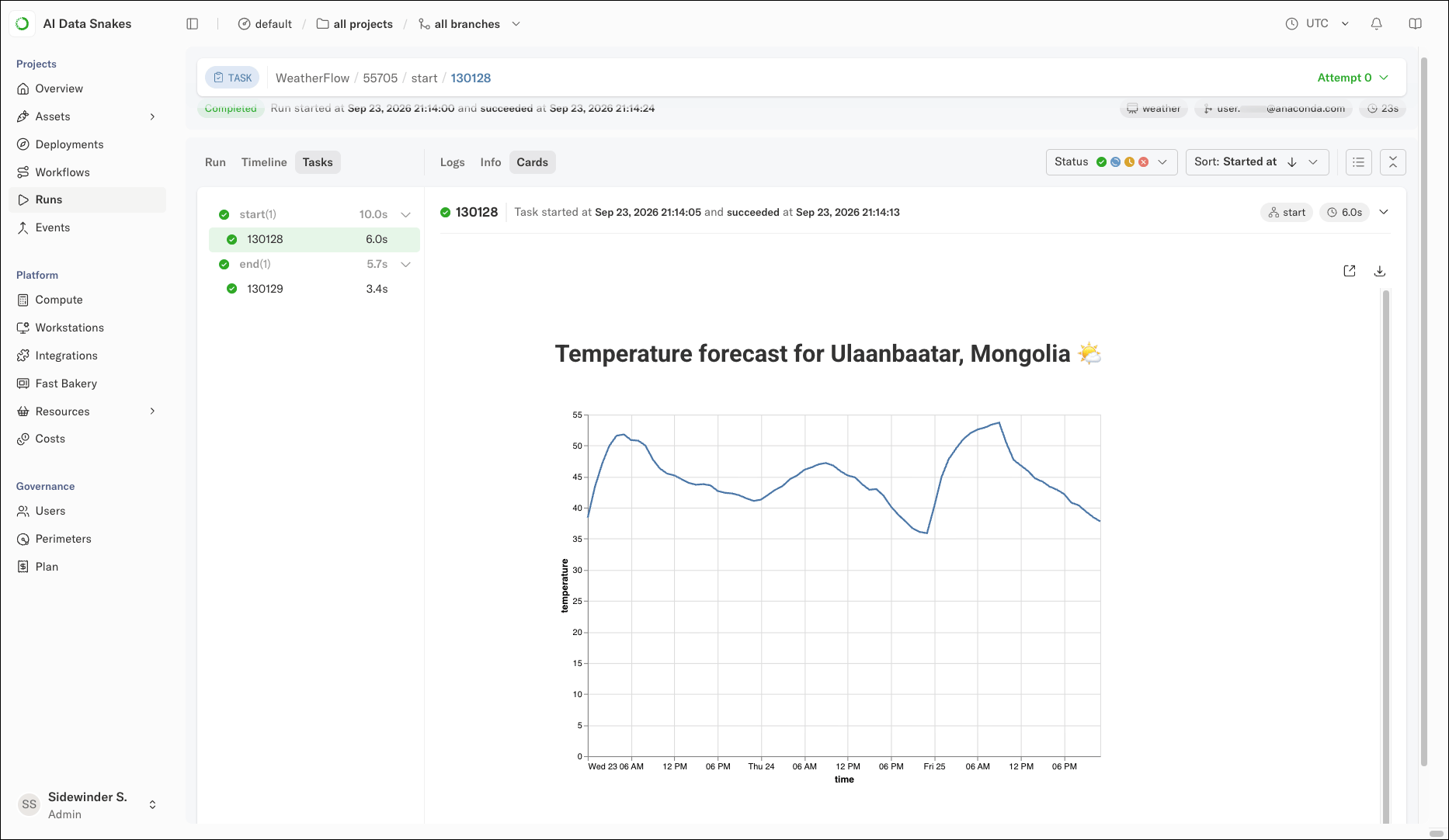
Before deploying, test the flow locally:forecast and displayed as a card:
Deploying to production
To deploy the flow to production, run:@project decorator prefixes the deployment with your username, so the deployment appears as weather.user.<YOUR_EMAIL>.weatherflow. This allows multiple developers to create their own isolated deployments.
To promote a deployment to be the singular production version, add the --production flag:
--branch option.
Triggering a production run
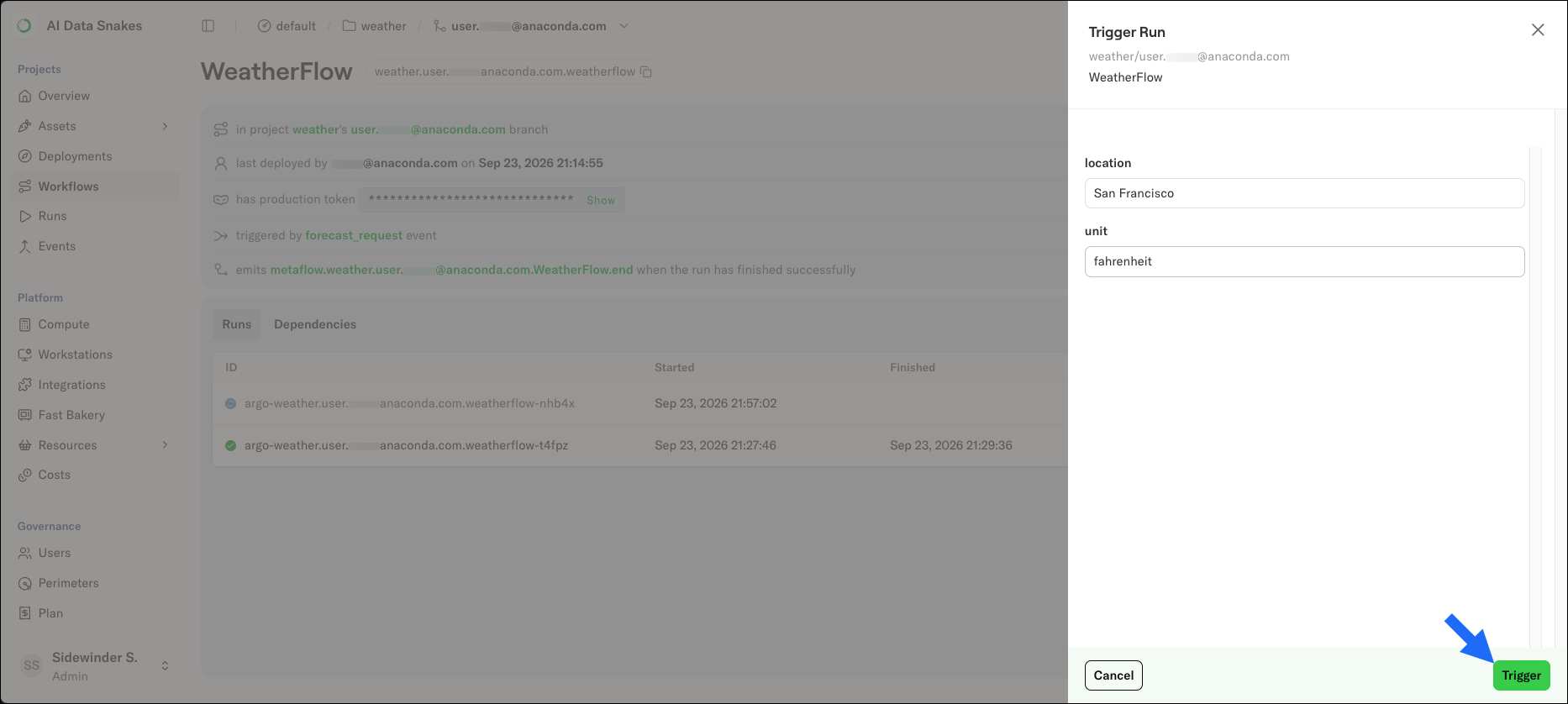
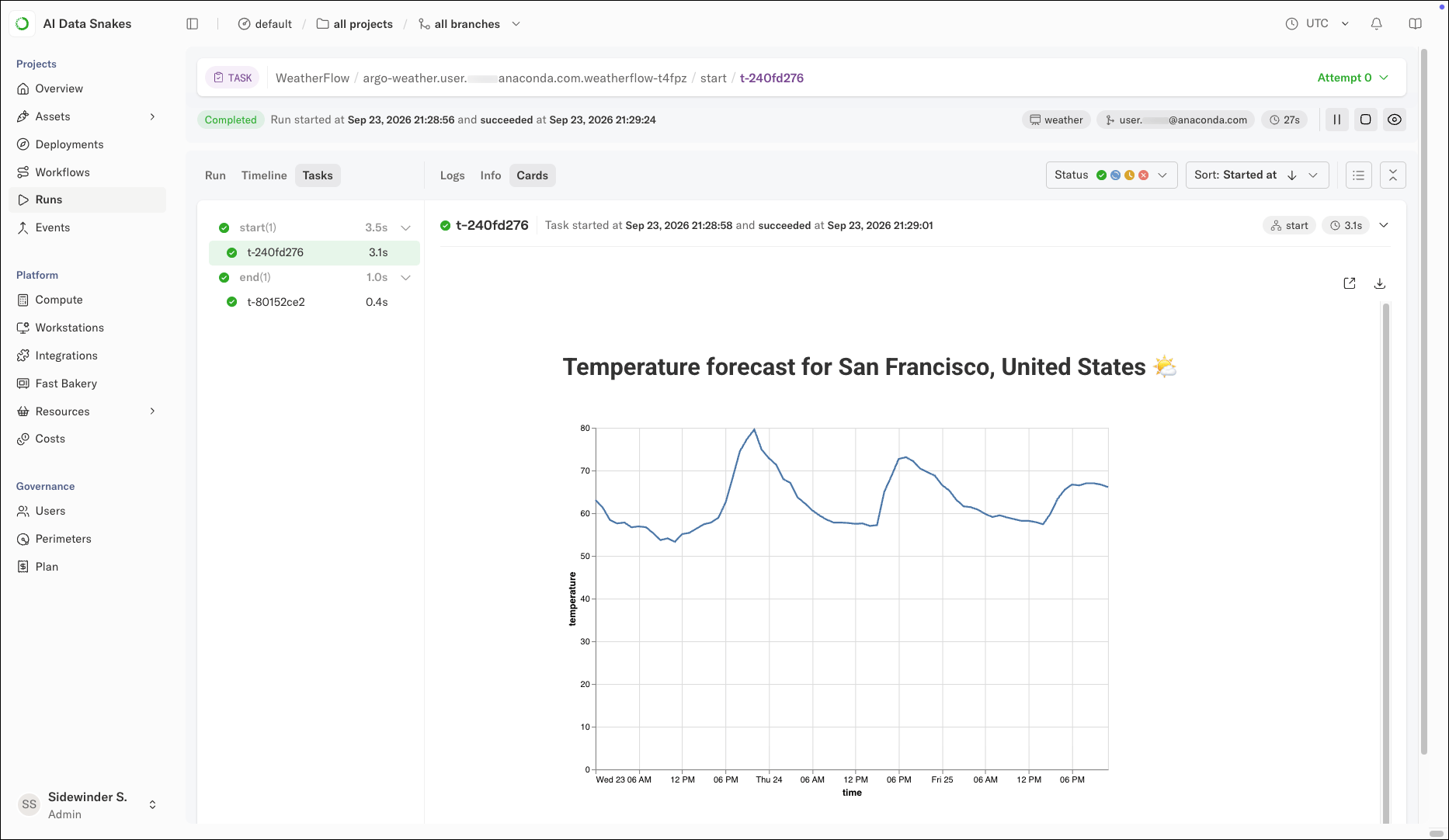
To trigger a production run from the command line:You can pass any parameters to the
trigger command. A key difference between run and trigger is that trigger starts a production run that is independent of your local machine. Even if you shut down your computer, the run continues on the platform.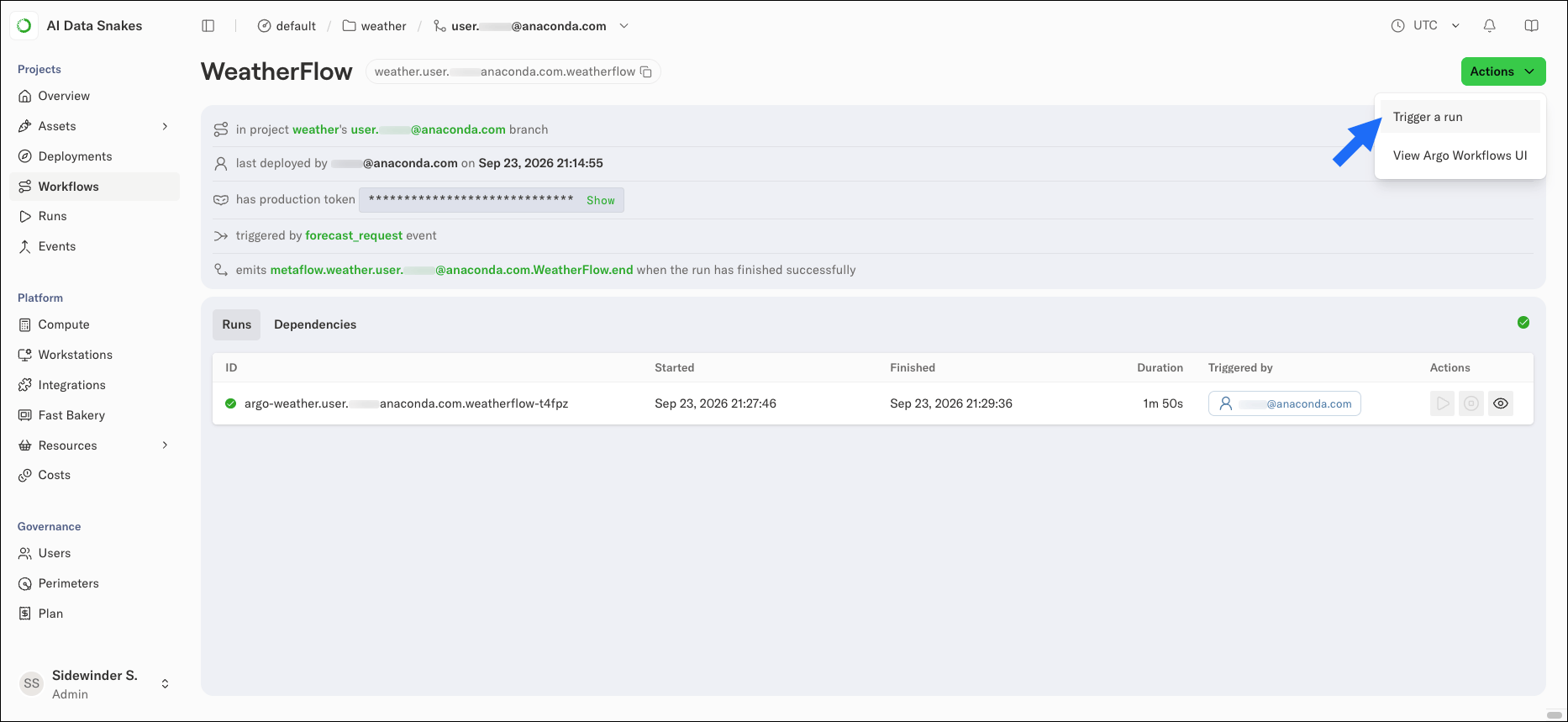
Deploying with stable production environments
An important reason for taking care of dependency management, as we covered in defining the environment, is to ensure stable and reproducible production environments. You can use the@conda/@pypi approach or custom images to define production environments. For instance, you could deploy our earlier example, TorchTestFlow, to production as follows (the environment variable MYIMAGE is defined for readability):
--with option comes before the argo-workflows command.
GitOps and continuous delivery
For production deployments at scale, users typically do not callargo-workflows create directly. Instead, deployment happens through a CI/CD pipeline, such as GitHub Actions.
Anaconda Platform gives you tools to separate staging and production environments securely, test flows before deployment automatically, deploy A/B experiments, and set up end-to-end continuous delivery workflows. Read more here.
Also, occasionally things fail in production. Thanks to artifacts and consistent environments, you can reproduce production issues locally and deploy fixes back to production quickly.
What’s next
You are now ready to develop, scale, and deploy flows on Anaconda Platform:- Develop code in your existing environment or on a cloud workstation.
- Scale to the cloud using your preferred libraries and hardware.
- Deploy flows to run automatically in production.