Connecting with VS Code
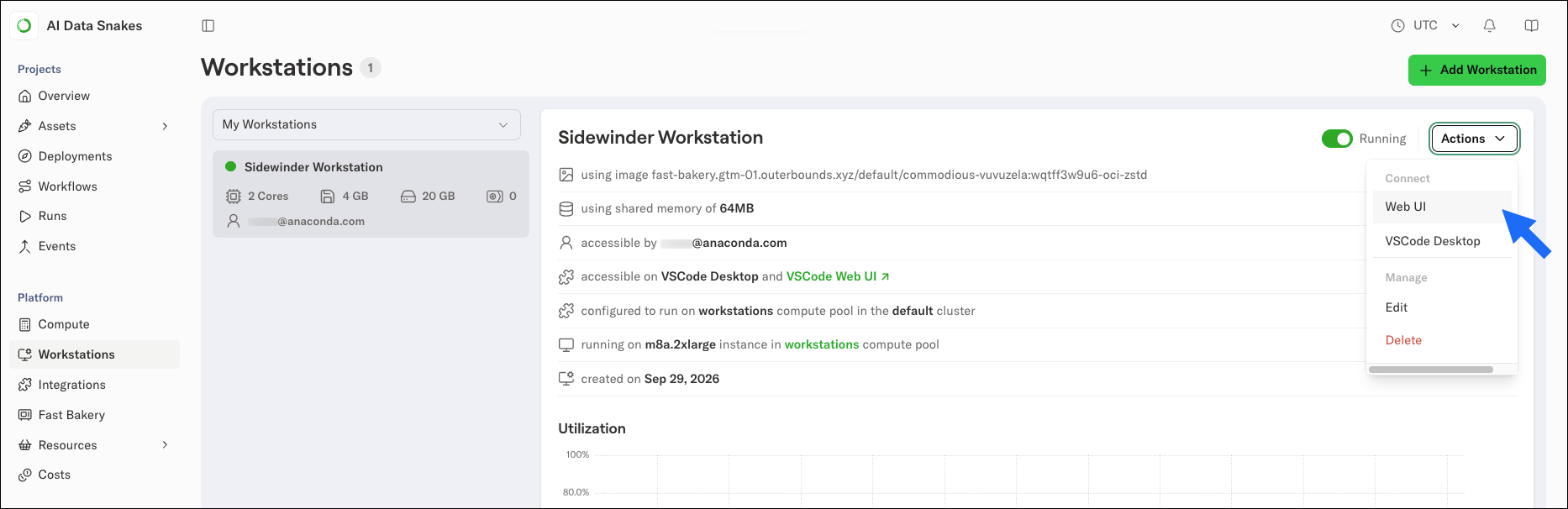
Workstations integrate with Visual Studio Code through an extension. If you do not have VS Code installed, download it. On the Workstations page, select your workstation, open the Actions menu, and select VS Code Desktop: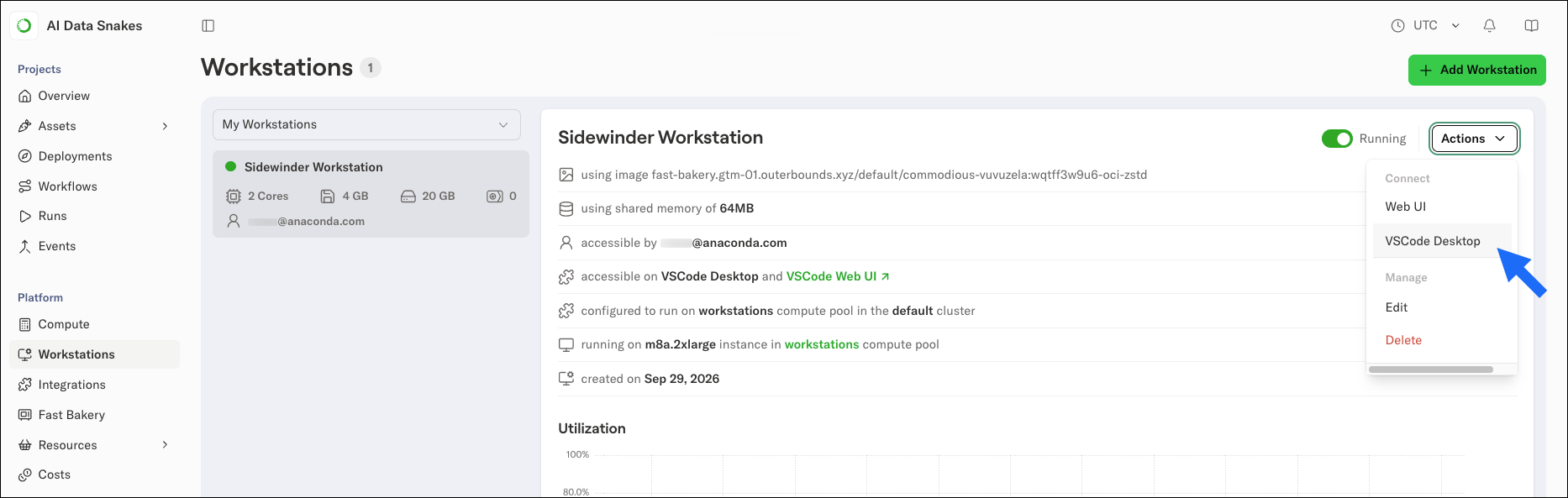
-
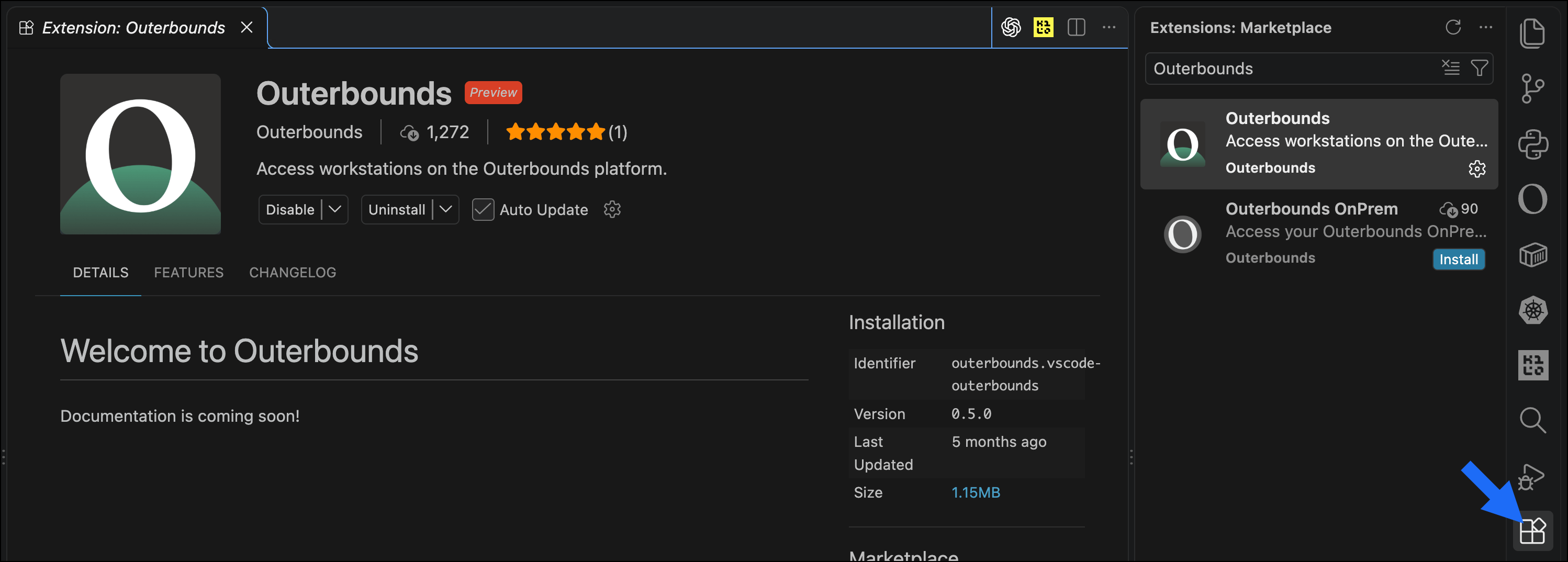
In VS Code, open the Extensions view, search for the Outerbounds extension, and install it. You can also find it in the VS Code Marketplace.
-
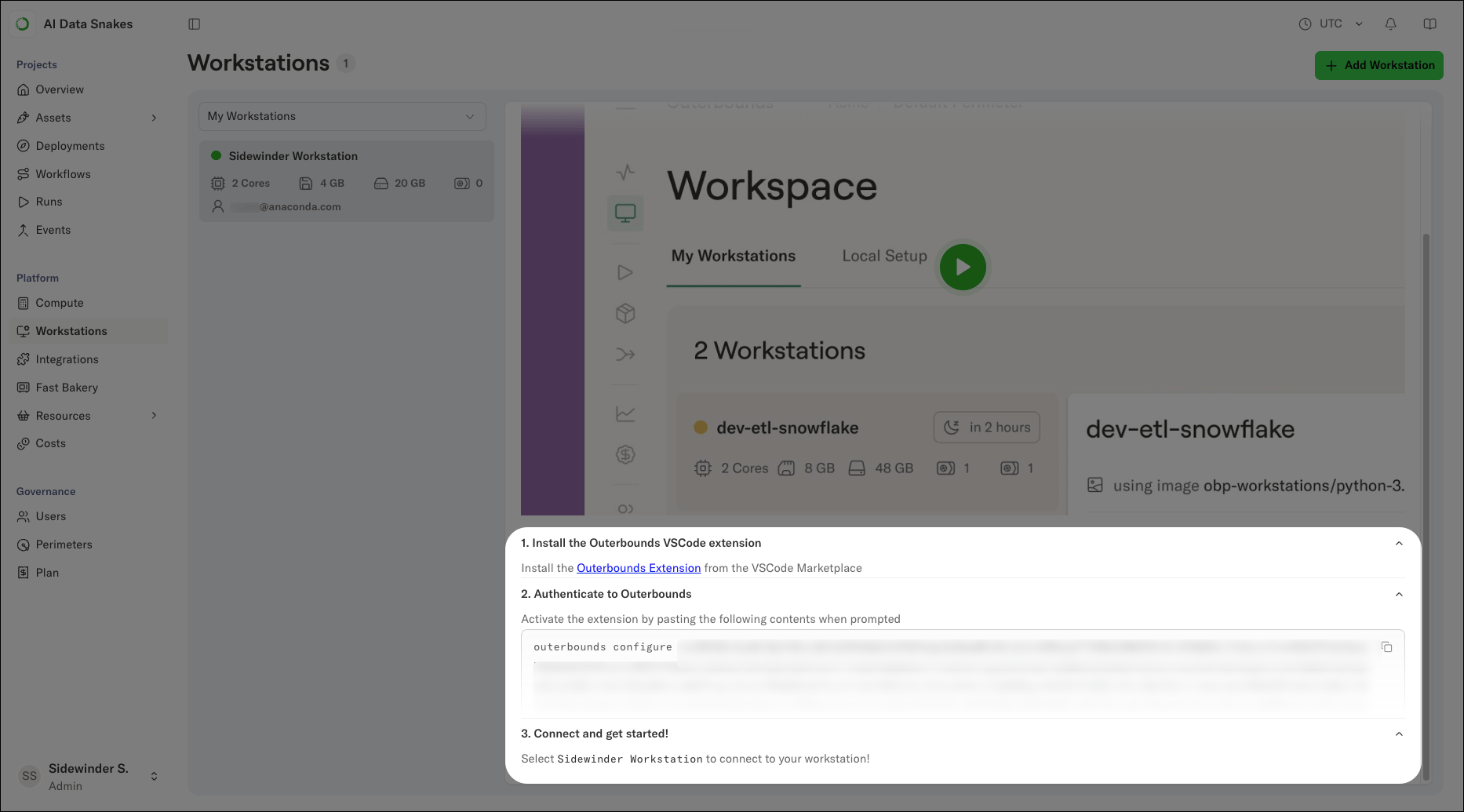
Copy your personal authentication token from the platform, and paste it into the extension’s authentication prompt.
- Open the extension from the activity bar. Your available workstations appear in the list; refresh the list if they do not show up right away.
-
Choose a workstation and click Connect.
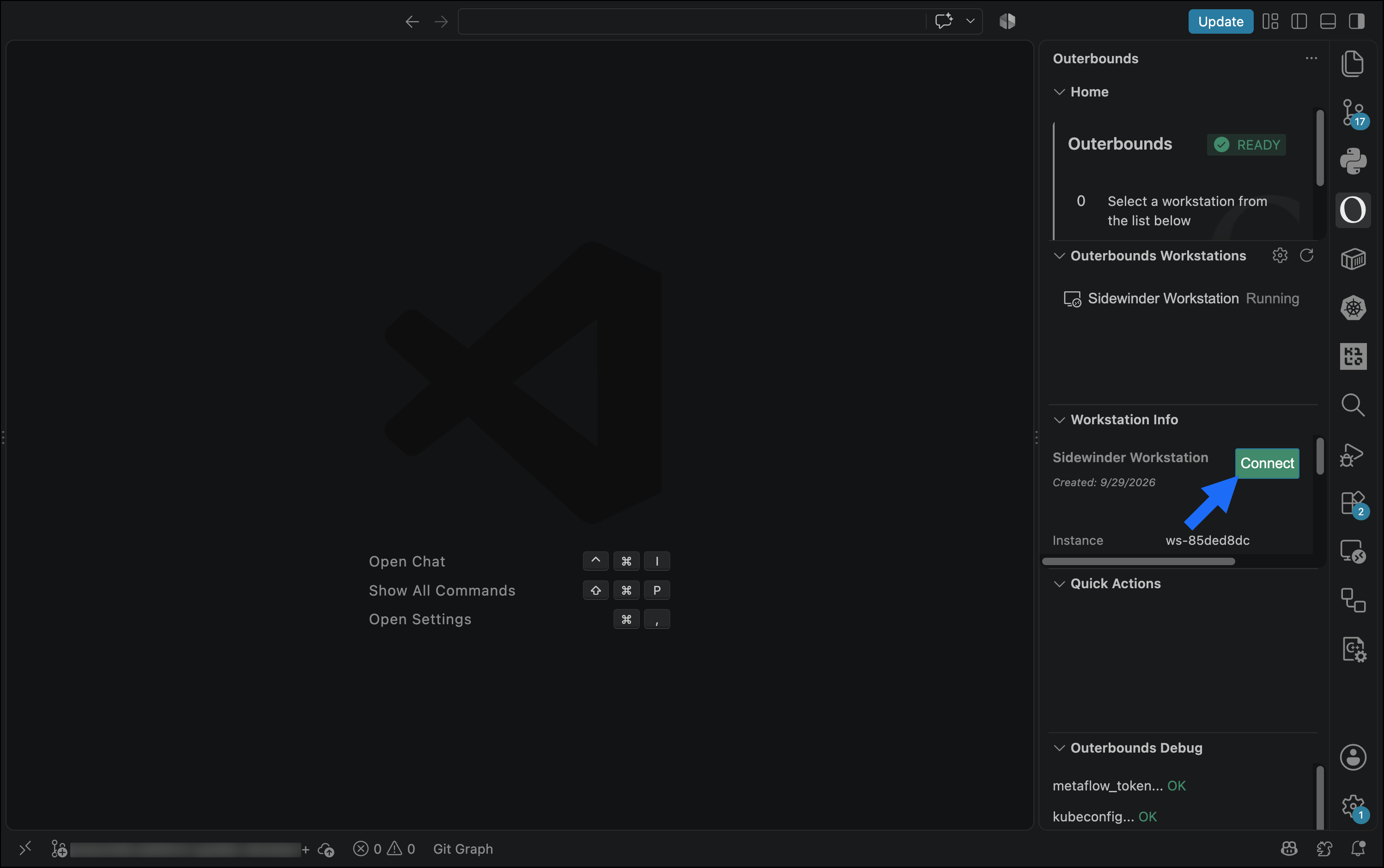
- A new window opens and connects to your workstation. The first connection can take a minute while the workstation starts.
The workstation window is connected to your cloud instance, independent of your laptop. Check the lower-left corner of the VS Code window, which displays a message like
workstation in ws-834abbc, to confirm the connection.Using a workstation in the browser
On the Workstations page, select your running workstation, open the Actions menu, and select Web UI. The web UI is the same VS Code interface, running in your browser, connected to the same workstation backend, so you can work without installing anything.