

A tool server is an MCP server that exposes Python tools. Unlike an agent, a tool server has no model, system prompt, or conversation history. Use tool servers to share a set of tools across multiple agents or to make them available to external MCP-compatible applications.Documentation Index
Fetch the complete documentation index at: https://anaconda.com/docs/llms.txt
Use this file to discover all available pages before exploring further.
Creating a tool server
- Select Tool Servers from the left-hand navigation.
- Click Create.
- Enter a name for your tool server, then click Create. The tool server’s editor page opens.
- (Optional) Enter a description for your tool server.
- Click Add Python Tools to open the tools editor.
- Add tool modules using the same process described in Python tools.
- Click Start to begin serving.
Deleting a tool server
- Select Tool Servers from the left-hand navigation.
- Click on the tool server’s card.
- Select Delete to remove it.
Connecting to a tool server
A running tool server can be connected to agents inside Agent Studio or to external MCP-compatible applications. To view connection details, click Connect on the tool server’s editor page.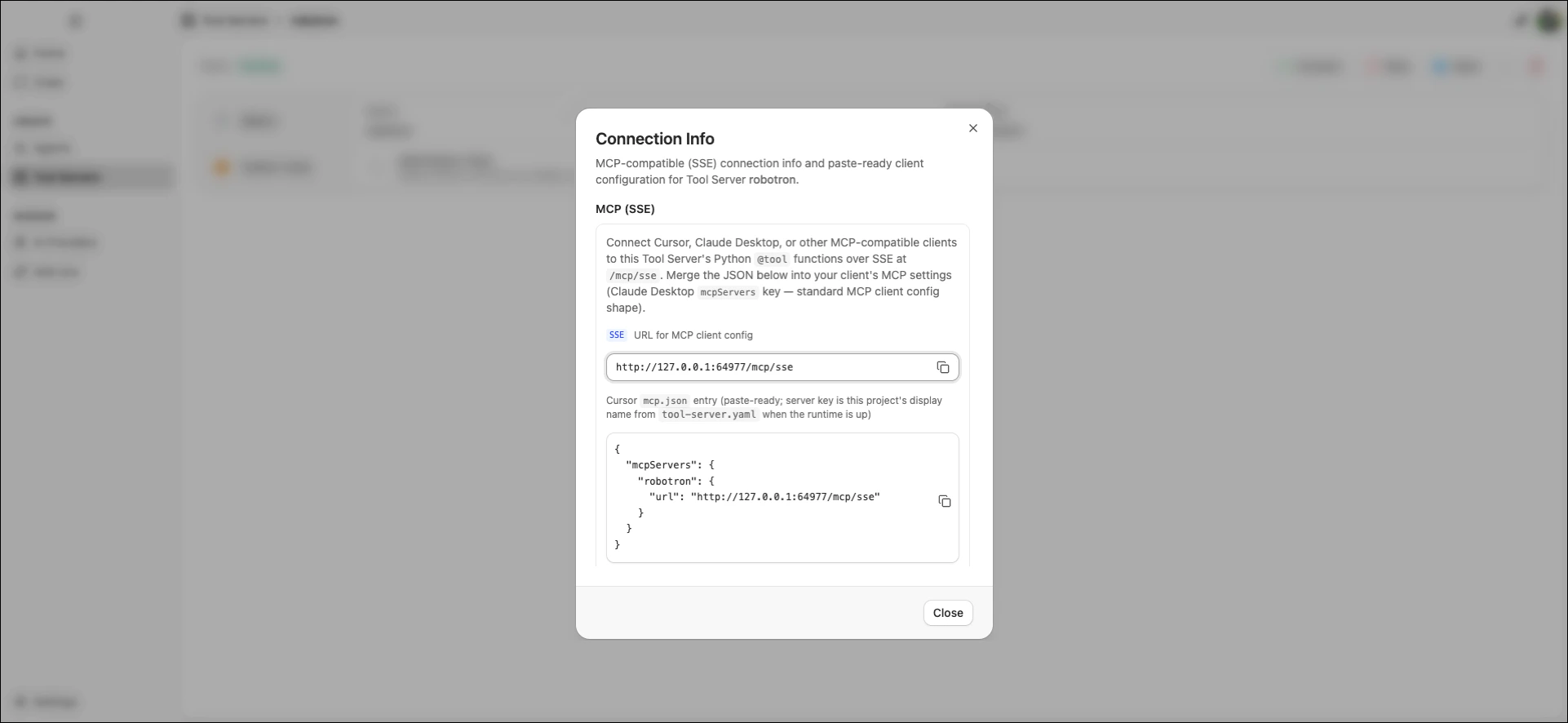
mcp.json snippet for configuring your connection.
- Connect to an Agent Studio agent
- Connect to an external application
Connect a tool server to an agent by registering it as an MCP server in the global catalog.
- Copy the SSE URL from the Connection Info dialog.
- Register the tool server as an MCP server using the SSE URL.
- Enable the MCP server for your agent.