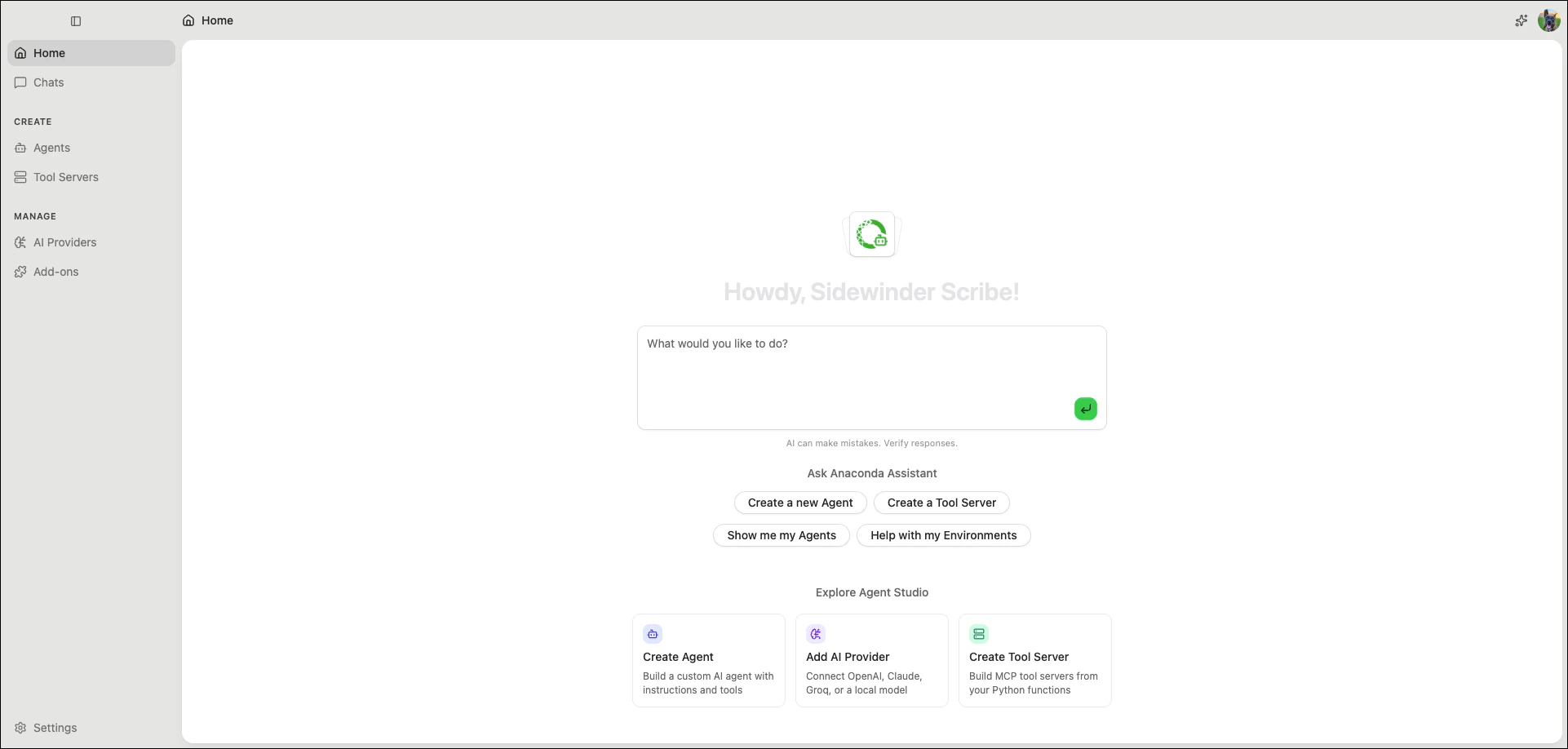
The Anaconda Assistant is a built-in AI agent that helps you manage conda environments, create and configure AI agents, and build MCP tool servers through conversation. Describe what you need, and the assistant handles the configuration for you.
Actions that manage conda environments require Anaconda Desktop to be running.
Start a conversation with the assistant from the Home page using the chat input.You can also open the Anaconda Assistant from anywhere in Agent Studio by clicking in the upper-right corner. This opens the assistant in a side panel that stays available as you navigate between pages. The assistant is aware of the page you are currently viewing and can offer contextual help.
Click Help with my Environments or describe what you need to the assistant in the text box. The assistant can create environments with specific packages and versions, or you can describe your project and let it determine the right configuration.Before installing or removing packages, the assistant previews the changes and asks for confirmation.The assistant can:
Create, clone, rename, and remove conda environments
Search for packages across conda channels, and install, update, or remove them
Add, remove, reorder, and validate conda channels
Create environments from Quick Start templates
Export environments as YAML for sharing
Example prompts:
“Create an environment called ml-project with Python 3.11, scikit-learn, and pandas”
“What packages are installed in my data-analysis environment?”
“Update numpy to the latest version in my ml-project environment”
Click Create a new Agent or Show me my Agents, or describe what you need to the assistant in the text box. Detailed requests that describe your agent’s purpose and intended behavior can result in the assistant creating a fully configured agent, including its system prompt, AI provider, and tools. If your use case calls for it, the assistant can create multiple agents configured to work together.Before writing custom Python tools, the assistant checks whether an existing MCP server already provides the functionality you need.The assistant can:
Create agents and configure their system prompt, model, temperature, and response format
Write custom Python tools using the @tool decorator
Browse the plugin marketplace, install plugins, and attach them to agents
Connect MCP servers to agents
Start, stop, and check the status of agent runtimes
Invoke other agents by name
Example prompts:
“Create a code review agent that checks Python files for security issues and suggests fixes”
“Add the Atlassian plugin to my project-manager agent”
“Write a tool for my agent that queries our PostgreSQL database and returns results as a table”
The assistant can scaffold MCP tool server projects that expose Python tools to any MCP-compatible client. Tool servers let you share a set of tools across multiple agents or make them available to external applications like Claude Desktop or Cursor.The assistant can:
Create new tool server projects
Write Python @tool functions for the server
Sync tool files with the server configuration
Connect a tool server to any agent as an MCP server
Example prompts:
“Create a tool server called weather-tools with a function that fetches the current forecast for a given city”
“Add a tool to my data-tools server that converts CSV files to JSON”
“Connect my weather-tools server to my travel-planner agent”
For more information about tool servers, see Tool servers.