

Viewing available skills
To view your available skills:- Select Add-ons from the left-hand navigation, then click Skills.
- Select a skill to expand it and view its description.
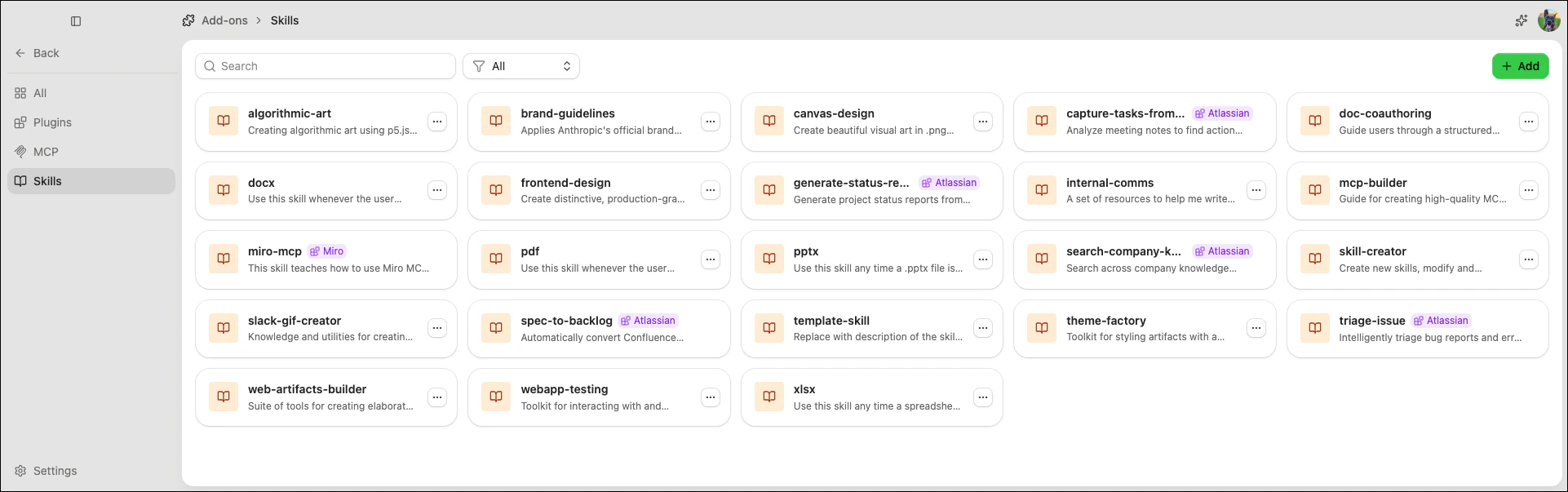
Adding a skill from GitHub
To add a skill from a public GitHub repository:- Select Add-ons from the left-hand navigation, then click Skills.
- Click Add.
- Enter the GitHub repository Owner and Repository name.
- (Optional) Enter a Skill name to add a specific skill from the repository. Leave this field blank to add all skills in the repository.
-
Click Add to Catalog.

Deleting skills
- Select Add-ons from the left-hand navigation, then click Skills.
- Click on the skill’s row.
- Select Delete to remove it from the catalog.
Deleting a skill removes it from the catalog. Agents that have the skill enabled are not affected until they are next updated.
Skills registered by plugins cannot be deleted from this page. Manage them through the plugin’s own configuration.
Skills registered by plugins cannot be deleted from this page. Manage them through the plugin’s own configuration.
Scanning skills for security threats
Agent Studio can scan skills for security vulnerabilities using static analysis and optional AI-assisted reasoning. Scans identify potential threats such as dangerous code execution patterns, suspicious behavior, and injection risks. To scan a skill:- Select Add-ons from the left-hand navigation, then click Skills.
- Select the skill you want to scan.
- Click Security.
- (Optional) Enable Deep scan with AI for an additional semantic pass that sends the skill’s content to your configured AI provider.
- Click Start scan.
Severity levels
The scan summary displays the highest severity found across all findings:Deep scan with AI
By default, scans use offline analyzers (static analysis, bytecode inspection, and behavioral analysis). Enabling Deep scan with AI adds a semantic pass that uses your configured AI provider to reason about the skill’s intent.Deep scan with AI requires a configured AI provider with a valid API key. If no compatible provider is available, the toggle is disabled.