

JupyterLab is a web-based interactive development environment for designing and configuring workflows for data science, scientific computing, and machine learning. You can write your code, visualize the data as charts and tables, and document your findings in plain text, all in one file. This step-by-step guide will take you from having nothing installed to launching your first JupyterLab session in just a few minutes. We’ll install Anaconda Distribution—which contains JupyterLab and Anaconda Navigator—launch Navigator, and use Navigator to launch your first JupyterLab session.
1

Install Anaconda Distribution

Download Anaconda Distribution. For detailed instructions on installing Anaconda Distribution, see Installing Anaconda Distribution.
2

Open Anaconda Navigator

Depending on your operating system, you can open Anaconda Navigator in the following ways:
From the Start menu, search for “Anaconda Navigator” and click to open.
If you already have Miniconda or some other conda distribution installed, you probably don’t have Anaconda Navigator installed. you can install the Navigator package separately into your base environment:
conda install --name base anaconda-navigator
Keeping the anaconda-navigator package in your base environment makes sure that Navigator is always available to you, whether you have your base environment activated or not.
3

Launch JupyterLab

JupyterLab is included with your Anaconda Distribution install by default.
If you want a more minimal notebook interface for your work, launch Jupyter Notebook instead.
JupyterLab is an notebook editing interface with file browsing capabilities, like an IDE. It is highly extensible and allows you to work with multiple notebooks, terminals, and other documents in tabs and panes that can be dragged and dropped into different, flexible configurations. It is ideal for larger, more complex projects.Jupyter Notebook is a simple, single document interface. It is lighter weight and faster to load than JupyterLab and allows you to focus on one notebook at a time without all the extra noise of a complex interface. It is ideal for basic notebook work and learning.
The JupyterLab tile appears on Navigator’s Home page by default, but you’ll need to install the package before you can launch it. If you’re working in a project environment (other than base), you’ll need to install JupyterLab in that specific environment:
  1. On your Navigator Home page, open the dropdown beside the Channels button. This dropdown contains all of your conda environments.
  2. Select the environment you would like to use for JupyterLab.
    You can also create a new environment on the Environments page, then return to the Home page.
  3. Select Install on the JupyterLab tile.
Select Launch on the JupyterLab tile to launch JupyterLab.
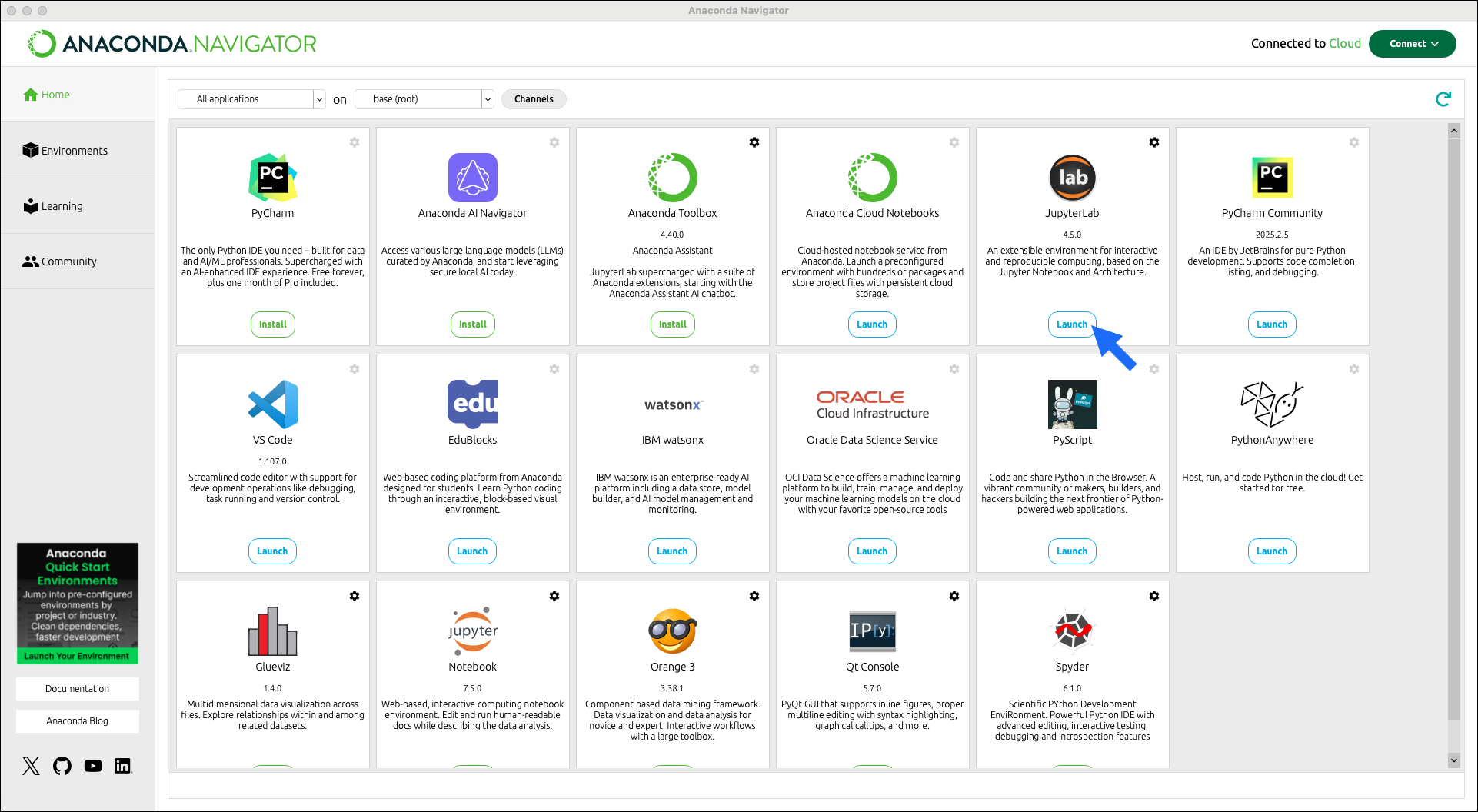
A view of the Anaconda Navigator homepage with an arrow pointing at the Launch button for the JupyterLab tile
JupyterLab opens in a new tab in your default browser.

Learn more

Learn how to use JupyterLab or Jupyter Notebook in the official JupyterLab documentation.
Do even more with JupyterLab using Anaconda Notebooks! Register or sign in with Anaconda to access:
  • Anaconda Assistant, an AI-powered chat app that can help you quickly get up and running with your code.
  • Cloud storage, up to 5GB. You can upload any of your local notebooks to Anaconda Notebook’s cloud interface or add your local notebooks to Anaconda Projects and work both locally and in the cloud.
  • Code snippets, which enable you to save and share reusable blocks of code.
  • Notebook deployments as Panel applications, so you can share your work interactively with colleagues.
Your free Anaconda account provides you with limited access to some of these features. For information on what a subscription upgrade would give you, see our pricing page.