

What's the difference between JupyterLab and Jupyter Notebook?
What's the difference between JupyterLab and Jupyter Notebook?
JupyterLab is a notebook editing interface with file browsing capabilities, like an IDE. It is highly extensible and allows you to work with multiple notebooks, terminals, and other documents in tabs and panes that can be dragged and dropped into different, flexible configurations. It is ideal for larger, more complex projects.Jupyter Notebook is a simple, single-document interface. It is lighter weight and faster to load than JupyterLab and allows you to focus on one notebook at a time without all the extra noise of a complex interface. It is ideal for basic notebook work and learning. In Desktop, access Jupyter Notebook from the Application Catalog.Learn how to use JupyterLab or Jupyter Notebook in the official JupyterLab documentation.
Opening JupyterLab
Make sure you have Anaconda Desktop installed. From the Dashboard in Anaconda Desktop, select the JupyterLab tile. If the JupyterLab tile isn’t on your Dashboard, click View All to open the Application Catalog and install it. Once installed, the tile will appear on your Dashboard.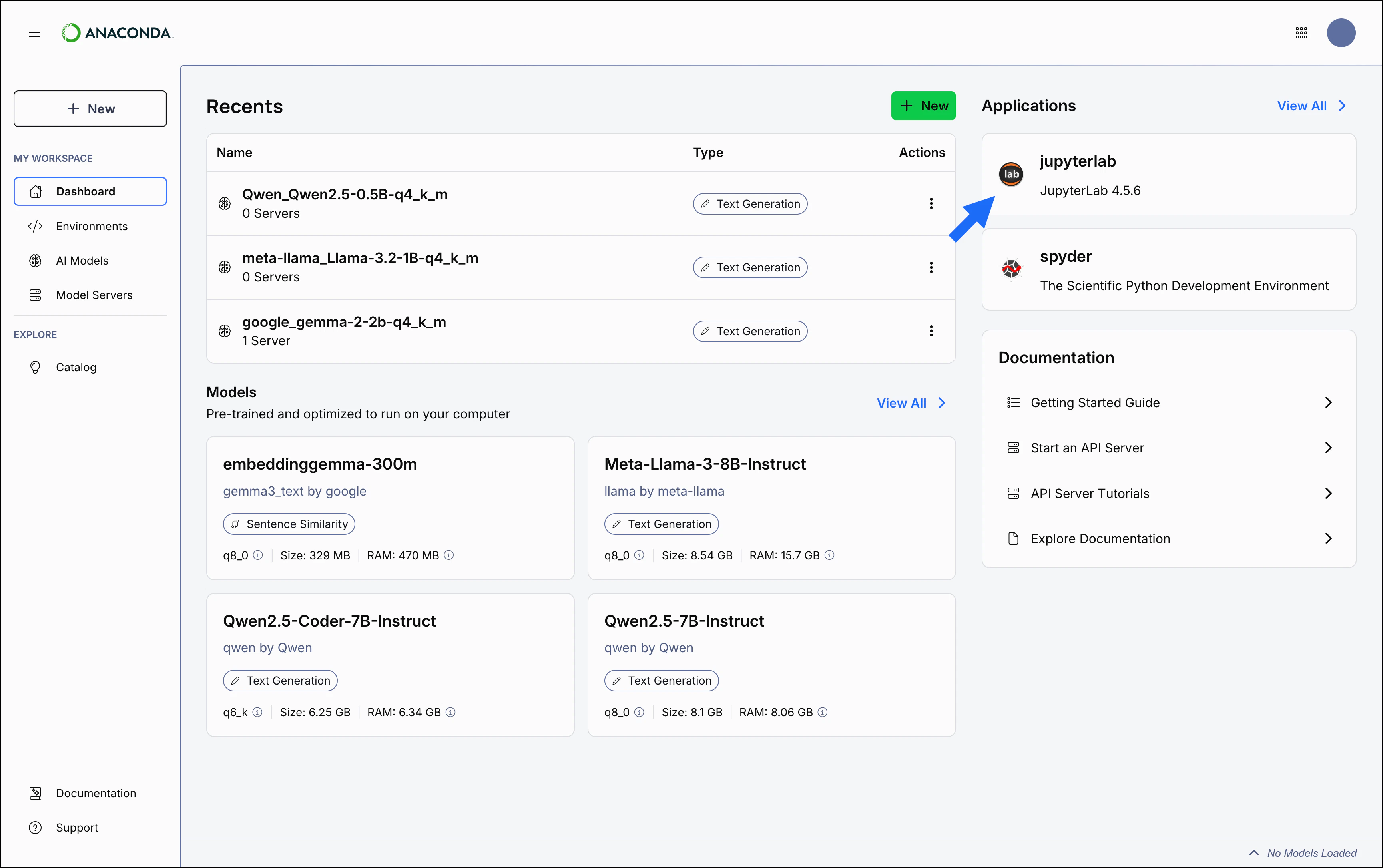
You can also launch JupyterLab from the Applications tab in the Catalog. For more information about JupyterLab and other available applications, see Application Catalog.
Explore more with Anaconda Notebooks
Anaconda’s JupyterLab service, Anaconda Notebooks, provides you with:- Anaconda Assistant, an AI-powered chat app that can help you quickly get up and running with your code.
- Cloud storage, up to 5GB. You can upload any of your local notebooks to Anaconda Notebook’s cloud interface or add your local notebooks to Anaconda Projects and work both locally and in the cloud.
- Code snippets, which enable you to save and share reusable blocks of code.
- Notebook deployments as Panel applications, so you can share your work interactively with colleagues.