

Accessing your profile
To view your profile at any time:- Sign in to Anaconda.com.
-
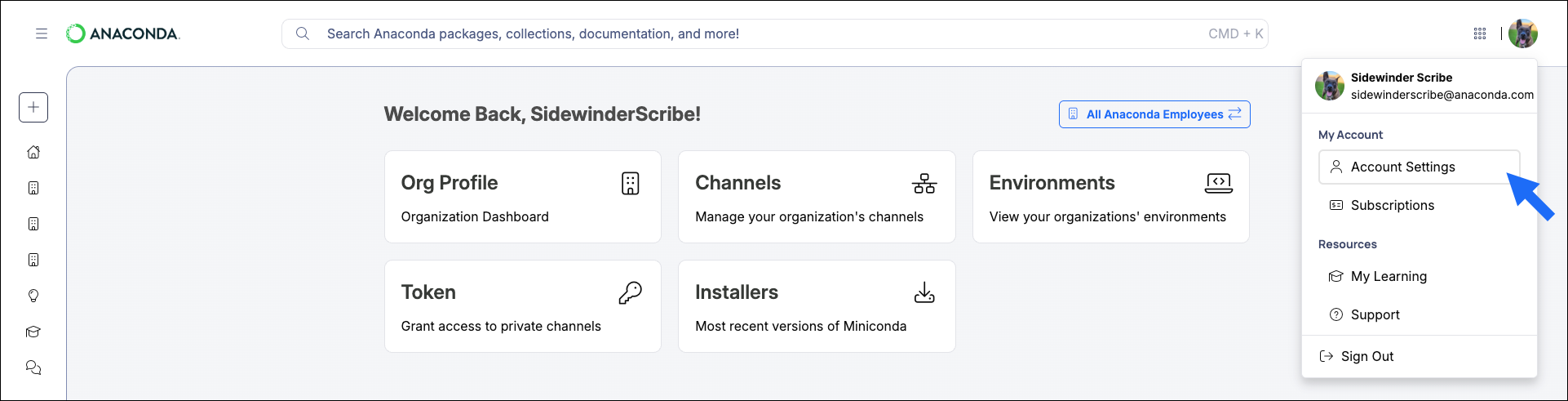
Open the user dropdown menu and select Account Settings.
Changing your account email address
Users that log in with Single Sign-On (SSO) are not able to change their email address.
- Sign in to Anaconda.com.
- Open the user dropdown menu and select Account Settings.
- In the Email section, enter your new email and current password.
- Click Change Email.
Updating your account password
Enterprise customers that log in with their company’s Single Sign-On (SSO) provider are not able to update their password.
- Email/Password
- Single Sign-On (SSO)
- Sign in to Anaconda.com.
- Open the user dropdown menu and select Account Settings.
- In the Password section, enter your current password, new password, and new password confirmation.
- Click Change Password.
Updating your personal/company information
To update your personal and/or company information:- Sign in to Anaconda.com.
- Open the user dropdown menu and select Account Settings.
- In the Profile section, update your information.
- Click Update Profile.
Adding a profile picture
You can use Gravatar to upload a profile picture for your account. Creating a Gravatar account is free. This profile picture will be linked to your email. To set your profile picture:- Log in to Gravatar and select Avatars from the left-hand navigation.
- Select either Upload or Camera to provide an image for your profile.
- Size and crop your image as needed.
- Click Done.
- Click your new avatar to add it to your account.
You might need to refresh your Anaconda.com browser tab for your changes to take effect.
Managing marketing email preferences
To manage the emails you receive from Anaconda about updates, new resources, product updates, and special events within our community:- Sign in to Anaconda.com.
- Open the user dropdown menu and select Account Settings.
- Click Privacy & Security.
- Click Manage Email Preferences.
- Enter your name and email information in the fields provided.
- Select the checkbox for the mailers you are interested in receiving.
-
Click Update My Preferences.
If you do not want to receive marketing emails from Anaconda, select the Unsubscribe from all marketing emails option.
Accessing your personal data
You can request access to your personal data at any time. To do this:- Go to the Anaconda Privacy Center.
- In the dialog that appears, click Download all my data.
- Enter your email address and click Send Email.
- Use the link in the email you receive to log in to the Anaconda Privacy Center.
- Click Confirm Request to request a copy of your personal data.
Deleting your personal data
To permanently remove your personal data:- Go to the Anaconda Privacy Center.
- Click Delete All My Data.
- Enter your account’s associated email address and click Send Email.
- Use the link in the email you receive to log in to the Anaconda Privacy Center.
- Click Confirm Request to request that your personal data be deleted.
Deleting your account
The instructions to permanently delete your account are different depending on how you log in:- Email/Password
- Single Sign-On (SSO)
- Sign in to Anaconda.com.
- Open the user dropdown menu and select Account Settings.
- Click Privacy & Security.
- Click Delete Account.