

- Monitor packages installed in member environments
- View Common Vulnerabilities and Exposures () associated with those packages
- Identify which member environments are affected by a specific CVE
- Block environments from use and provide remediation guidance
Enabling environments
Environment logging is not enabled by default. You can enable Environments for your organization in Organization Settings. Once enabled, members are automatically prompted to install theanaconda-env-manager metapackage and register their machine with your organization the next time they run anaconda login. After setup, conda automatically logs any environment they create or update.
Plugins provided by the anaconda-env-manager metapackage
Plugins provided by the anaconda-env-manager metapackage
Viewing member environments
As an administrator, you have visibility into every environment logged with your organization, including the packages they contain and any CVEs associated with those packages. To view them, select Environments under Org Management.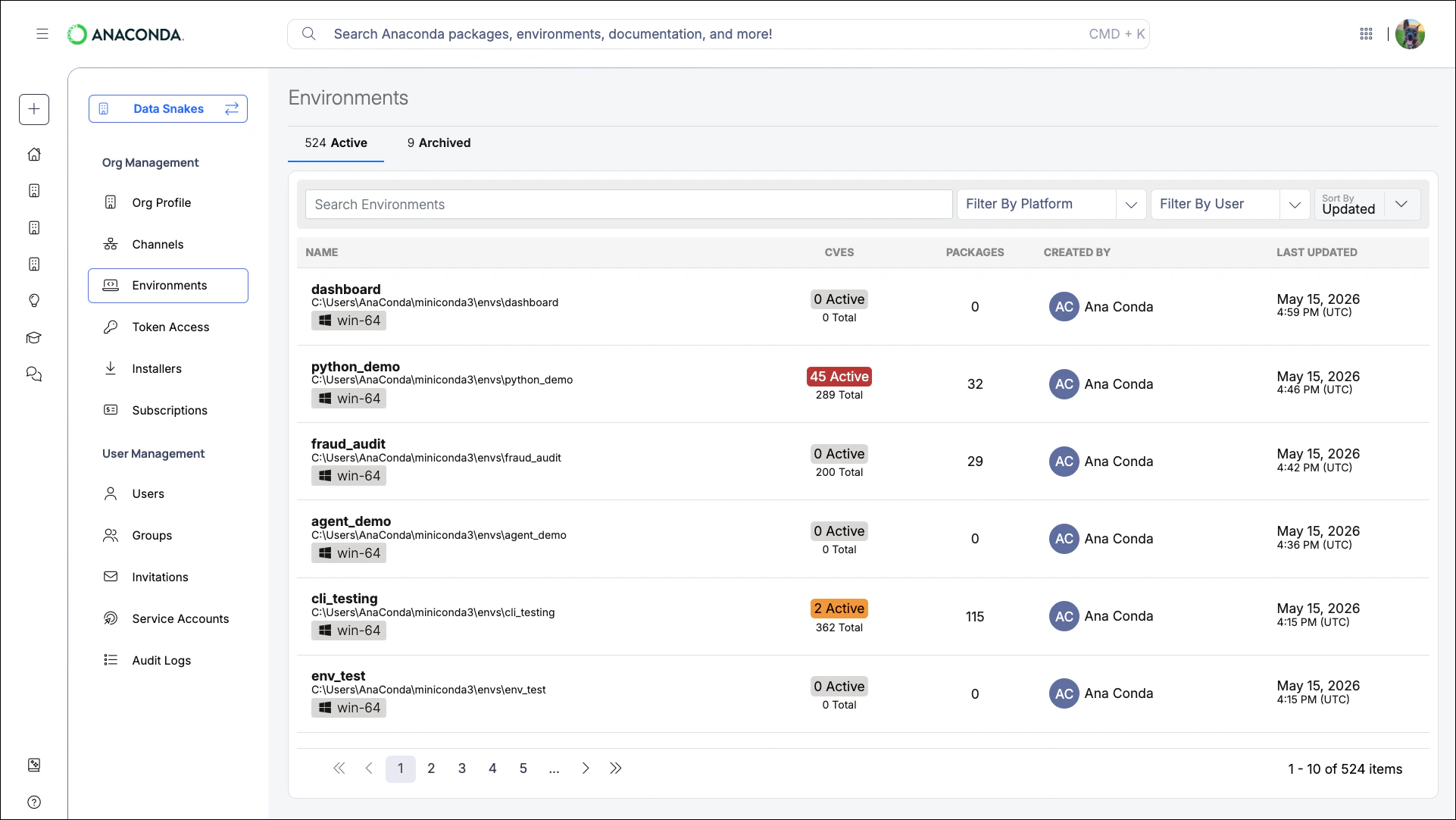
Searching and filtering
Search for environments by name or path using the search box at the top of the table. You can also filter by platform, user, or a combination of both.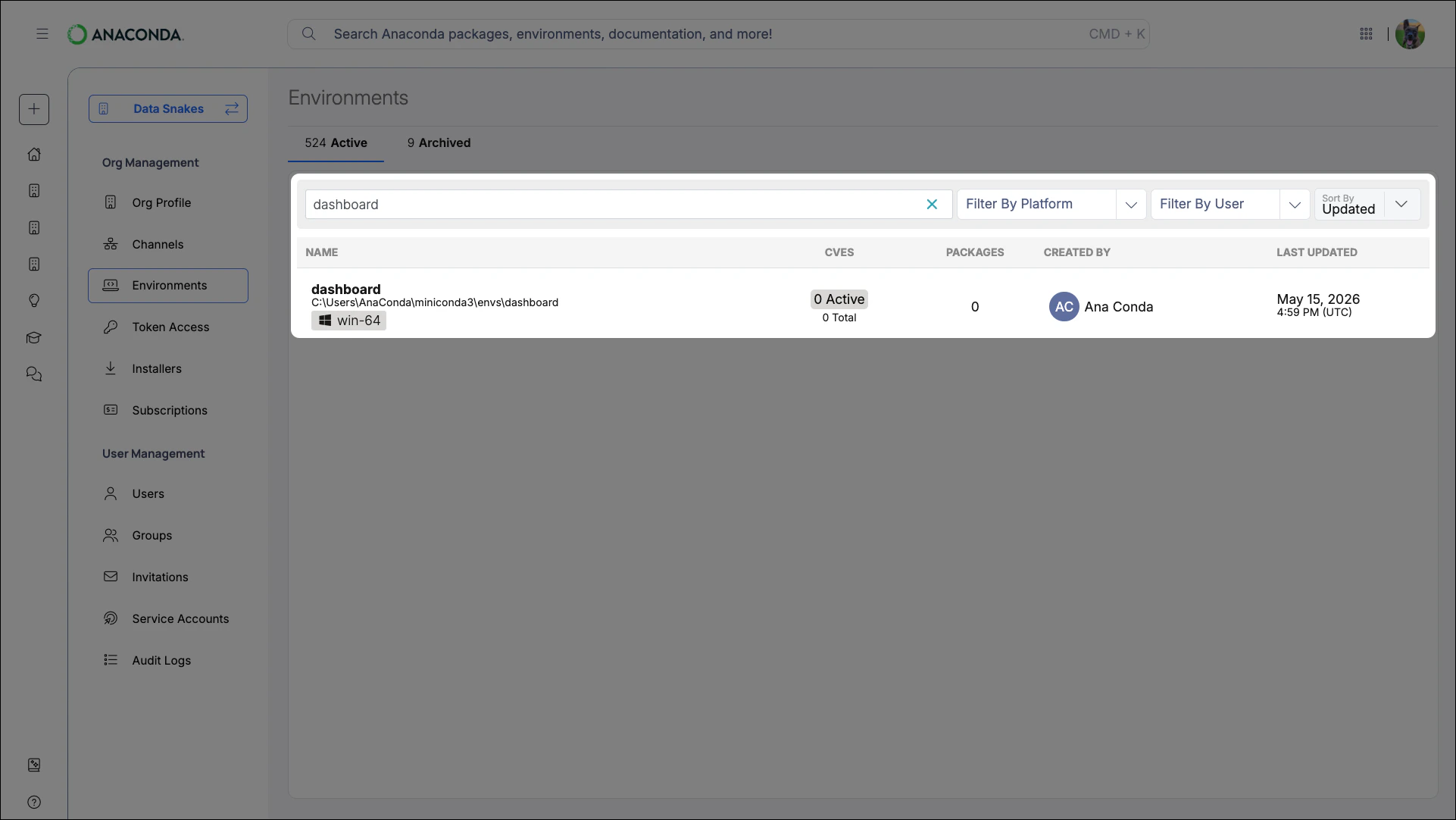
Scanning environments
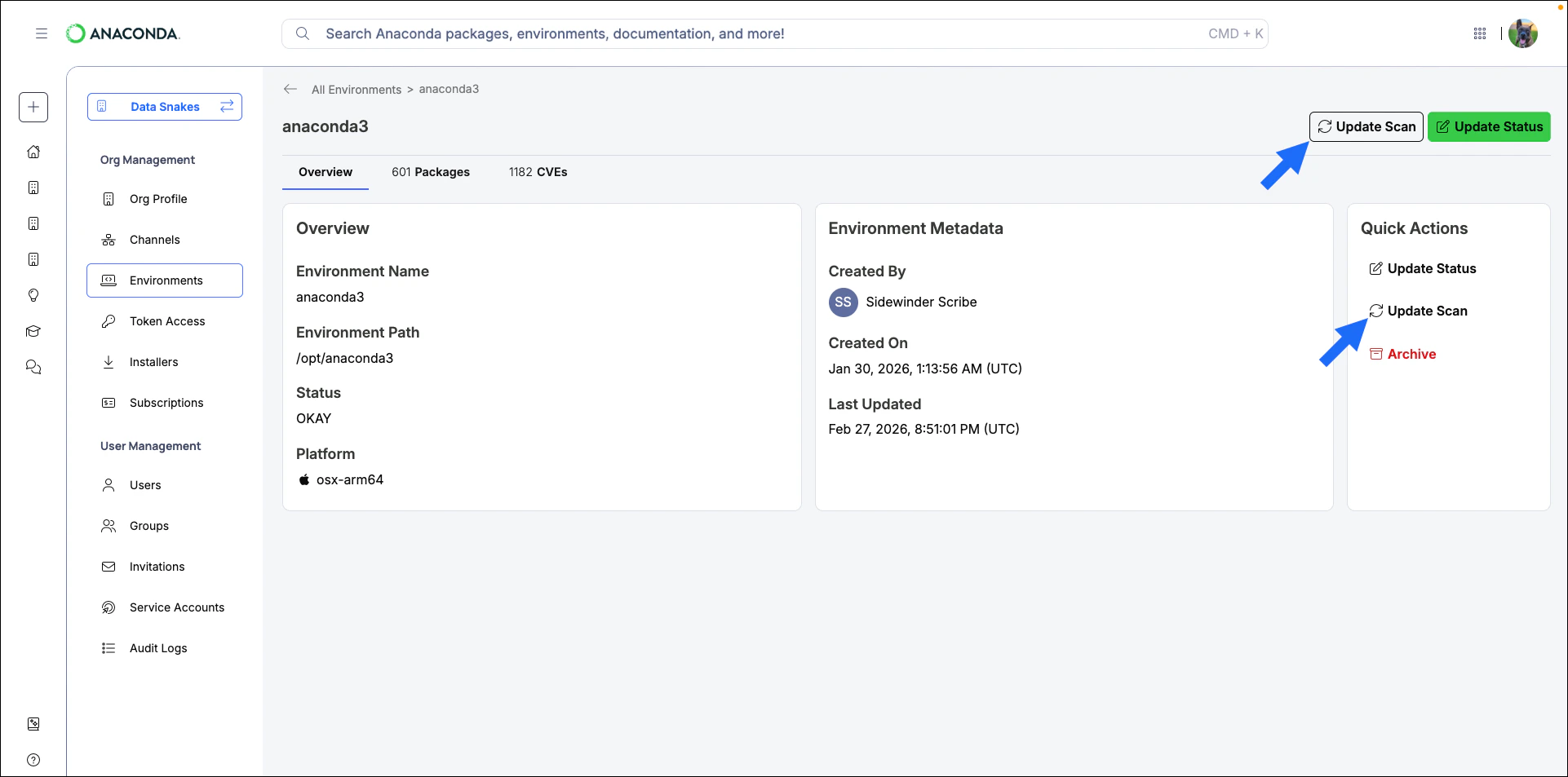
Scanning checks the most recently saved environment log for CVEs associated with its packages.Environments are automatically scanned when created but not when updated. Perform a scan before investigating an environment to ensure its data is current.
- Select the environment you want to scan.
-
Click Update Scan.
Investigating environments
Viewing packages
Click the package count in the PACKAGES column to see which packages are installed in an environment and what they were sourced from.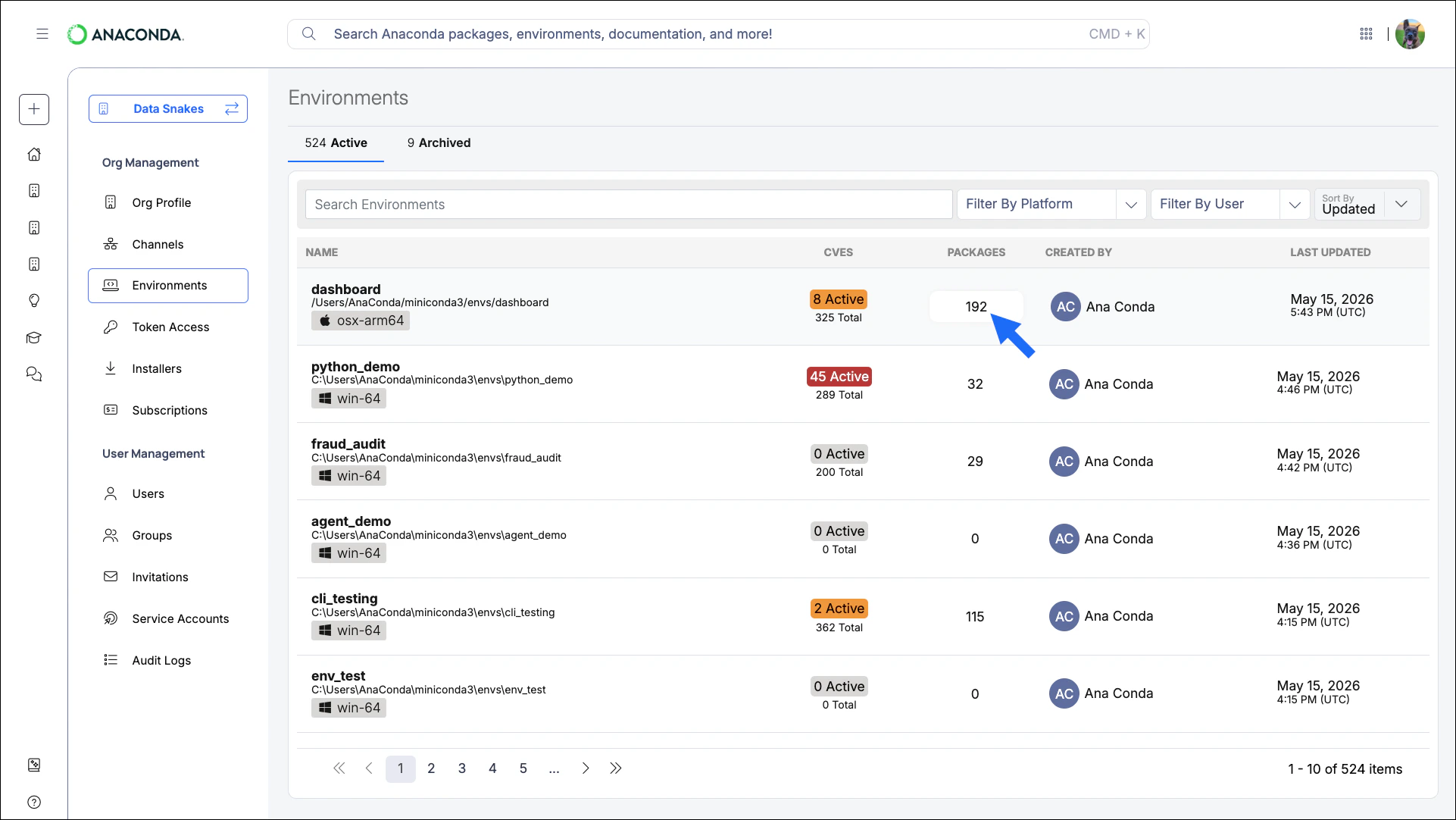
Use the navigation controls at the bottom to browse the environment’s packages.
Viewing CVEs
- Environment CVEs
- Package CVEs
Click the CVE count in the CVES column to view all CVEs associated with an environment. Each entry includes the CVE name, CVSS score, Anaconda curation date, a description, and its current status.Use the filters at the top of the page to locate critical CVEs. Select a CVE from the list to view its details.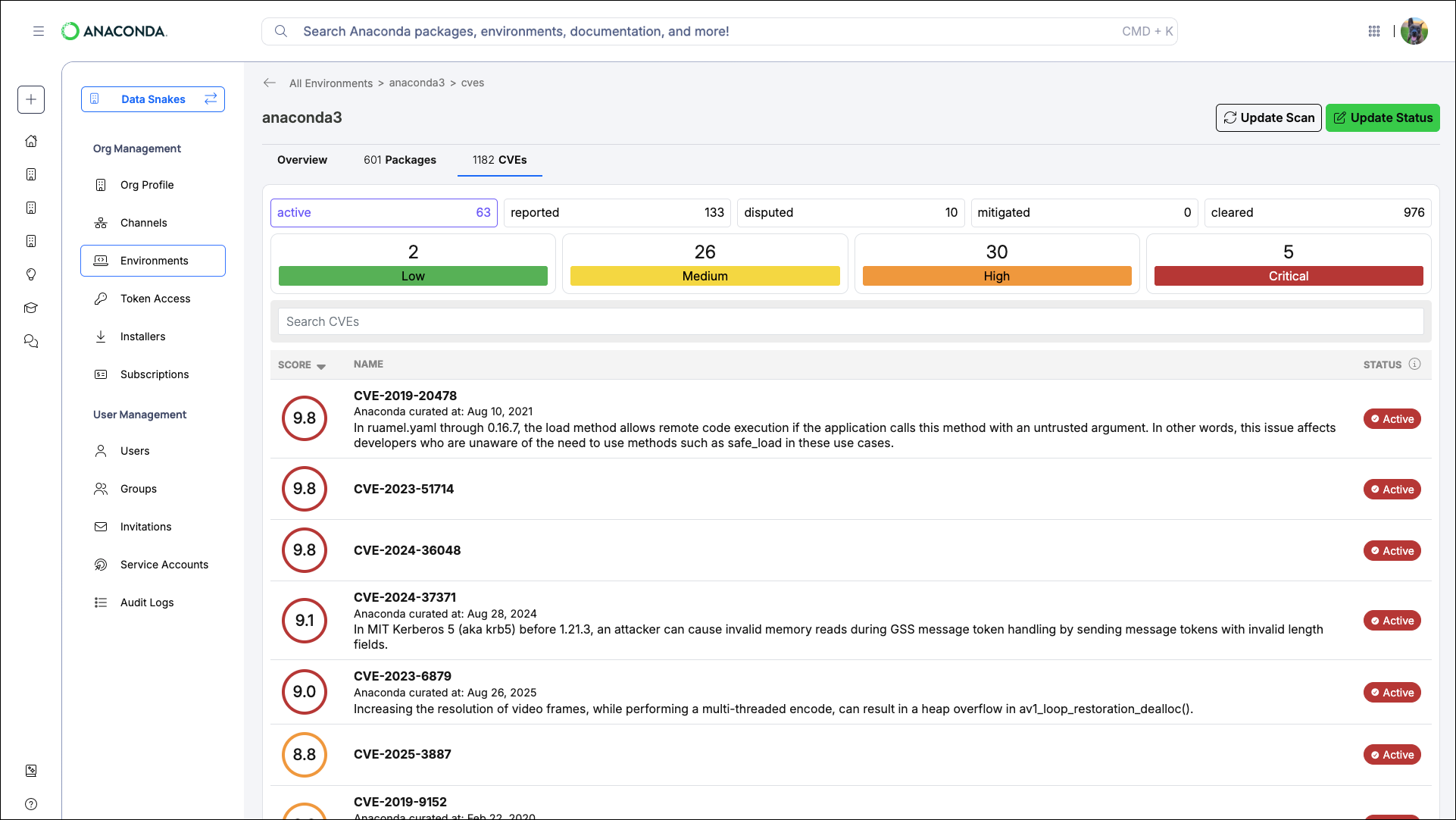
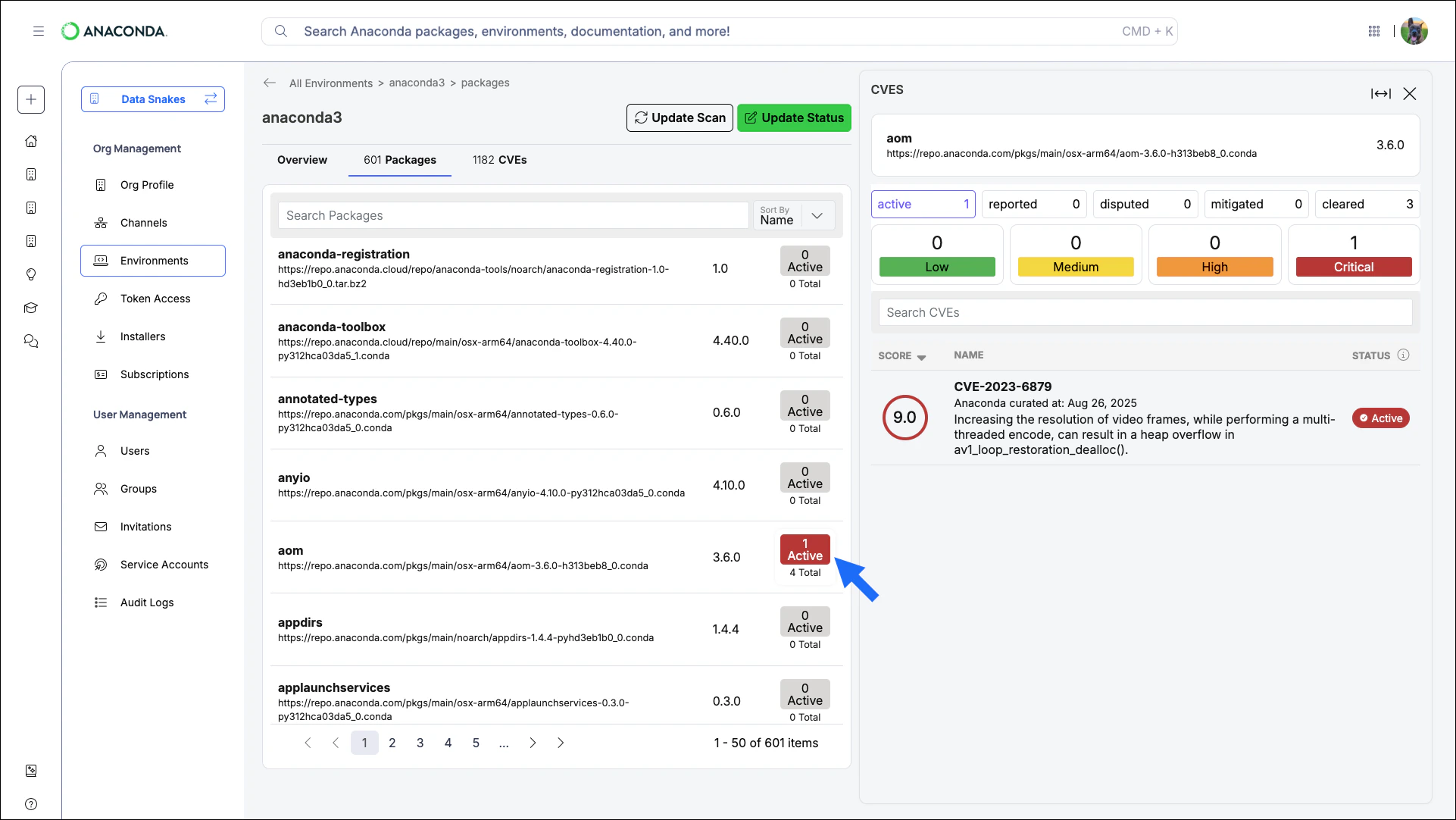
The active filter is applied to CVE results by default.
Identifying environments affected by a CVE
To find which environments in your organization are affected by a specific vulnerability, search by CVE ID using the unified search bar at the top of the page. Results include every environment containing packages associated with that CVE.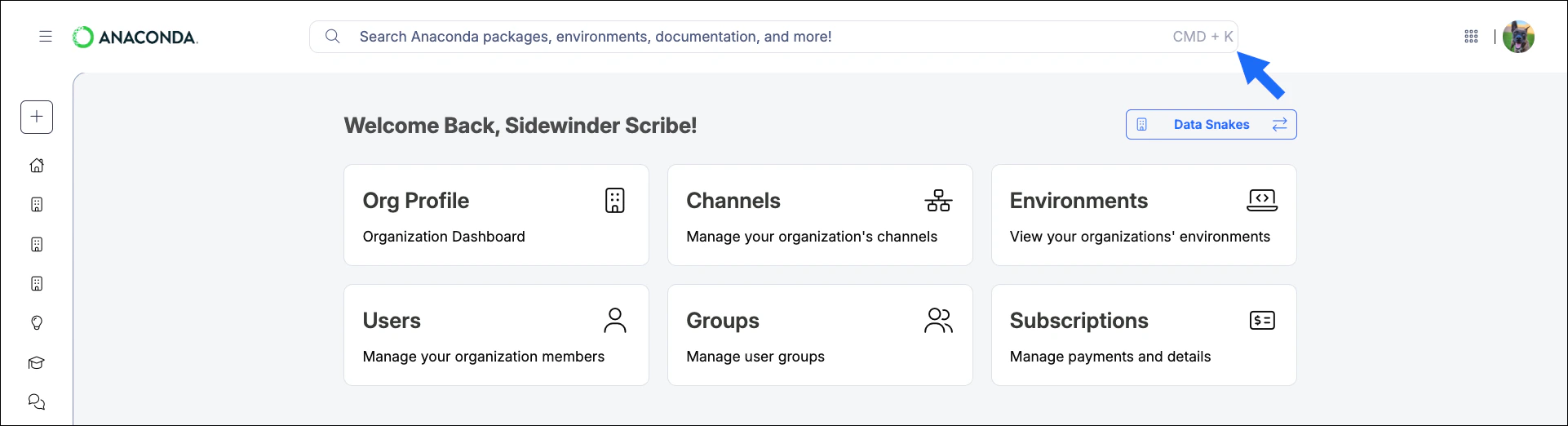
Managing member environments
Blocking environments
If an environment does not meet your organization’s security standards, you can warn the member or block access completely. Both options allow you to include a custom message with remediation guidance. Members receive this message the next time they attempt to activate the environment.- Select the environment you want to take action on.
-
Click Update Status.
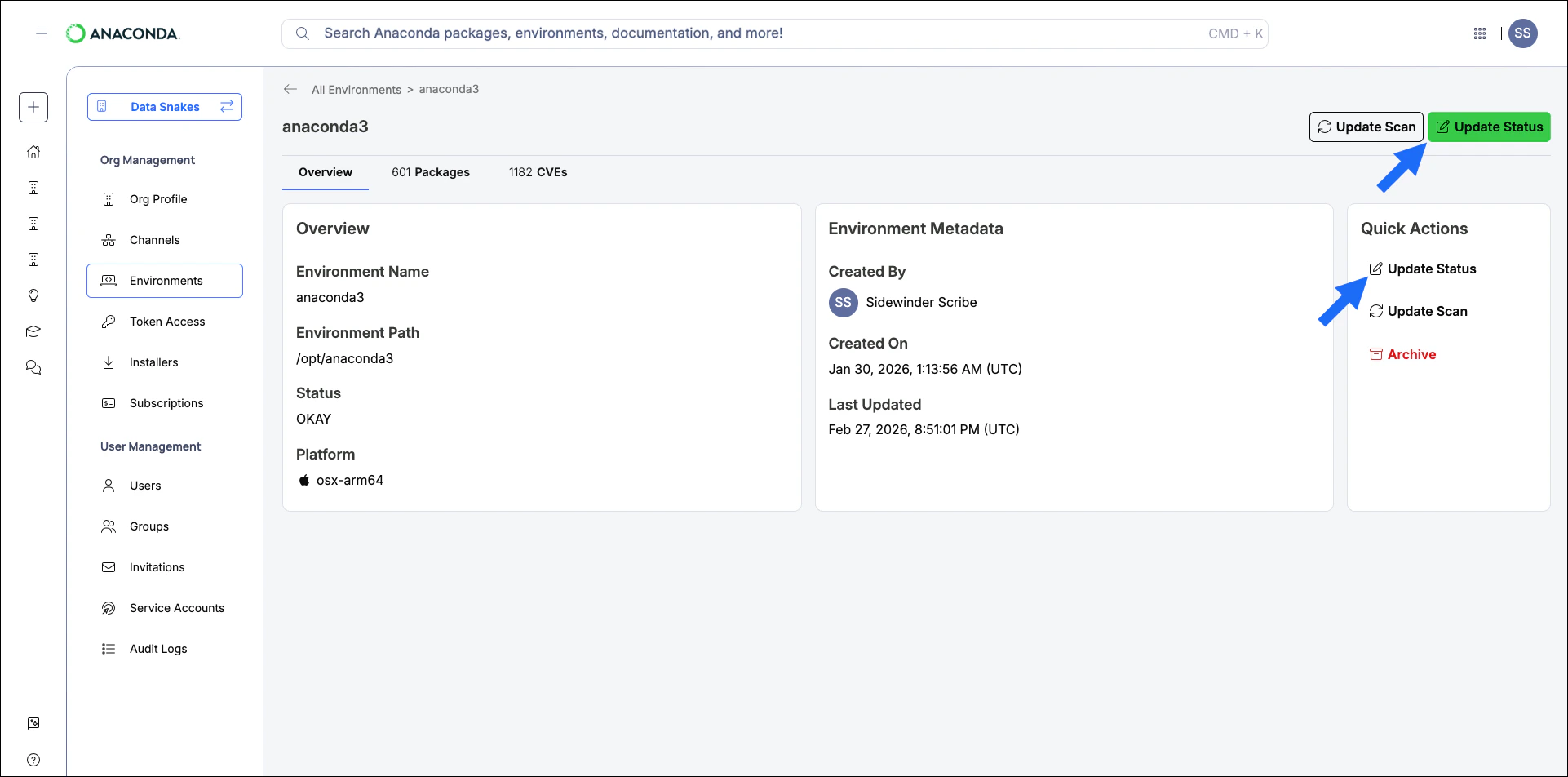
- Select a status and enter a custom message, if necessary.
- Click Save.
Unblocking environments
After a member remediates the issue, restore access by resetting the environment’s status.- Select the blocked environment.
- Click Update Status.
- Click OK.
- Click Save.
Archiving environments
Archiving moves inactive or obsolete environments to a dedicated tab, reducing clutter in the active list.- Select the environment you want to archive.
-
Click Archive.
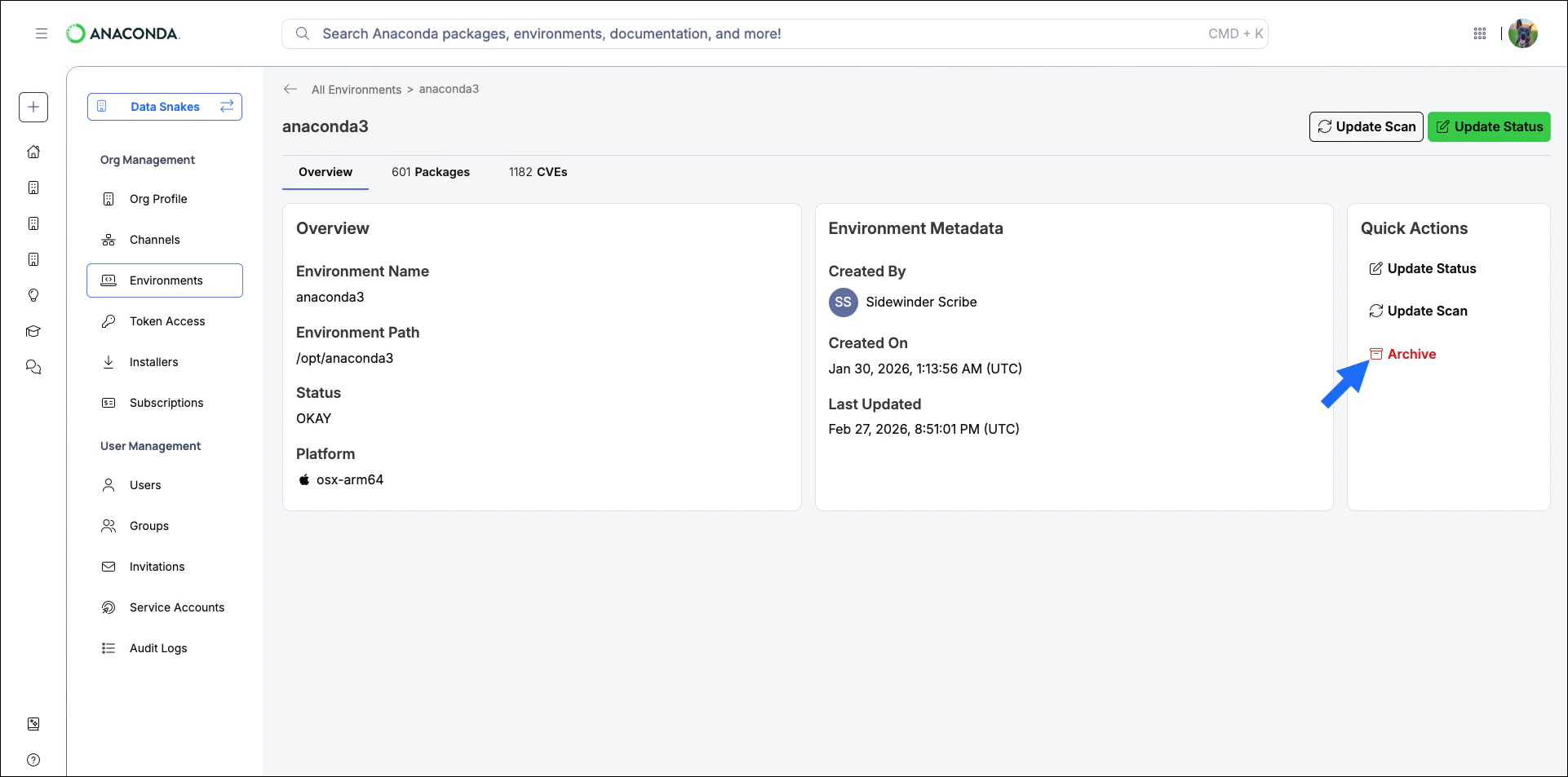
Archived environments are still available for use. To prevent an environment from being used, block it.