Creating a tool server
- Select Tool Servers from the left-hand navigation.
- Click Create.
- On the Create Tool Server page, click Tool Server Name and enter a name.
- (Optional) Enter a Description of what the tool server exposes.
- (Optional) Configure the Sandbox. See Sandbox for details.
- Click Save.
-
Add Python tools under Python Tools. For details, see Python tools.
You must Save your tool server before adding Python tools.
- Click Start to run the tool server. The server’s status changes to Running and the Connect button becomes available.
 Tool Servers from the left-hand navigation.
 Create.
 Description of what the tool server exposes.
 Sandbox. See
  Start to run the tool server. The server’s status changes to Running and the Connect button becomes available.
You can also start a tool server from the Tool Servers page by hovering over its card and clicking Start.
Importing a tool server
To import a tool server from an existing file or URL:- Select Tool Servers from the left-hand navigation.
- Click Import in the upper-right corner and choose an option:
- From file: Select a tool server file from your machine.
- From URL: Enter a URL to fetch the tool server configuration.
 Import in the upper-right corner and choose an option:
Sandbox
The sandbox runs your tool server inside a Docker container, isolating it from your local system. The tool server cannot access your filesystem or network unless you explicitly configure folder mounts and networking. To configure the sandbox:- Turn on the Sandbox toggle.
- Select Settings to open the Sandbox Settings dialog.
-
Select a network mode from the Network dropdown:
- Outbound (default): The tool server can make outgoing network requests. Agent Studio publishes the container’s port to localhost so you can connect to it.
- Isolated: No network access. The tool server cannot reach external services or be reached from the host.
- Host network: The tool server shares the host’s network namespace directly.
- (Optional) Set CPUs and Memory limits for the container.
-
(Optional) Add folder mounts to give the tool server access to specific directories on your machine. Click Add mount, then configure:
- Host path: The directory on your machine to share with the container. Click the folder icon to browse your file system.
- Sandbox path: The location inside the container where the directory is mounted.
- Permissions: Choose R (Read-only) or RW (Read/write).
To remove a folder mount, click Remove. - Repeat the previous step to add as many folder mounts as your tool server requires.
- Click Done.
 Settings to open the Sandbox Settings dialog.
 folder icon to browse your file system.
 Remove.
Python tools
Python tools are custom functions that your tool server exposes. Tools are organized into Python files, which group related@tool functions.
Creating a Python tool file
- Click Add Tool beside Python Tools.
- In the Create File dialog, enter a name using letters, numbers, and underscores. The name must start with a letter or underscore.
-
Click Create.
Agent Studio opens your default editor and creates the file with a sample tool function:
- Customize the generated function with your tool’s logic.
-
Save the file.
The file uses the function name as the tool name, argument names and type hints to build the tool’s input schema, and the docstring as the tool’s description.Write a clear docstring that describes what the tool does, what it accepts, and what it returns.
 , then click
 Deleting a tool server
- Select Tool Servers from the left-hand navigation.
- Click on the tool server’s card.
- Select Delete to remove it.
Connecting to a tool server
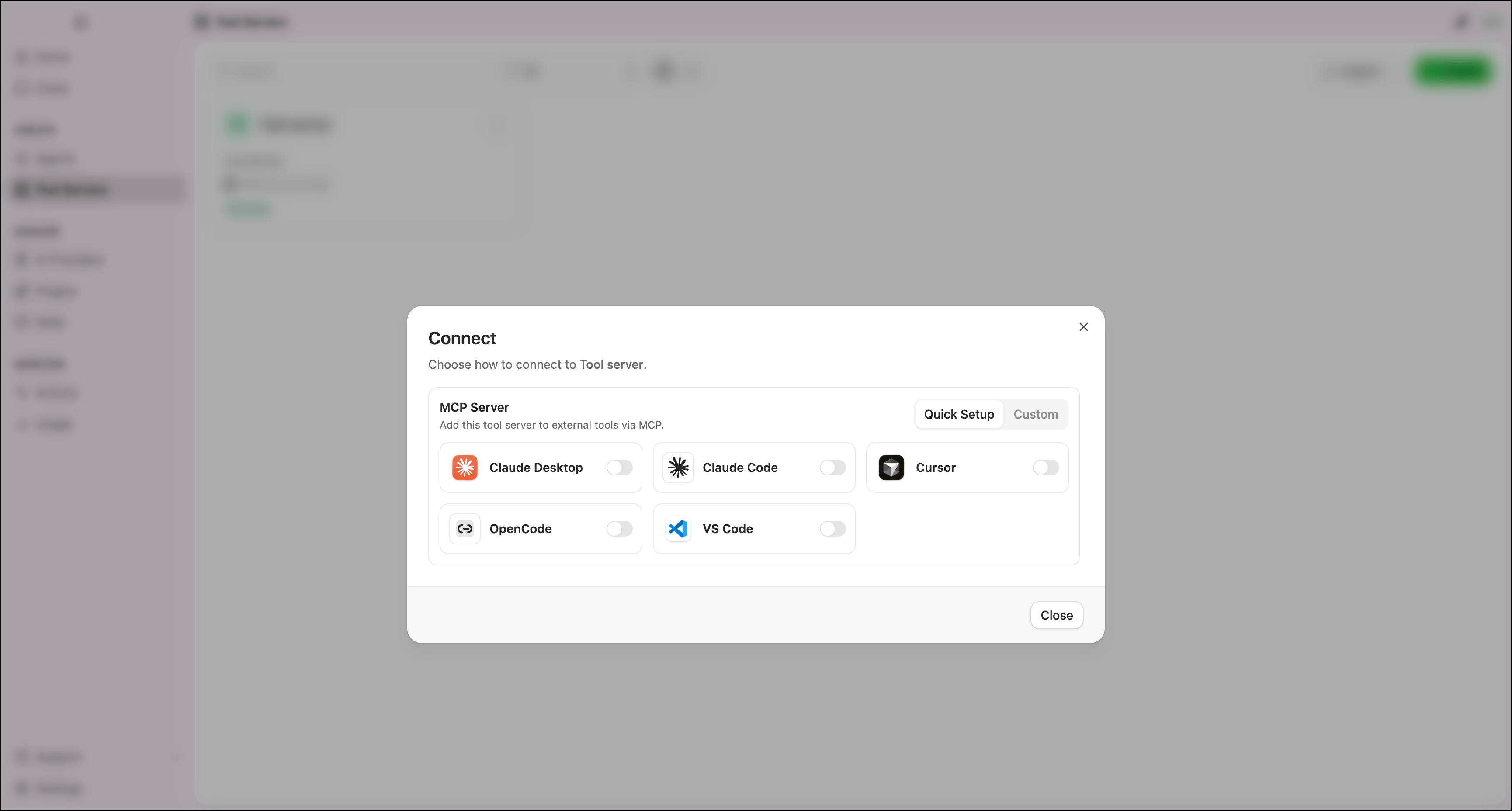
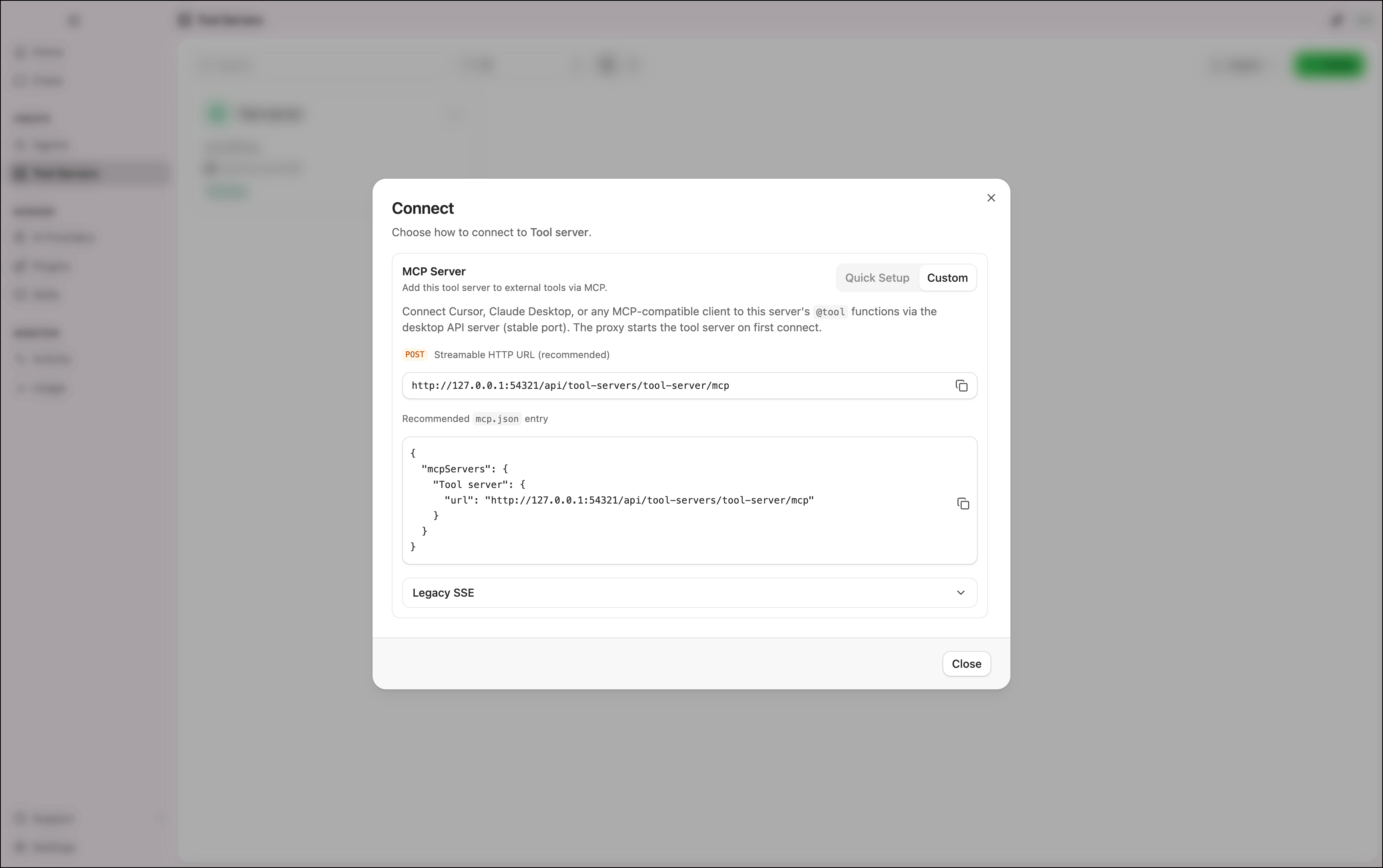
Click Connect on the tool server’s editor page to open the Connect dialog. Use Quick Setup to configure supported tools automatically, or Custom to copy the connection details manually. Connect on the tool server’s editor page to open the Connect dialog. Use Quick Setup to configure supported tools automatically, or Custom to copy the connection details manually.
- Quick Setup
- Custom
Turn on the toggle beside each tool to register the tool server as an MCP server in that tool’s configuration. Supported tools include Claude Desktop, Claude Code, Cursor, OpenCode, and VS Code.