

Viewing available skills
Select Skills from the left-hand navigation to view your skill catalog. Skills appear as cards showing the skill name and a short description. Skills from the left-hand navigation to view your skill catalog. Skills appear as cards showing the skill name and a short description.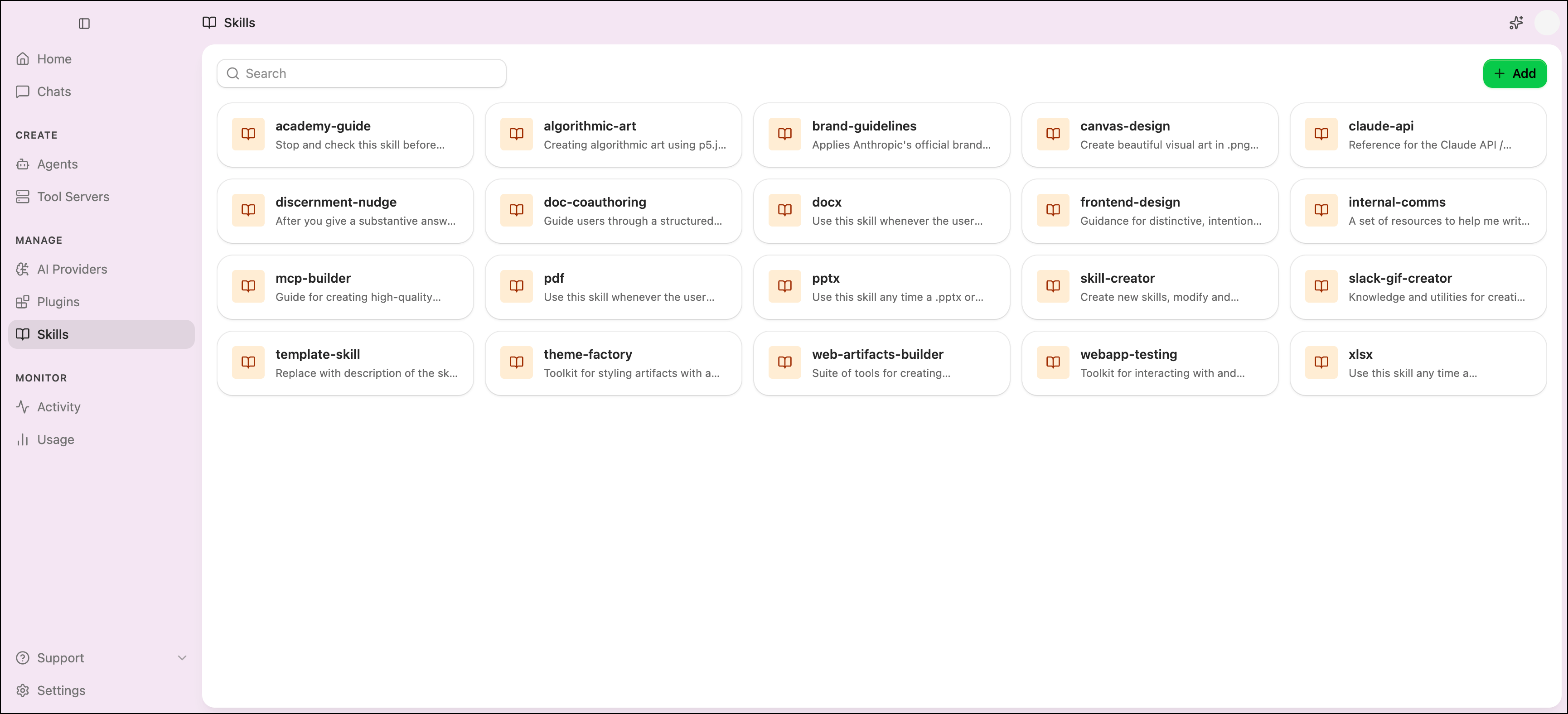
- About: Displays the full skill content.
- Security: Runs a security scan on the skill’s files.
 Delete to remove the skill, or
  Add to Agents to enable it for one or more agents.
Adding a skill
- Select Skills from the left-hand navigation.
- Click Add in the upper-right corner.
-
Choose a source and configure the skill:
- GitHub
- Local folder
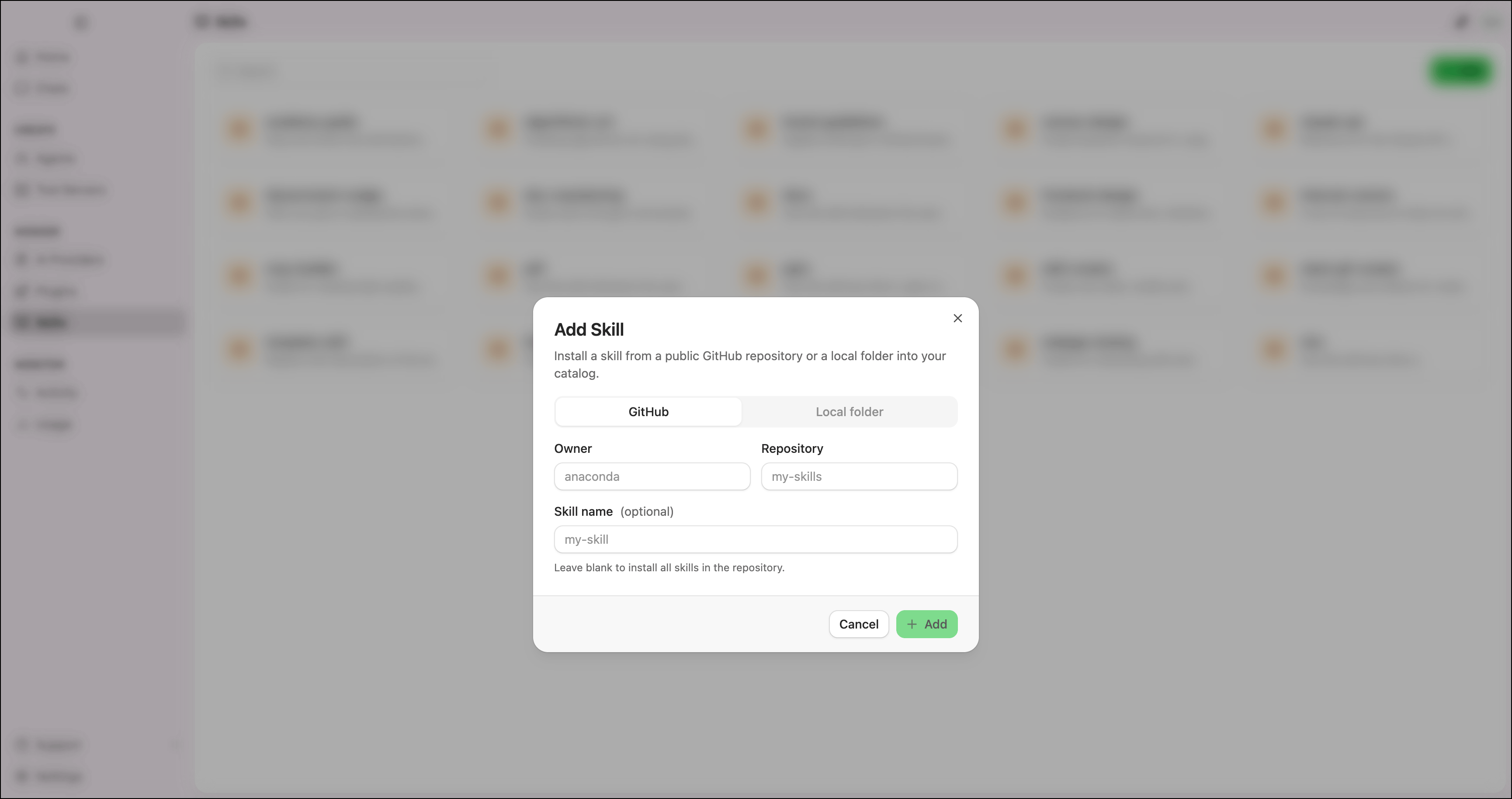
Add a skill from a public GitHub repository.- Enter the repository Owner and Repository name.
- (Optional) Enter a Skill name to add a specific skill from the repository. Leave this field blank to add all skills in the repository.
- Click Add.
Scanning skills for security threats
Agent Studio can scan skills for security vulnerabilities using static analysis and optional AI-assisted reasoning. Scans identify potential threats such as dangerous code execution patterns, suspicious behavior, and injection risks. To scan a skill:- Select Skills from the left-hand navigation.
- Click the skill’s card to open its details dialog.
- Select the Security tab.
- (Optional) Enable Deep scan with AI for an additional semantic pass that sends the skill’s content to your configured AI provider.
- Click Start scan.
Severity levels
The scan summary displays the highest severity found across all findings:
Critical
Immediate security risk requiring attention.

High
Significant risk that should be addressed before use.

Medium
Potential risk worth reviewing (for example, use of
subprocess.run with untrusted input).
Low
Minor concern with limited risk.
None
No issues found.
Deep scan with AI
By default, scans use offline analyzers (static analysis, bytecode inspection, and behavioral analysis). Enabling Deep scan with AI adds a semantic pass that uses your configured AI provider to reason about the skill’s intent.Deep scan with AI requires a configured AI provider with a valid API key. If no compatible provider is available, the toggle is disabled.