

The main-x channel
main-x is an Anaconda-hosted authenticated channel that provides thousands of additional conda packages built by Anaconda. It is designed to be used alongside the main channel, extending the set of packages available through Anaconda’s default channels.
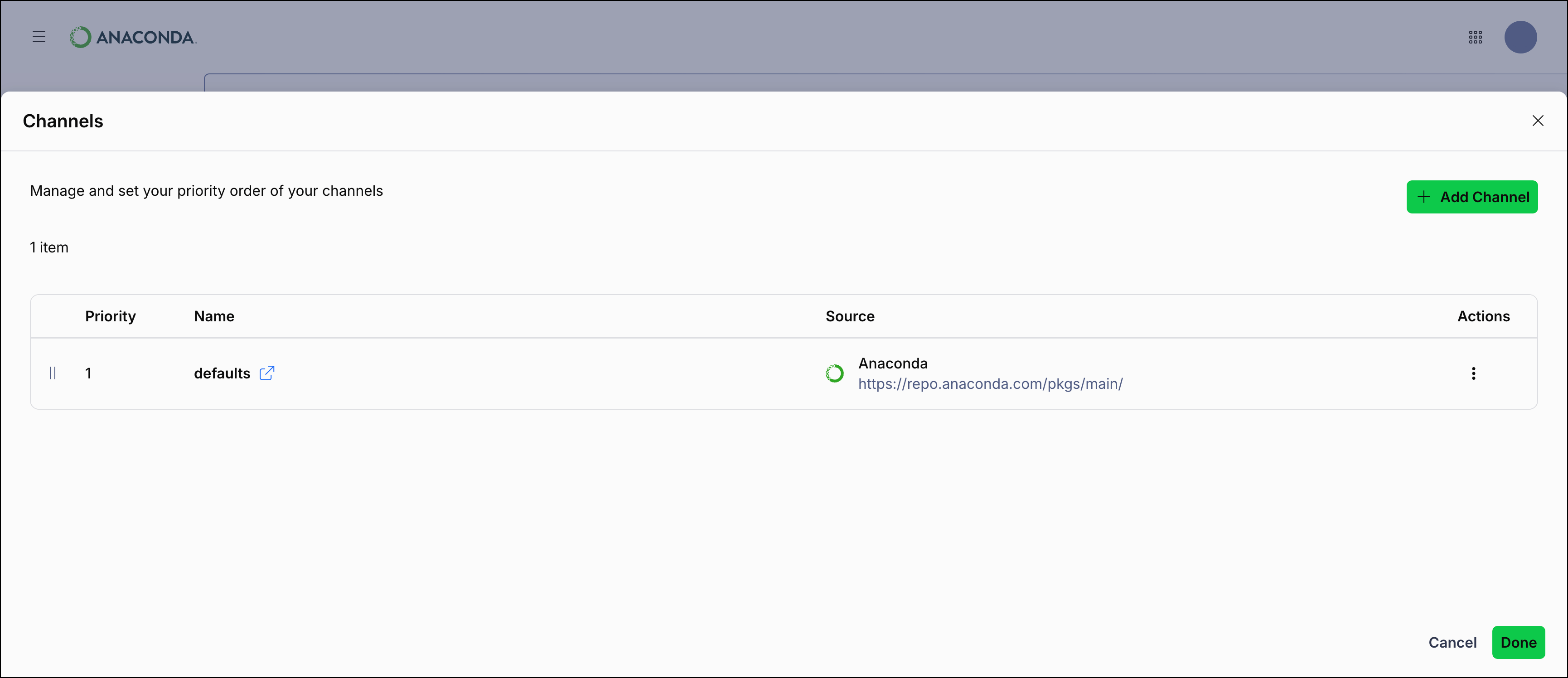
New Desktop users automatically have main-x configured alongside main in their default channels. If you are an existing user and do not have main-x configured, you can add it from the Channels modal:
- Click Add Channel.
- Enter either the Name or URL for the channel:
- Name:
main-x - URL:
https://repo.anaconda.cloud/repo/main-x
- Name:
- Click Add.
main-x requires authentication with your Anaconda account. If you are not signed in, you are prompted to sign in before packages from main-x can be resolved. For more information about main-x, including setup for Anaconda Platform and Package Security Manager users, see Using the main-x channel.Viewing channels
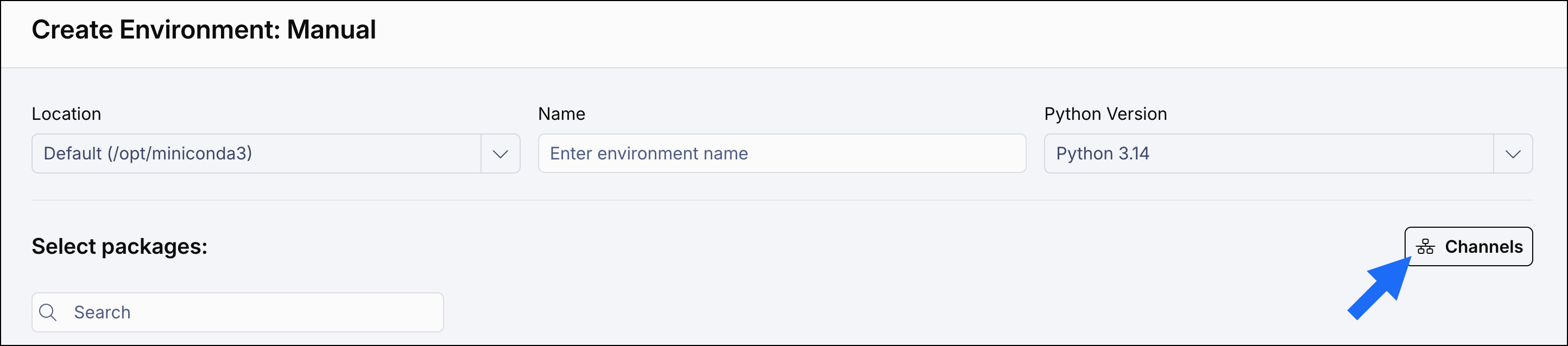
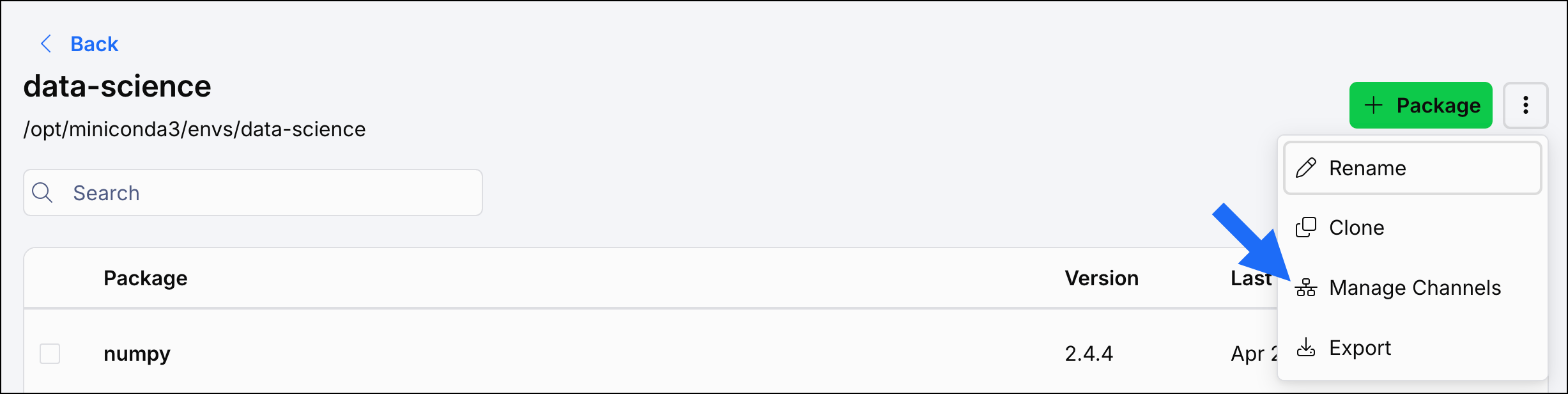
You can access channel management from multiple locations:Although you can access channel management from multiple locations, any changes you make apply to all environments, not just the one you’re currently working in.
- Environments page
- Manual environment creation page
- Environment details page
On the Environments page, click Channels:
Adding a channel
From the Channels modal, click Add Channel to add a new channel to the bottom of your channels list. When managing channels in Desktop, you can refer to a channel either by its full URL or by its name. For example, let’s say you want to look for packages on the “conda-forge” channel of Anaconda.org. Either of these channel variations will look for packages in the same place:- By name:
conda-forge - By URL:
https://conda.anaconda.org/conda-forge
https://repo.anaconda.cloud/t/<TOKEN>/repo/<ORG_ID>/<CHANNEL>. For more information, see Authenticating to Anaconda in the Anaconda Platform guide.
Setting channel priority
Channel priority can be established by adjusting the order of the channels listed in the table. You can establish channel priority in multiple ways:- Drag and drop
Select beside a channel to drag it to a new position.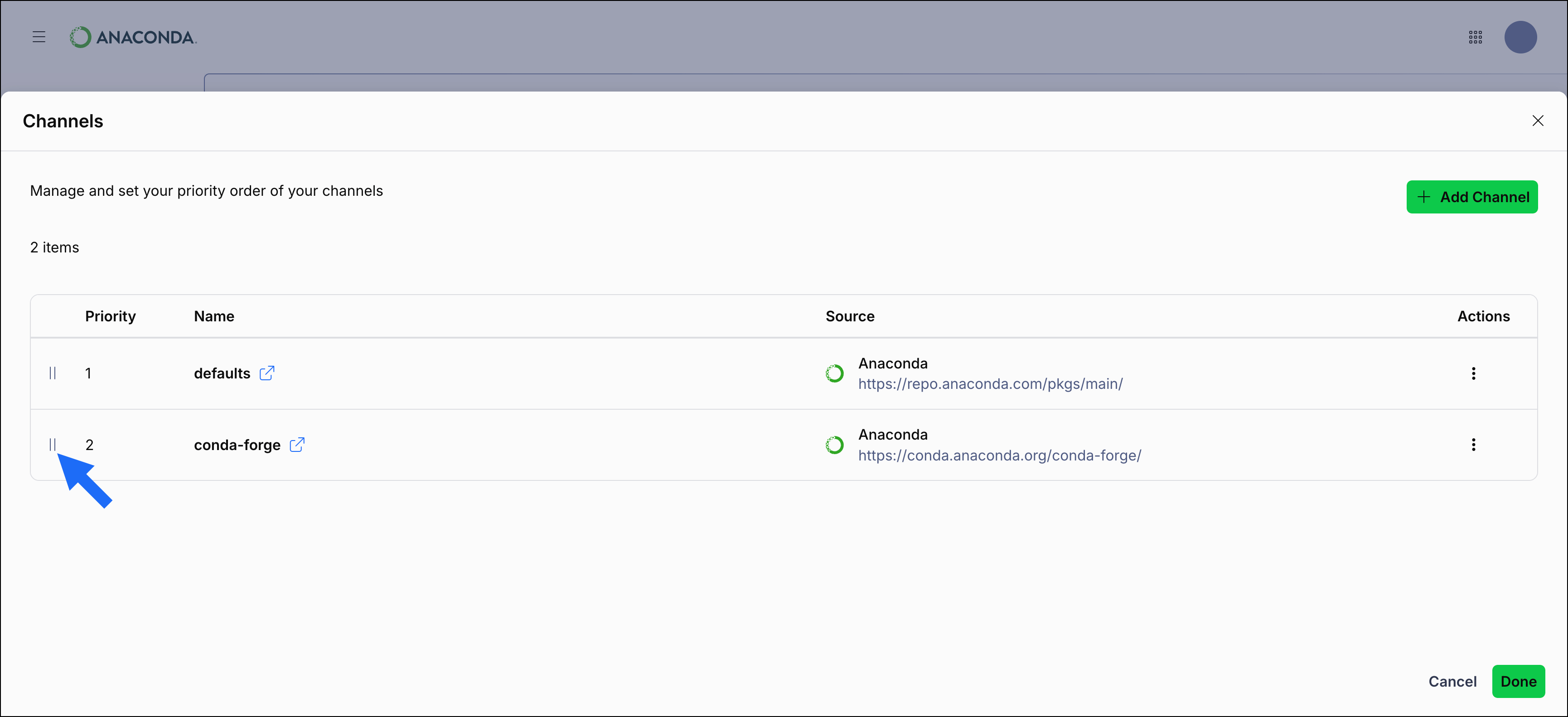
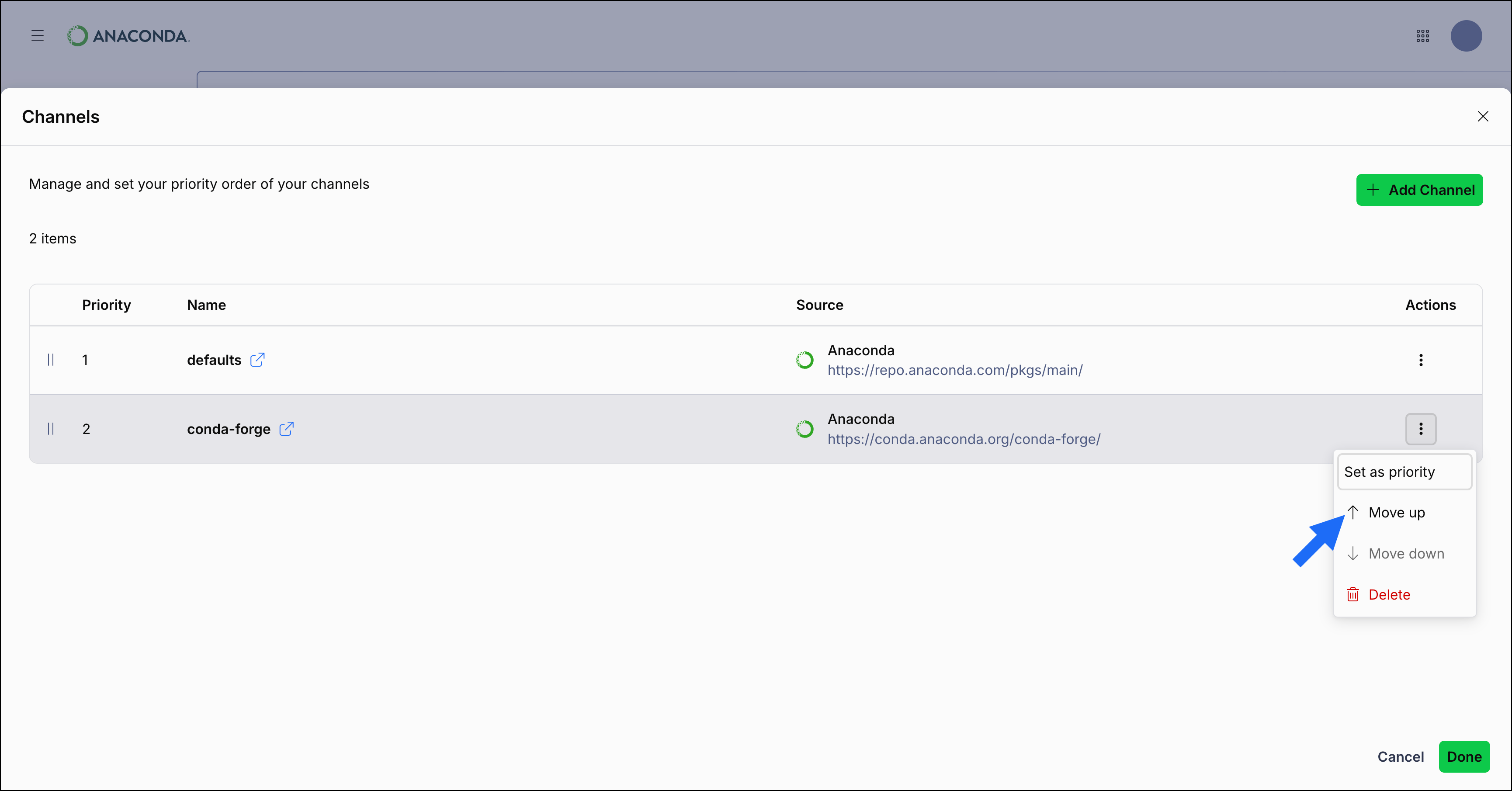
Deleting a channel
To delete a channel, click Actions on a channel row, then select Delete.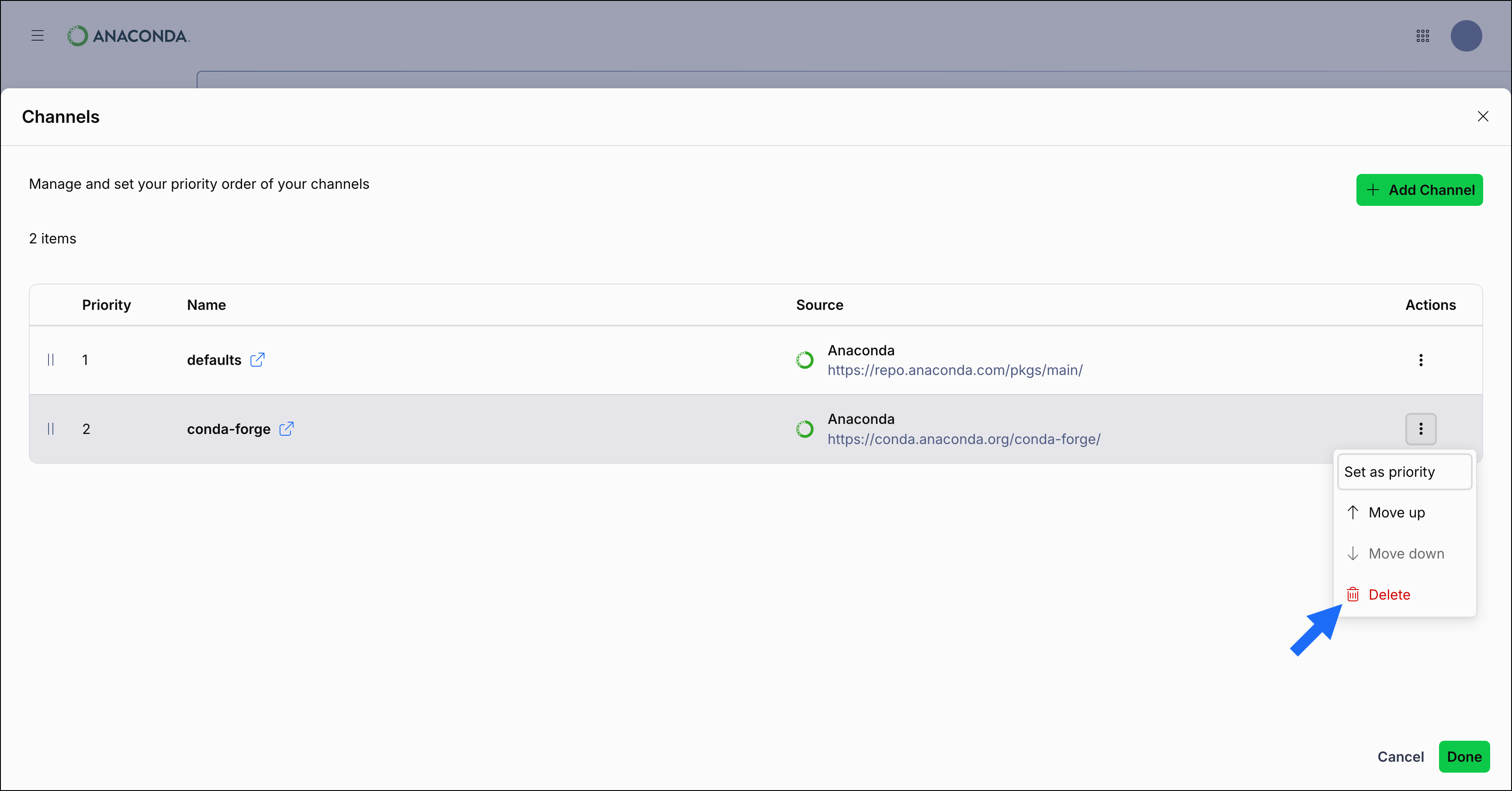
Additional resources
- For guidance on browsing the channels, packages, and models hosted on Anaconda.org, see Searching Anaconda.org.
- For an introduction to channels, see What is a channel?
- For detailed instructions on viewing, configuring, and managing channels, see Channels.
- For more information about how channels are structured and how conda uses them, see the official conda channels documentation.
- For more information on editing your
.condarcfile, see Using the .condarc conda configuration file and Settings in the conda documentation.