

Anaconda.org’s package comparison tool lets you evaluate up to five packages side by side, making it easier to choose the right one for your project.

Adding packages to a comparison

Enter Compare mode by clicking Compare in the search results page or on a package’s details page. Once you are in Compare mode, you can add up to five packages to the comparison.
  • If you entered Compare mode from a package details page, that package will be added to the comparison automatically.
  • If you entered Compare mode from the search results page, you can add more packages by clicking Compare on each package card.
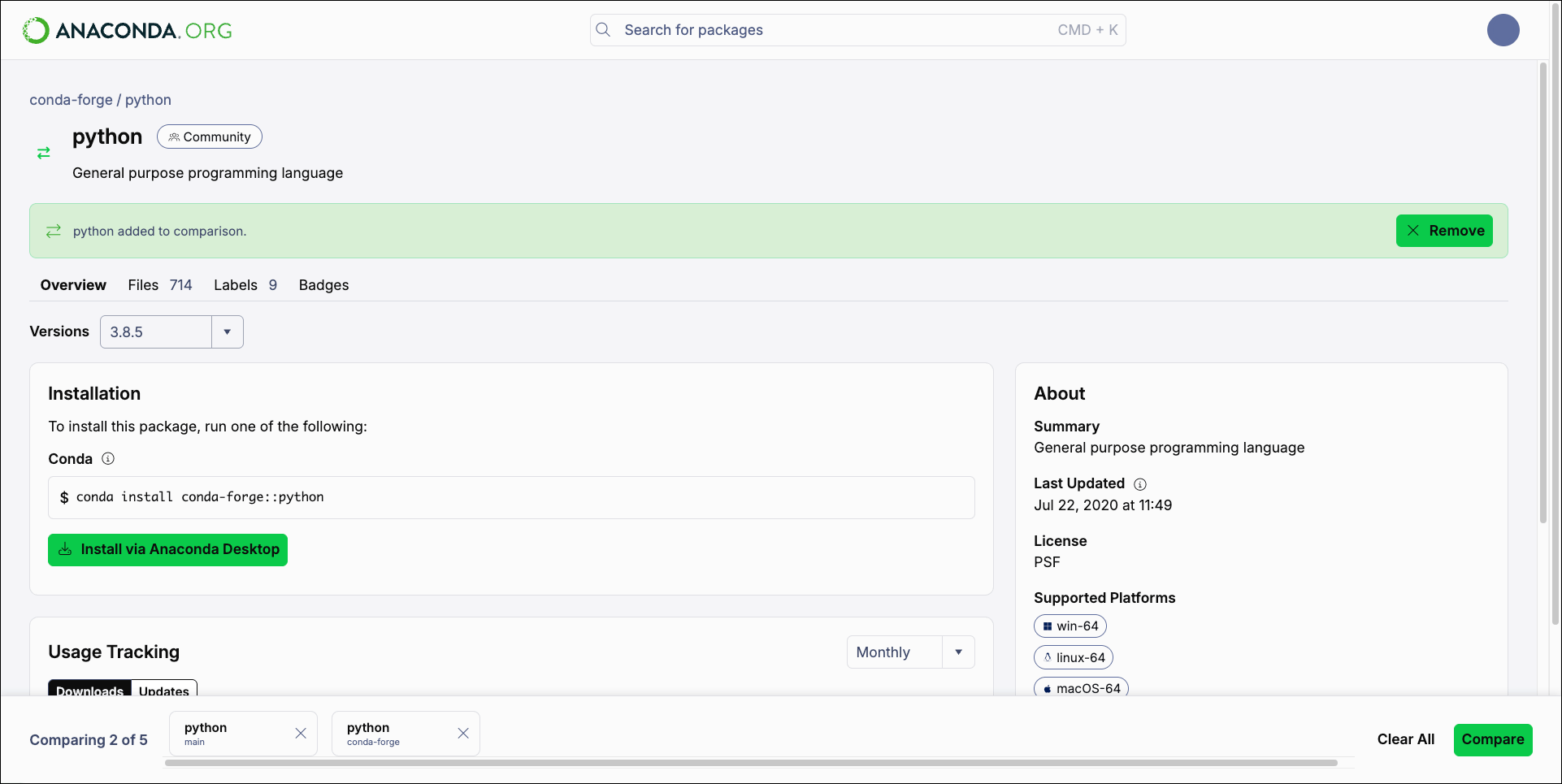
You can continue to navigate Anaconda.org normally without exiting Compare mode. Search for new packages and select their checkboxes to add them to the comparison, or navigate to a package’s details page and click Add to comparison. Any packages added to the comparison are visible at the bottom of the page in the comparison queue. Click the beside a package to remove it from the comparison.
An example of adding the conda-forge python package to Compare mode in Anaconda.org

Comparing packages

Once you are satisfied with your package comparison selections, click Compare to see the comparison results.
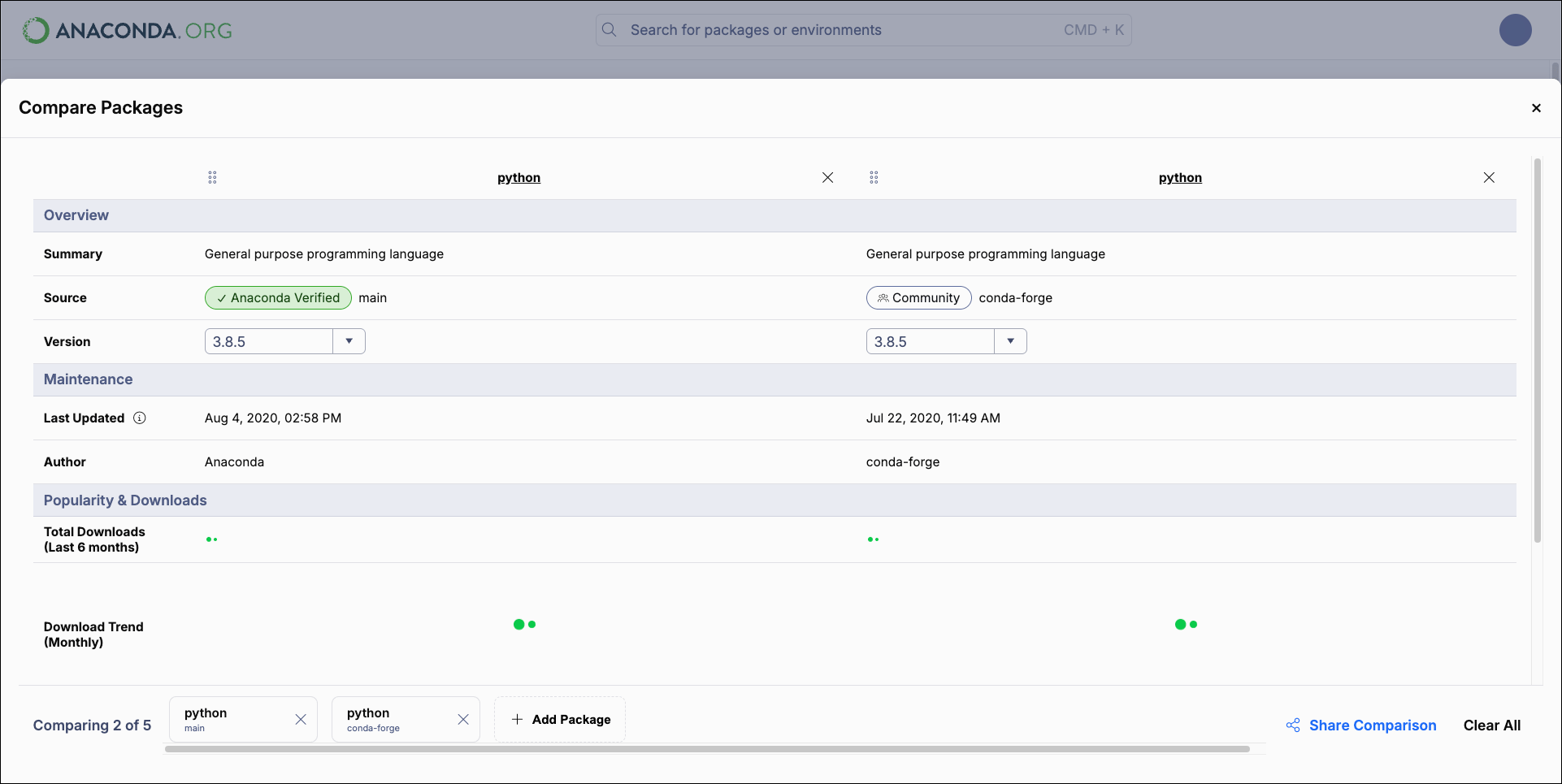
A comparison between two different python packages
The Compare Packages page compares up to five packages by criteria such as channel source, date last updated, total downloads, license, and compatible platforms. Click the package name to open the package details page for that package. Click and drag the move handle to reorder your comparisons. Select other versions of any of the packages you are comparing using their Version dropdowns. Click Add Package to exit the Compare Packages page and search for other packages to add to the comparison queue. Click Share Comparison to copy a link to your comparison to share with others. Click Clear All to clear your comparison selections and exit Compare mode.