

Searching for environments
Search for environments by name, description, included packages, or tag using the search bar.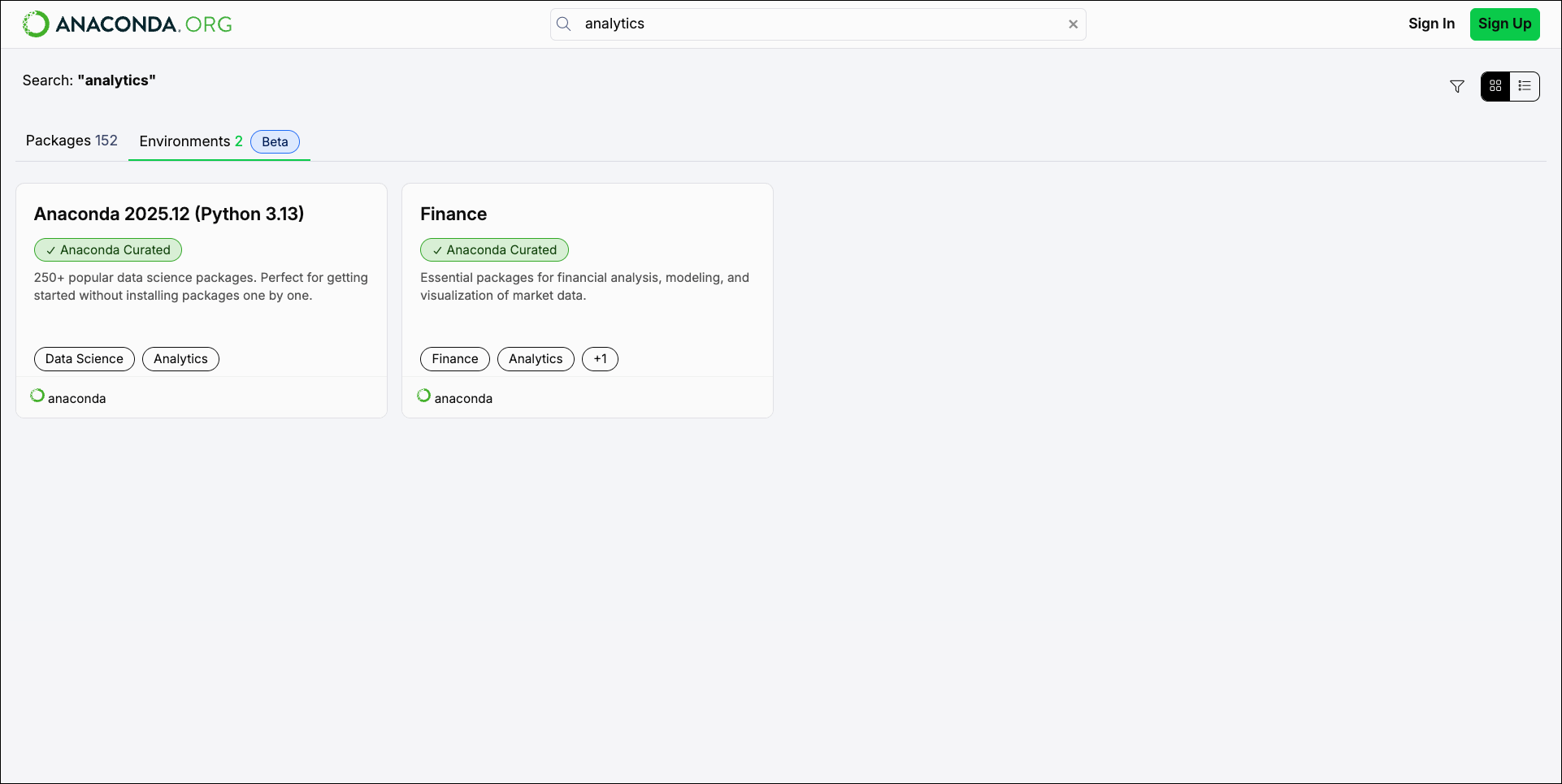
Viewing environment details
Select an environment card to view its details.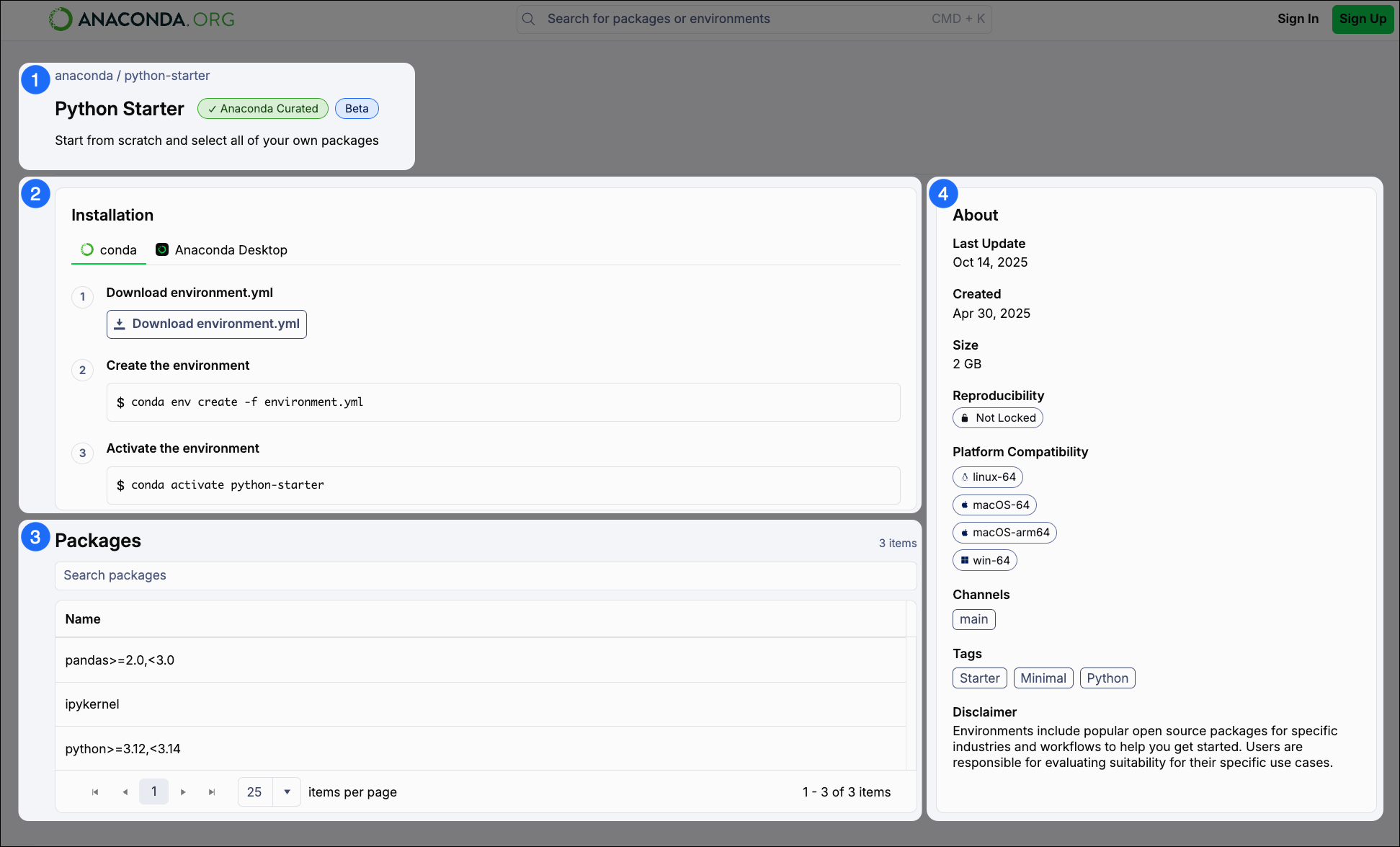
1
Environment introduction
This section contains:
- Breadcrumbs linking back to the environment’s organization (organization / environment). Select the organization to view its channel homepage.
- The name of the environment.
- A badge describing that the environment is .
- A short environment description.
2
Installation
Commands to install the environment with conda. Click Download environment.yml to download the environment’s
.yml file to your computer.Installation instructions for Anaconda Desktop are coming soon!
3
Packages
The full list of packages included in the environment, with version specifications as necessary.
4
About
General information about the selected environment, including the date and time when the environment was last updated, whether or not the environment contains a lockfile, supported (and unsupported) platforms and architectures, channels the environment uses, and tags associated with the environment.