

Using Miniconda in a commercial setting?
Using Miniconda in a commercial setting?
- You might need to purchase a license to stay compliant with our Terms of Service.
- If your company security policies do not allow admin privileges for end users, you will be unable to install Miniconda manually. Consider requesting that your IT admin add Miniconda to a software delivery or fleet management system (such as Kandji or Jamf).
Installation steps
- Navigate to anaconda.com/download, register with Anaconda, and then select Windows 64-bit Graphical Installer under Miniconda.
-
Go to your Downloads folder and double-click the installer to launch.
If you encounter issues during installation, temporarily disable your anti-virus software during install, then re-enable it after the installation concludes. If you installed for All Users, uninstall Miniconda and re-install it for Just Me only.
- Read through Miniconda’s End User License Agreement (EULA) and select I Agree to agree to the terms. You can view Anaconda’s Terms of Service (TOS) at https://www.anaconda.com/legal.
-
Select an installation option:
It is recommended to install Miniconda for the local user, which does not require administrator permissions and is the most robust type of installation. However, if you need to, you can install Miniconda system wide, which does require administrator permissions.
- Select Next.
- Select a destination folder to install Miniconda, then select Next.
- Customize your installation options:
- Select Install. The installation might take a few minutes to complete. Select Show details to view the packages being installed.
- Select Next twice, then select Finish to close the installer.
Verify your install
Verify your installation was successful by opening , a command-line shell application that is included with conda installations for Windows. To open Anaconda Prompt, type “Anaconda Prompt” in the Windows search bar, then select the application.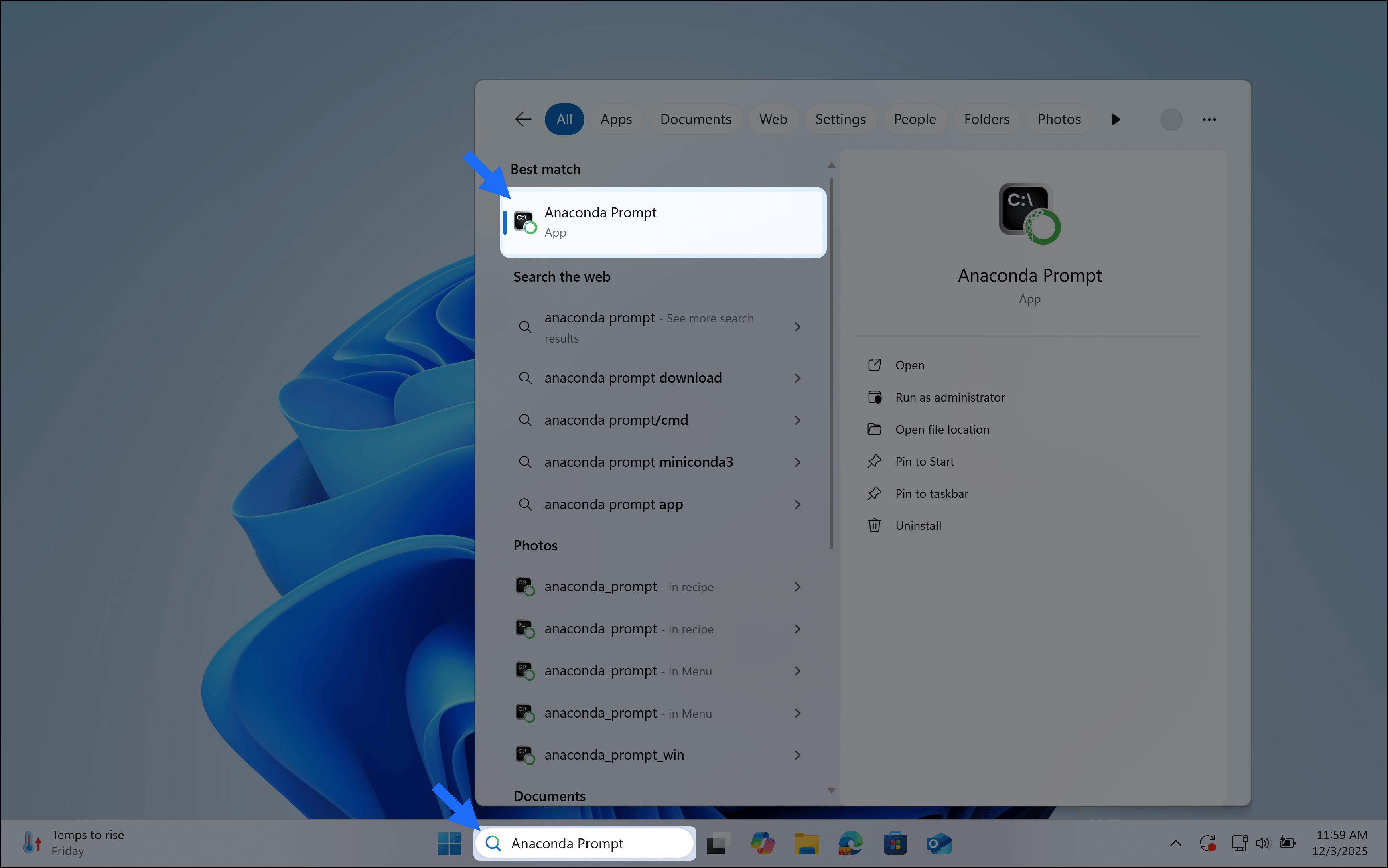
Choose how you want to work with conda
Anaconda Navigator provides a graphical user interface (GUI) to interface with , without using the command line. If you prefer working at the command line, you can interface with conda directly through (Windows) or your system’s terminal (macOS and Linux) after you complete your installation.Anaconda Navigator is not included with Miniconda. Follow the instructions on Installing Navigator to manually install Navigator onto your computer.
Get started with Navigator
Manage packages and environments with a desktop application
Work with conda
Use command-line tools for package and environment management