Anaconda Platform
7.0.0 is available through a limited early access program. Contact your Anaconda Technical Account Manager (TAM) if you’re interested in adopting the latest version.Prerequisites
You must have Events enabled within Keycloak to track login events.- Log in to the Keycloak administrative console.
- Verify you are on the dev realm.
- Select Realm settings from the left-hand navigation, then click the Events tab.
- Click the User events settings tab.
-
Verify the Save Events toggle is set to
ON.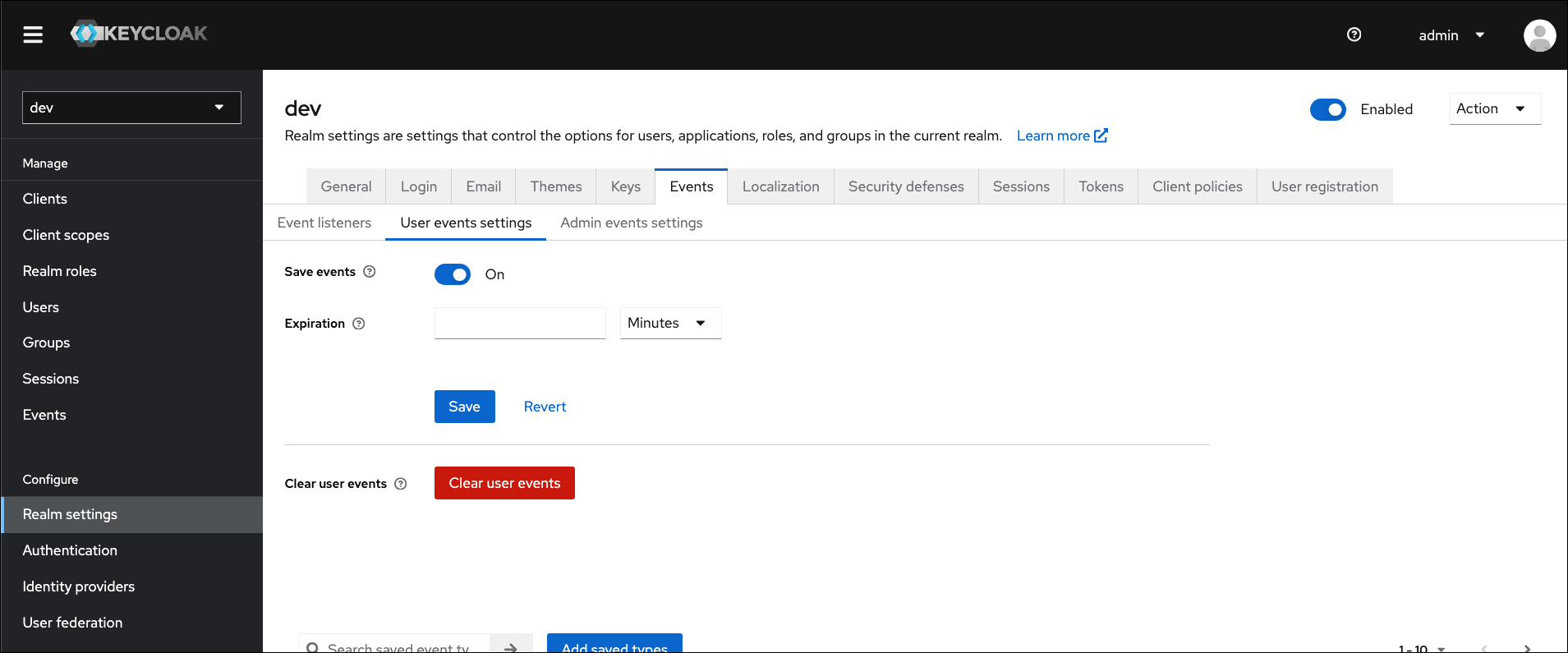
- Click Save.
Querying the Keycloak API
-
Open a terminal. Generate a temporary token and store it as an environment variable for the Keycloak API by running the following command:
This temporary token expires after 60 seconds, and the next command needs to be entered before the token expires! Don’t worry though, you can always generate another temporary token, if necessary.You can verify that your command generated a token by running the command
echo $TKN. -
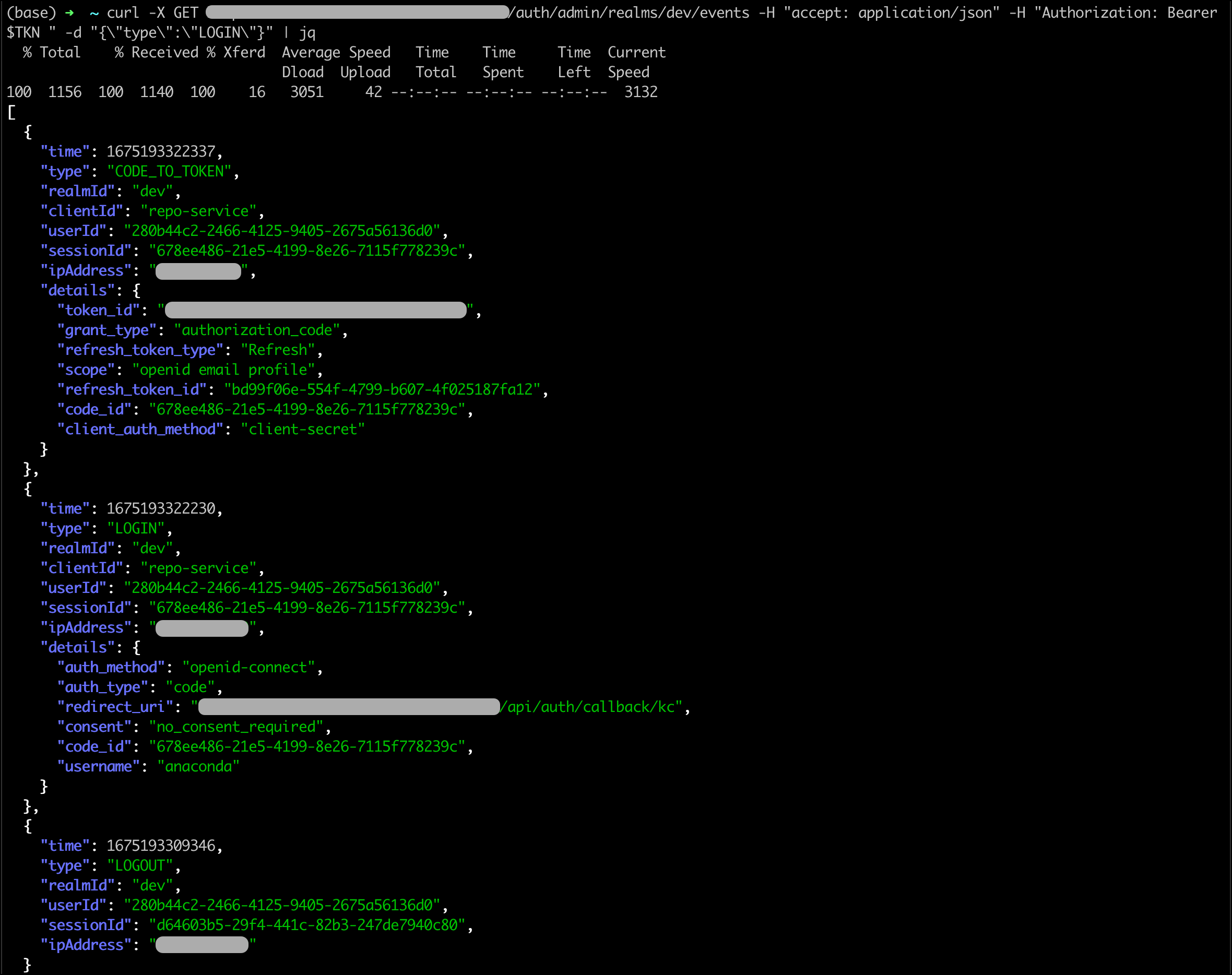
Query the Keycloak API for
LOGINevents by running the following command:
Example
Let’s say your Anaconda Platform URL ishttps://data_science_snakes.anaconda.com, and your Keycloak administrator’s username is admin and their password is password.
Once you’ve verified that Keycloak is saving user login events, request a temporary token from the Keycloak API with the following command: