> ## Documentation Index
> Fetch the complete documentation index at: https://anaconda.com/docs/llms.txt
> Use this file to discover all available pages before exploring further.
# Anaconda Notebooks
Anaconda Notebooks lets anyone start their data science journey instantly. Launch powerful Jupyter notebooks directly in your browser with all the packages, computing power, and storage you need. No downloads, no configuration headaches, no barriers between you and your data.
New to JupyterLab? [Visit the official JupyterLab documentation](https://jupyterlab.readthedocs.io/en/stable/).
***
More of a visual learner? [Sign in to Anaconda.com](https://auth.anaconda.com/ui/login?return_to=https://anaconda.com/app/) and enroll in our free [Jupyter Notebook Basics](https://learning.anaconda.com/courses/jupyter-notebook-basics) course.
## Key features
Jump into data science projects immediately and access your notebooks from any device with an internet connection.
Generate, save, and share code effortlessly across Notebooks and Excel while getting intelligent help from Anaconda Assistant.
Publish your notebooks as Panel apps with a custom URL ready for sharing and showing off.
## Get started in three steps
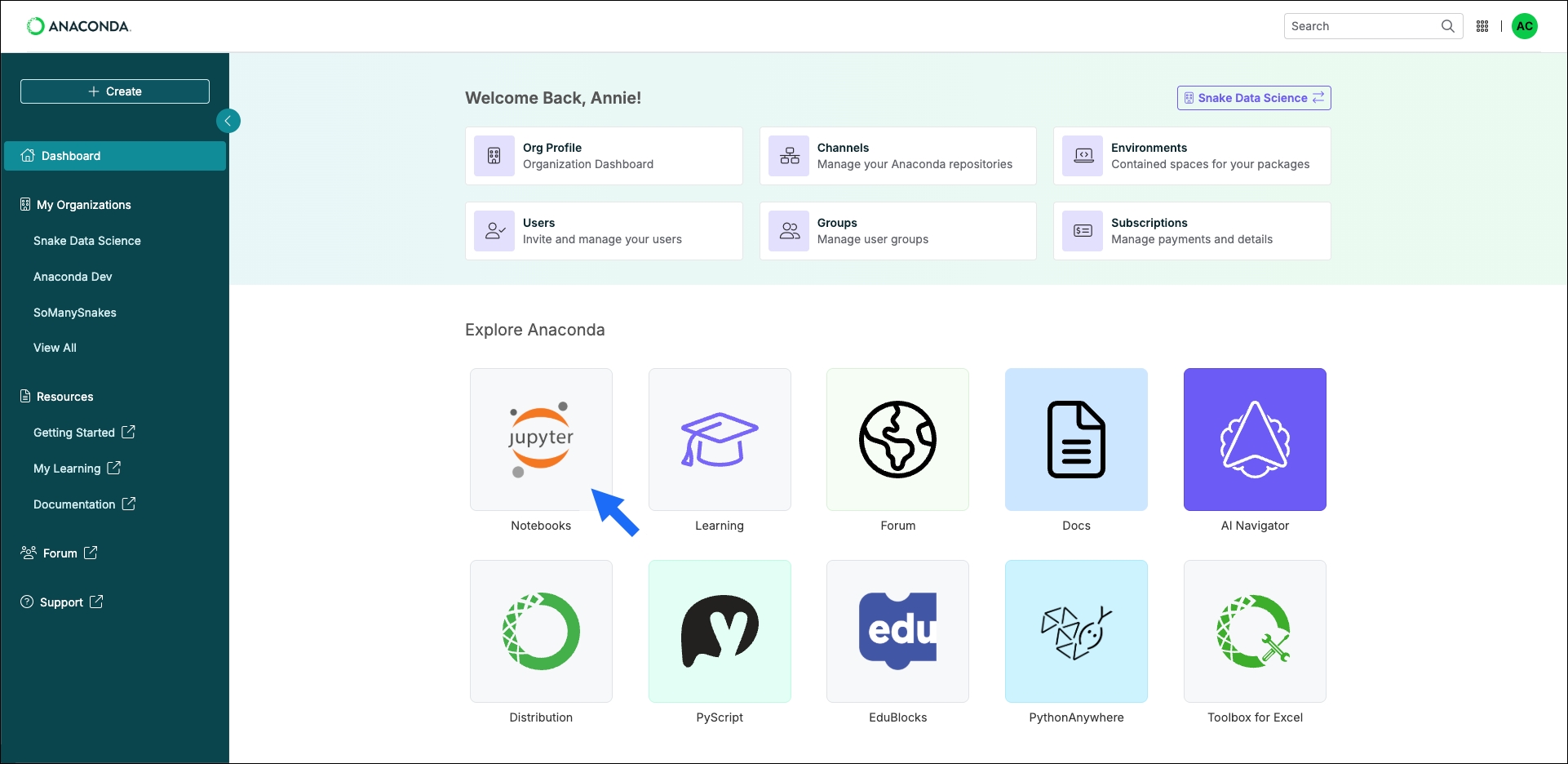
Launch a [new notebook](https://nb.anaconda.com) in seconds or access the Jupyter Notebooks tile from your [Anaconda Dashboard](https://anaconda.com/app/).
 Choose a runtime (or create [your own](/tools/anaconda-notebooks/notebook-runtimes#creating-custom-runtimes)) with your preferred packages or select a [quick start environment](/tools/anaconda-notebooks/anaconda-toolbox/toolbox-environments#installing-quick-start-environments) that matches your project needs.
Quick start environments are only available in the [local version of Toolbox](/tools/anaconda-notebooks/anaconda-toolbox/local-toolbox).
Begin coding with your selected runtime or quick start environment fully loaded and configured.
Choose a runtime (or create [your own](/tools/anaconda-notebooks/notebook-runtimes#creating-custom-runtimes)) with your preferred packages or select a [quick start environment](/tools/anaconda-notebooks/anaconda-toolbox/toolbox-environments#installing-quick-start-environments) that matches your project needs.
Quick start environments are only available in the [local version of Toolbox](/tools/anaconda-notebooks/anaconda-toolbox/local-toolbox).
Begin coding with your selected runtime or quick start environment fully loaded and configured.