> ## Documentation Index
> Fetch the complete documentation index at: https://anaconda.com/docs/llms.txt
> Use this file to discover all available pages before exploring further.
# Databricks integration in Anaconda Platform (Cloud)
export const Comments = ({children}) => {
return ;
};
Integrating Databricks with Anaconda Platform (Cloud) enables organizations to maintain security and compliance while leveraging the power of both platforms.
For data science teams working in regulated environments, this integration provides essential security controls over Python package usage. Your organization can enforce security policies and maintain consistent environments across development and production. This helps prevent the use of unauthorized or vulnerable packages while providing comprehensive audit trails of package usage across your Databricks workspaces.
This guide explains how to set up a secure, customized Python environment in Databricks using packages from Anaconda Platform (Cloud).
## Prerequisites
Before starting, ensure you have:
* Administrator access to an Anaconda organization
* An Anaconda organization access token
* Docker installed on your local machine
* A Databricks workspace with admin privileges
* [Enabled the Community channel for your organization](/anaconda-platform/cloud/admin/channels#enabling-community-channels).
## Setup and configuration
1. [Sign in to Anaconda.com](https://auth.anaconda.com/ui/login?return_to=https://anaconda.com/app/).
2. Click **Channels**.
3. Click **Add Channel**.
4. Name your channel `databricks`.
5. Set the channel's **Type** to **Virtual**.
6. Open the **Source** dropdown and select *main*.
7. Set the channel's **Access** to **Internal**.
8. Click **Save**.
1. Click **Create** under **POLICIES**.
2. Name your policy `databricks`.
3. Configure the [policy filter](/anaconda-platform/cloud/admin/policy-filters#example-policy-filter) as follows:
**Exclude package if:**
`Platform` `Is not` `linux-64`
*and*
`Platform` `Is not` `noarch`
4. Click **Save**.
5. Apply your policy to the `databricks` channel you created earlier. For more information, see [Applying a Policy](/anaconda-platform/cloud/admin/policy-filters#applying-a-policy-filter).
To create a secure Python environment in Databricks, you'll need to build a custom Docker image. This image includes your conda-based environment and can be used when launching a cluster through Databricks Container Services.
For more information, see [Customize containers with Databricks Container Service](https://docs.databricks.com/aws/en/compute/custom-containers) and [GitHub - databricks/containers](https://github.com/databricks/containers?tab=readme-ov-file).
1. Create a directory on your local machine called `dcs-conda` by running the following command:
```sh theme={null}
mkdir dcs-conda
```
2. Enter your new `dcs-conda` directory and create a `Dockerfile` file inside the `dcs-conda` directory:
```sh theme={null}
cd dcs-conda
vi Dockerfile
```
3. Add the following content to the `Dockerfile` file, depending on your Databricks Runtime version:
```dockerfile 16.4-LTS highlight {25, 26} expandable theme={null}
FROM ubuntu:24.04 AS builder
RUN apt-get update && apt-get install --yes \
wget \
libdigest-sha-perl \
bzip2 \
gcc \
python3-dev \
libpq-dev \
libcairo2-dev \
libdbus-1-dev \
libgirepository1.0-dev \
libsnappy-dev \
git \
maven && \
apt-get clean && rm -rf /var/lib/apt/lists/* /tmp/* /var/tmp/*
RUN wget -q https://repo.anaconda.com/miniconda/Miniconda3-py311_25.1.1-2-Linux-x86_64.sh -O miniconda.sh && \
/bin/bash miniconda.sh -b -p /databricks/conda && \
rm miniconda.sh
FROM databricksruntime/minimal:16.4-LTS
RUN apt-get update && apt-get install --yes git && \
apt-get clean && rm -rf /var/lib/apt/lists/* /tmp/* /var/tmp/*
COPY --from=builder /databricks/conda /databricks/conda
COPY env.yml /databricks/.conda-env-def/env.yml
RUN /databricks/conda/bin/conda install --yes -n base conda-token && \
/databricks/conda/bin/conda token set --force-config-condarc && \
/databricks/conda/bin/conda config --system --prepend channels https://repo.anaconda.cloud/repo//databricks && \
/databricks/conda/bin/conda config --system --remove channels https://repo.anaconda.com/pkgs/main && \
/databricks/conda/bin/conda config --system --remove channels https://repo.anaconda.com/pkgs/r
RUN /databricks/conda/bin/conda env create --file /databricks/.conda-env-def/env.yml && \
ln -s /databricks/conda/etc/profile.d/conda.sh /etc/profile.d/conda.sh
RUN /databricks/conda/bin/conda config --system --set channel_priority strict && \
/databricks/conda/bin/conda config --system --set always_yes True
RUN rm -f /root/.condarc
ENV GIT_PYTHON_GIT_EXECUTABLE=/usr/bin/git
ENV DEFAULT_DATABRICKS_ROOT_CONDA_ENV="dcs-conda"
ENV DATABRICKS_ROOT_CONDA_ENV="dcs-conda"
```
```dockerfile 15.4-LTS highlight {25, 26} expandable theme={null}
FROM ubuntu:22.04 AS builder
RUN apt-get update && apt-get install --yes \
wget \
libdigest-sha-perl \
bzip2 \
gcc \
python3-dev \
libpq-dev \
libcairo2-dev \
libdbus-1-dev \
libgirepository1.0-dev \
libsnappy-dev \
git \
maven && \
apt-get clean && rm -rf /var/lib/apt/lists/* /tmp/* /var/tmp/*
RUN wget -q https://repo.anaconda.com/miniconda/Miniconda3-py311_25.1.1-2-Linux-x86_64.sh -O miniconda.sh && \
/bin/bash miniconda.sh -b -p /databricks/conda && \
rm miniconda.sh
FROM databricksruntime/minimal:15.4-LTS
RUN apt-get update && apt-get install --yes git && \
apt-get clean && rm -rf /var/lib/apt/lists/* /tmp/* /var/tmp/*
COPY --from=builder /databricks/conda /databricks/conda
COPY env.yml /databricks/.conda-env-def/env.yml
RUN /databricks/conda/bin/conda install --yes -n base conda-token && \
/databricks/conda/bin/conda token set --force-config-condarc && \
/databricks/conda/bin/conda config --system --prepend channels https://repo.anaconda.cloud/repo//databricks && \
/databricks/conda/bin/conda config --system --remove channels https://repo.anaconda.com/pkgs/main && \
/databricks/conda/bin/conda config --system --remove channels https://repo.anaconda.com/pkgs/r
RUN /databricks/conda/bin/conda env create --file /databricks/.conda-env-def/env.yml && \
ln -s /databricks/conda/etc/profile.d/conda.sh /etc/profile.d/conda.sh
RUN /databricks/conda/bin/conda config --system --set channel_priority strict && \
/databricks/conda/bin/conda config --system --set always_yes True
RUN rm -f /root/.condarc
ENV GIT_PYTHON_GIT_EXECUTABLE=/usr/bin/git
ENV DEFAULT_DATABRICKS_ROOT_CONDA_ENV="dcs-conda"
ENV DATABRICKS_ROOT_CONDA_ENV="dcs-conda"
```
```dockerfile 14.3-LTS highlight {25, 26} expandable theme={null}
FROM ubuntu:22.04 AS builder
RUN apt-get update && apt-get install --yes \
wget \
libdigest-sha-perl \
bzip2 \
gcc \
python3-dev \
libpq-dev \
libcairo2-dev \
libdbus-1-dev \
libgirepository1.0-dev \
libsnappy-dev \
git \
maven && \
apt-get clean && rm -rf /var/lib/apt/lists/* /tmp/* /var/tmp/*
RUN wget -q https://repo.anaconda.com/miniconda/Miniconda3-py311_25.1.1-2-Linux-x86_64.sh -O miniconda.sh && \
/bin/bash miniconda.sh -b -p /databricks/conda && \
rm miniconda.sh
FROM databricksruntime/minimal:14.3-LTS
RUN apt-get update && apt-get install --yes git && \
apt-get clean && rm -rf /var/lib/apt/lists/* /tmp/* /var/tmp/*
COPY --from=builder /databricks/conda /databricks/conda
COPY env.yml /databricks/.conda-env-def/env.yml
RUN /databricks/conda/bin/conda install --yes -n base conda-token && \
/databricks/conda/bin/conda token set --force-config-condarc && \
/databricks/conda/bin/conda config --system --prepend channels https://repo.anaconda.cloud/repo//databricks && \
/databricks/conda/bin/conda config --system --remove channels https://repo.anaconda.com/pkgs/main && \
/databricks/conda/bin/conda config --system --remove channels https://repo.anaconda.com/pkgs/r
RUN /databricks/conda/bin/conda env create --file /databricks/.conda-env-def/env.yml && \
ln -s /databricks/conda/etc/profile.d/conda.sh /etc/profile.d/conda.sh
RUN /databricks/conda/bin/conda config --system --set channel_priority strict && \
/databricks/conda/bin/conda config --system --set always_yes True
RUN rm -f /root/.condarc
ENV GIT_PYTHON_GIT_EXECUTABLE=/usr/bin/git
ENV DEFAULT_DATABRICKS_ROOT_CONDA_ENV="dcs-conda"
ENV DATABRICKS_ROOT_CONDA_ENV="dcs-conda"
```
```dockerfile 13.3-LTS highlight {25, 26} expandable theme={null}
FROM ubuntu:22.04 AS builder
RUN apt-get update && apt-get install --yes \
wget \
libdigest-sha-perl \
bzip2 \
gcc \
python3-dev \
libpq-dev \
libcairo2-dev \
libdbus-1-dev \
libgirepository1.0-dev \
libsnappy-dev \
git \
maven && \
apt-get clean && rm -rf /var/lib/apt/lists/* /tmp/* /var/tmp/*
RUN wget -q https://repo.anaconda.com/miniconda/Miniconda3-py311_25.1.1-2-Linux-x86_64.sh -O miniconda.sh && \
/bin/bash miniconda.sh -b -p /databricks/conda && \
rm miniconda.sh
FROM databricksruntime/minimal:13.3-LTS
RUN apt-get update && apt-get install --yes git && \
apt-get clean && rm -rf /var/lib/apt/lists/* /tmp/* /var/tmp/*
COPY --from=builder /databricks/conda /databricks/conda
COPY env.yml /databricks/.conda-env-def/env.yml
RUN /databricks/conda/bin/conda install --yes -n base conda-token && \
/databricks/conda/bin/conda token set --force-config-condarc && \
/databricks/conda/bin/conda config --system --prepend channels https://repo.anaconda.cloud/repo//databricks && \
/databricks/conda/bin/conda config --system --remove channels https://repo.anaconda.com/pkgs/main && \
/databricks/conda/bin/conda config --system --remove channels https://repo.anaconda.com/pkgs/r
RUN /databricks/conda/bin/conda env create --file /databricks/.conda-env-def/env.yml && \
ln -s /databricks/conda/etc/profile.d/conda.sh /etc/profile.d/conda.sh
RUN /databricks/conda/bin/conda config --system --set channel_priority strict && \
/databricks/conda/bin/conda config --system --set always_yes True
RUN rm -f /root/.condarc
ENV GIT_PYTHON_GIT_EXECUTABLE=/usr/bin/git
ENV DEFAULT_DATABRICKS_ROOT_CONDA_ENV="dcs-conda"
ENV DATABRICKS_ROOT_CONDA_ENV="dcs-conda"
```
Replace \ with your organization access token.
Replace \ with your organization ID — found in your organization's URL — `https://anaconda.com/app/organizations/`.
4. Create an `env.yml` file inside the `dcs-conda` directory:
```sh theme={null}
vi env.yml
```
5. Add the following content to the `env.yml` file:
```yml expandable highlight {3} theme={null}
name: dcs-conda
channels:
- https://repo.anaconda.cloud/repo//databricks
dependencies:
- python=3.11
- databricks-sdk
- grpcio
- grpcio-status
- ipykernel
- ipython
- jedi
- jinja2
- matplotlib
- nomkl
- numpy
- pandas
- pip
- pyarrow
- pyccolo
- setuptools
- six
- traitlets
- wheel
```
Replace \ with your organization ID — found in your organization's URL — `https://anaconda.com/app/organizations/\`.
Please check the recommended package versions in the [System environment](https://docs.databricks.com/aws/en/release-notes/runtime/) section of the Databricks Runtime release notes and compatibility documentation.
6. Build the Docker image:
```sh theme={null}
docker build -t dcs-conda:15.4-ap .
```
7. Tag and push your custom image to a Docker registry by running the following commands:
```sh theme={null}
docker tag dcs-conda:15.4-ap anaconda/dcs-conda:15.4-ap
docker push anaconda/dcs-conda:15.4-ap
```
Clients must be authorized to access Databricks resources using a Databricks account with appropriate permissions. Without proper access, CLI commands and REST API calls will fail. Permissions can be configured by a workspace administrator.
Use the [Databricks CLI](https://docs.databricks.com/aws/en/compute/custom-containers) to enable Databricks Container Service. In a JSON request body, specify `enableDcs` to `true`, as in the following example:
```py theme={null}
databricks workspace-conf set-status --json '{"enableDcs": "true"}'
```
Databricks recommends using OAuth for authorization instead of Personal Access Tokens (PATs). OAuth tokens refresh automatically and reduce security risks associated with token leaks or misuse. For more information, see [Authorizing access to Databricks resources](https://docs.databricks.com/aws/en/dev-tools/auth/).
1. Open your Databricks workspace.
2. Select **Compute** from the left-hand navigation, then click **Create compute**.
3. On the **New compute** page, specify the **Cluster Name**.
4. Under **Performance**, set the **Databricks Runtime Version** to a version that supports Databricks Container Service. For example - **Runtime: 15.4-LTS**.
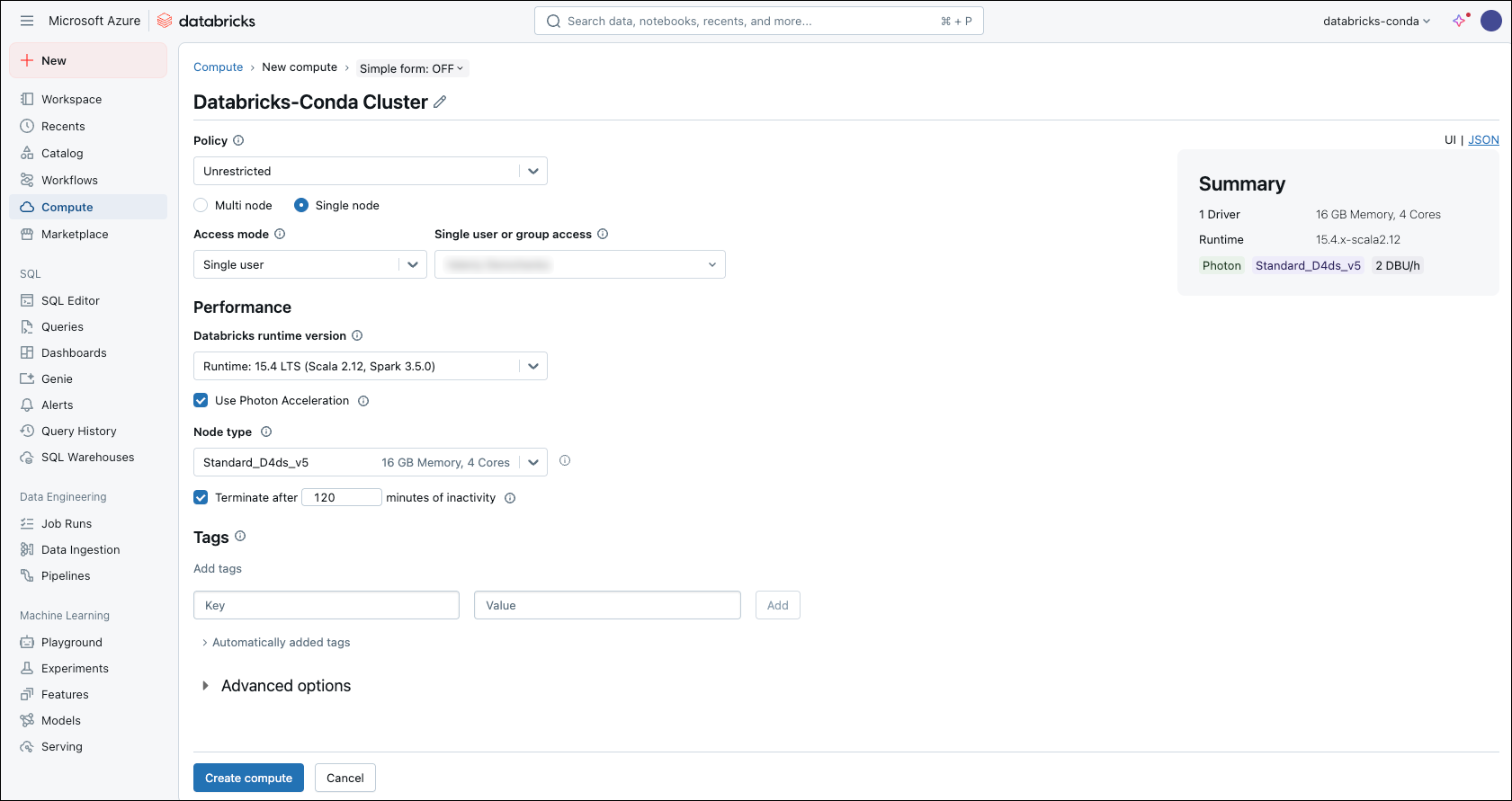 This version is under long-term support (LTS). For more information, see [Databricks support lifecycles](https://docs.databricks.com/aws/en/release-notes/runtime/databricks-runtime-ver).
***
`Databricks Runtime for Machine Learning` [does not support Databricks Container Service](https://docs.databricks.com/aws/en/compute/custom-containers#limitations).
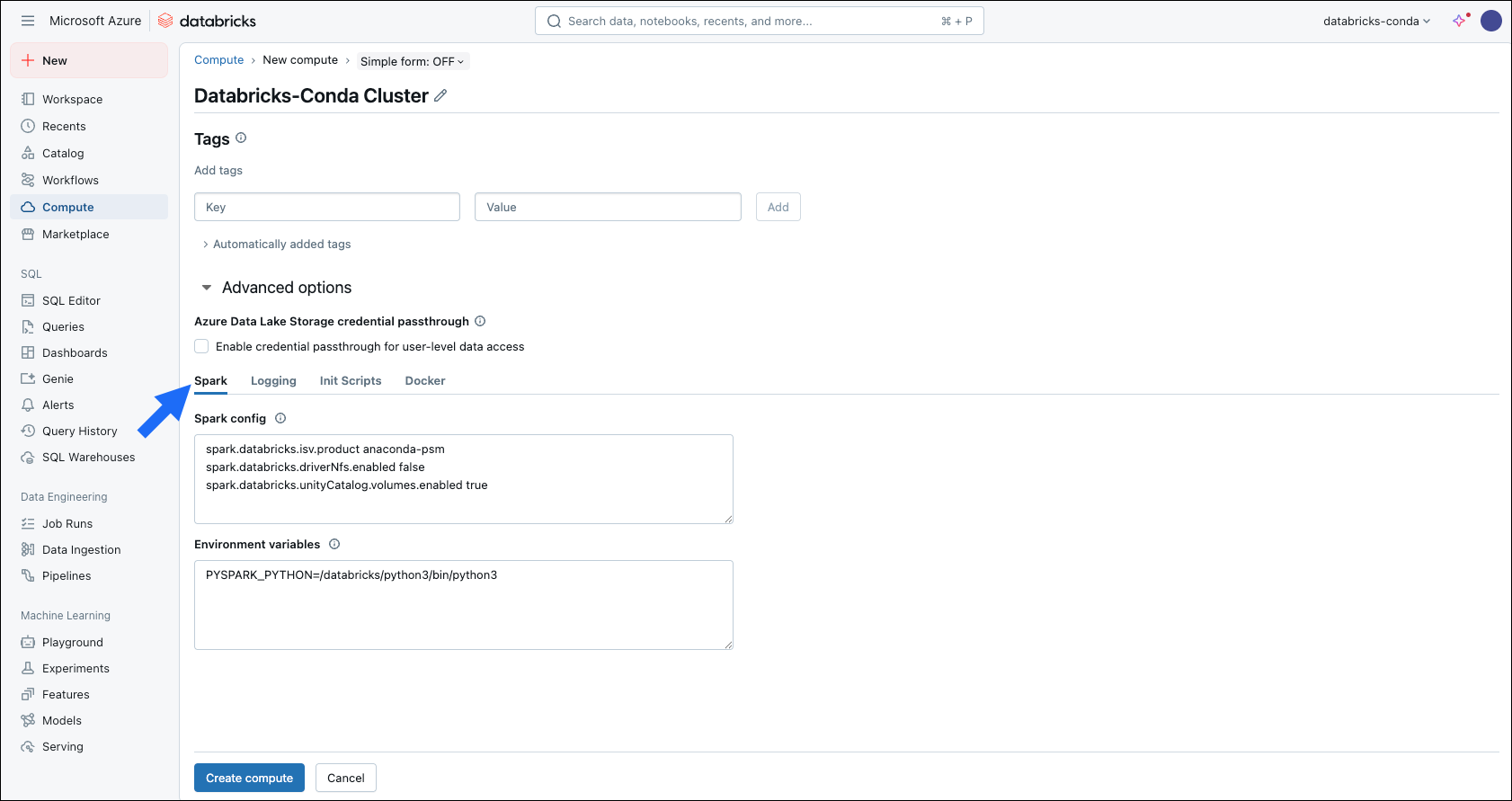
5. Open the **Advanced options** dropdown and click the **Spark** tab.
6. Add the following Spark configurations:
```sh theme={null}
spark.databricks.isv.product anaconda-psm # Must always be added, regardless of other settings
spark.databricks.driverNfs.enabled false
```
To access volumes on Databricks Container Service, add the following configuration to the compute's **Spark config** field as well: `spark.databricks.unityCatalog.volumes.enabled true`.
This version is under long-term support (LTS). For more information, see [Databricks support lifecycles](https://docs.databricks.com/aws/en/release-notes/runtime/databricks-runtime-ver).
***
`Databricks Runtime for Machine Learning` [does not support Databricks Container Service](https://docs.databricks.com/aws/en/compute/custom-containers#limitations).
5. Open the **Advanced options** dropdown and click the **Spark** tab.
6. Add the following Spark configurations:
```sh theme={null}
spark.databricks.isv.product anaconda-psm # Must always be added, regardless of other settings
spark.databricks.driverNfs.enabled false
```
To access volumes on Databricks Container Service, add the following configuration to the compute's **Spark config** field as well: `spark.databricks.unityCatalog.volumes.enabled true`.
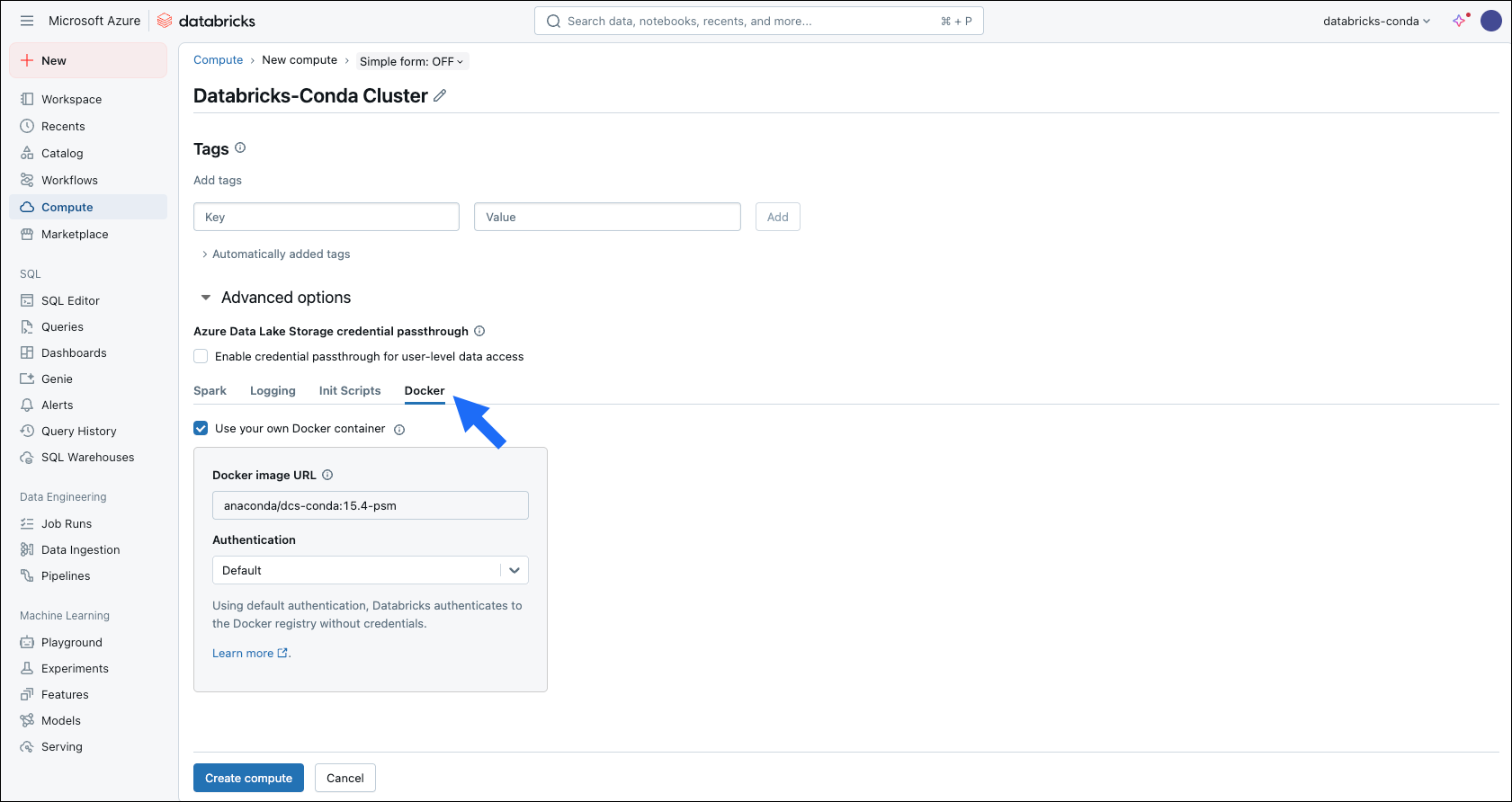
 7. Click the **Docker** tab.
8. Select the **Use your own Docker container** checkbox.
9. Enter your custom Docker image in the **Docker Image URL** field.
7. Click the **Docker** tab.
8. Select the **Use your own Docker container** checkbox.
9. Enter your custom Docker image in the **Docker Image URL** field.
 * Docker Hub - `/:`
* Amazon ECR - `.dkr.ecr..amazonaws.com/:`
* Azure Container Registry - `.azurecr.io/:`
10. Open the **Authentication** dropdown and select an authentication method.
11. Click **Create compute**.
1. Click **New** in the top-left corner, then click **Notebook**.
2. Specify a name for the notebook.
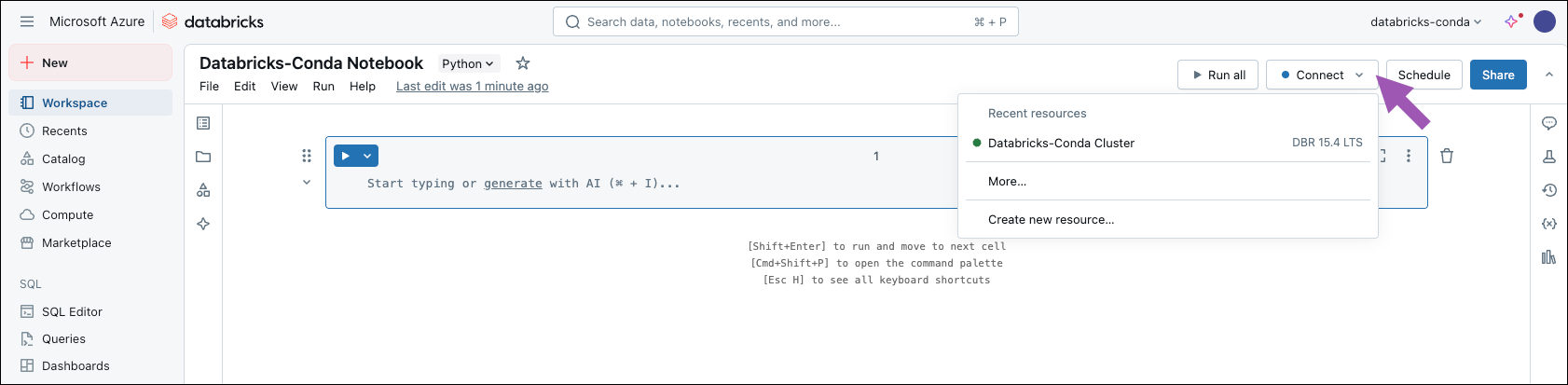
3. Click **Connect**, then select your cluster from the resource list.
* Docker Hub - `/:`
* Amazon ECR - `.dkr.ecr..amazonaws.com/:`
* Azure Container Registry - `.azurecr.io/:`
10. Open the **Authentication** dropdown and select an authentication method.
11. Click **Create compute**.
1. Click **New** in the top-left corner, then click **Notebook**.
2. Specify a name for the notebook.
3. Click **Connect**, then select your cluster from the resource list.
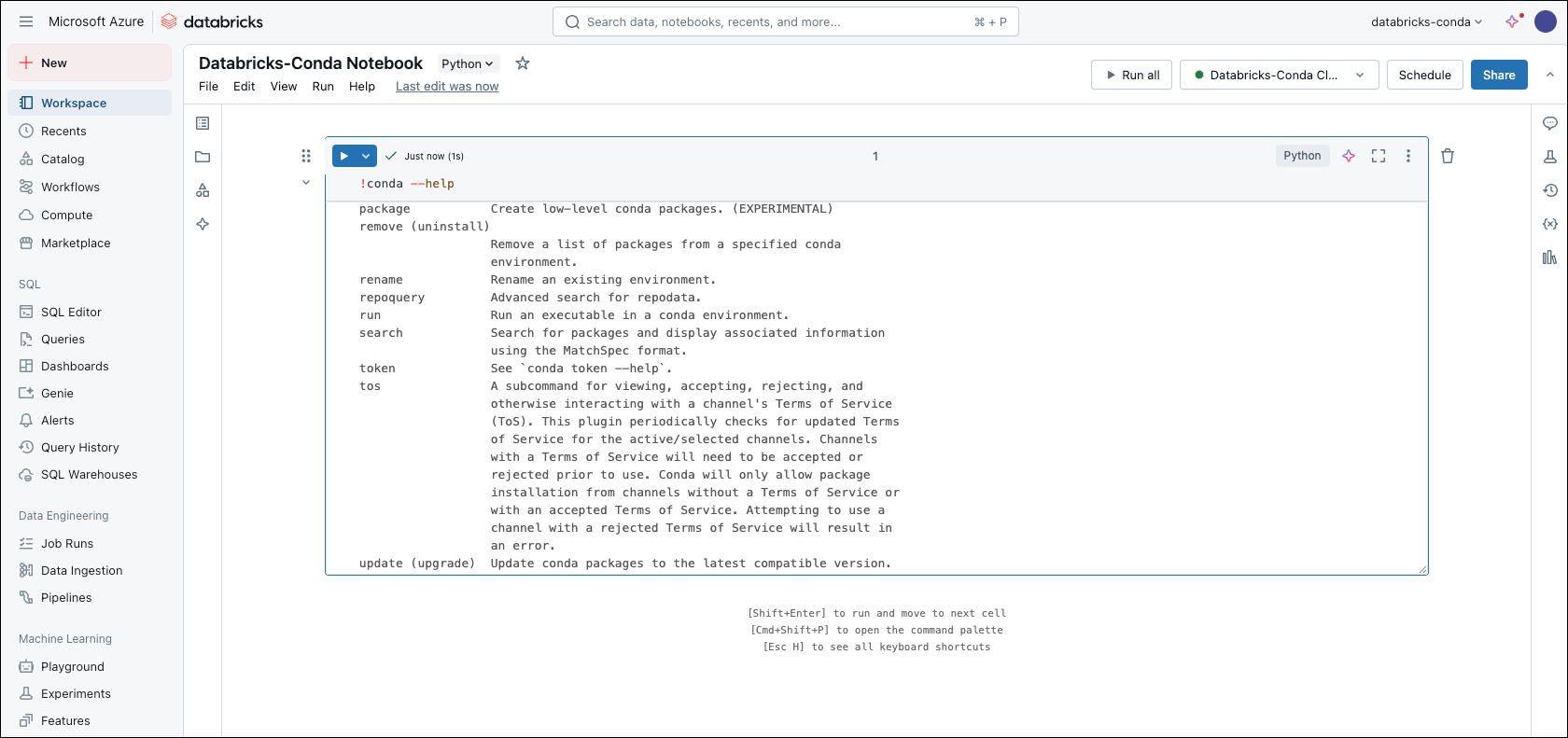
 1. In your notebook, run one of the following commands to check that conda is installed:
```py theme={null}
!conda --help
```
```py theme={null}
%sh conda --help
```
Both commands run shell code from the notebook. `!conda --help` runs the command in the current shell. `%sh conda --help` starts a subshell, which is useful for multi-line scripts, but might not have the same environment or path.
1. In your notebook, run one of the following commands to check that conda is installed:
```py theme={null}
!conda --help
```
```py theme={null}
%sh conda --help
```
Both commands run shell code from the notebook. `!conda --help` runs the command in the current shell. `%sh conda --help` starts a subshell, which is useful for multi-line scripts, but might not have the same environment or path.
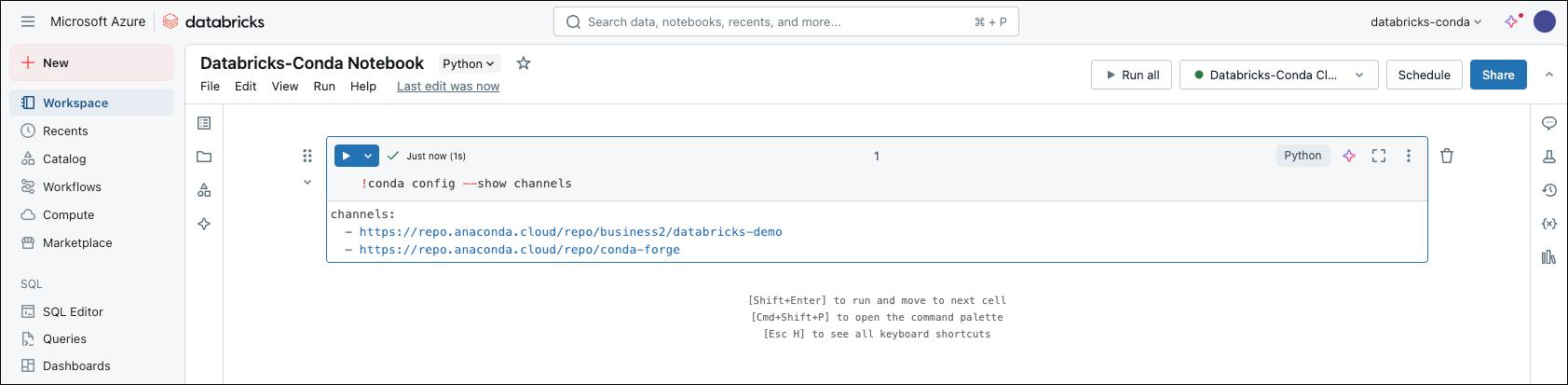
 2. In your notebook, run the following command to check your source channels:
```py theme={null}
!conda config --show channels
```
2. In your notebook, run the following command to check your source channels:
```py theme={null}
!conda config --show channels
```
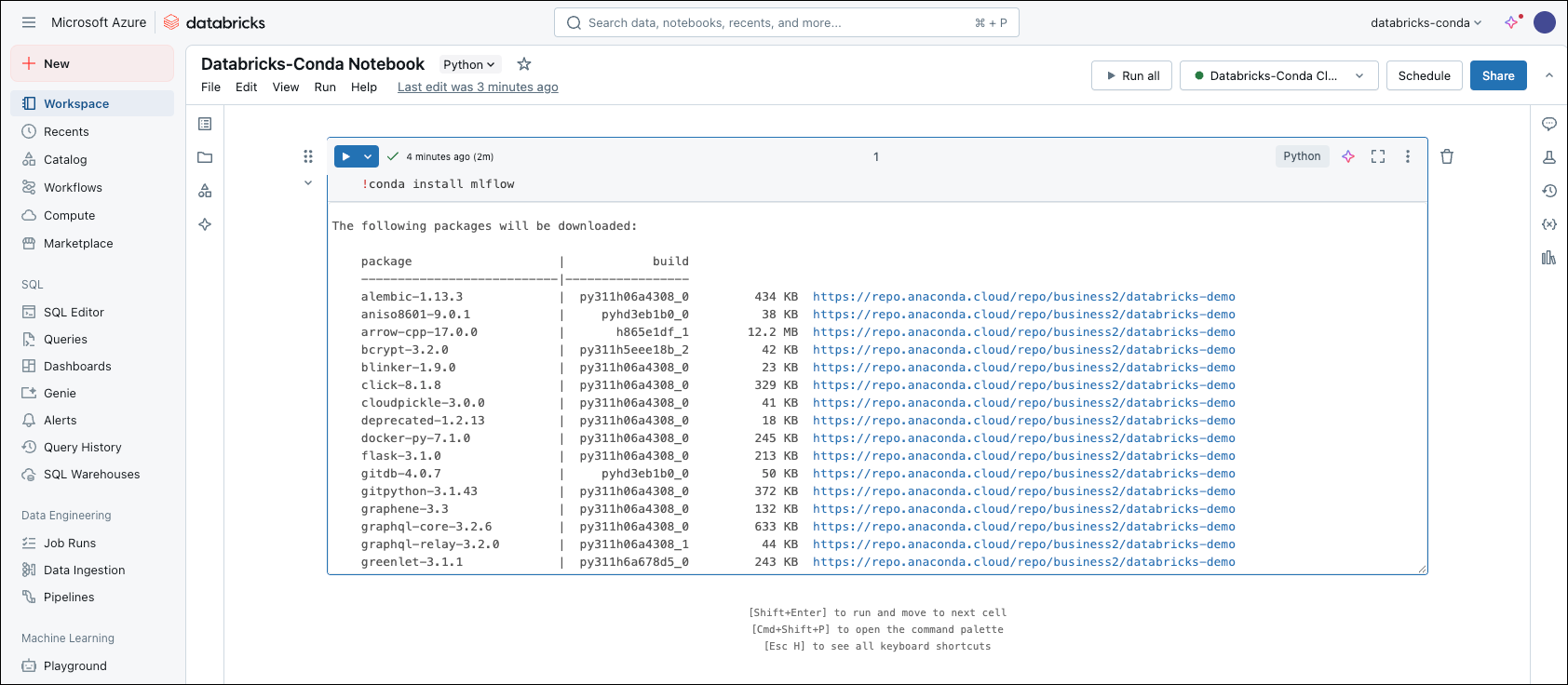
 MLflow is available through your Anaconda organization channel for use in your Databricks environment.
1. In your notebook, install MLflow from your Anaconda organization channel:
```py theme={null}
!conda install mlflow
```
This command installs MLflow and all of its dependencies from your Package Security Manager channel.
MLflow is available through your Anaconda organization channel for use in your Databricks environment.
1. In your notebook, install MLflow from your Anaconda organization channel:
```py theme={null}
!conda install mlflow
```
This command installs MLflow and all of its dependencies from your Package Security Manager channel.
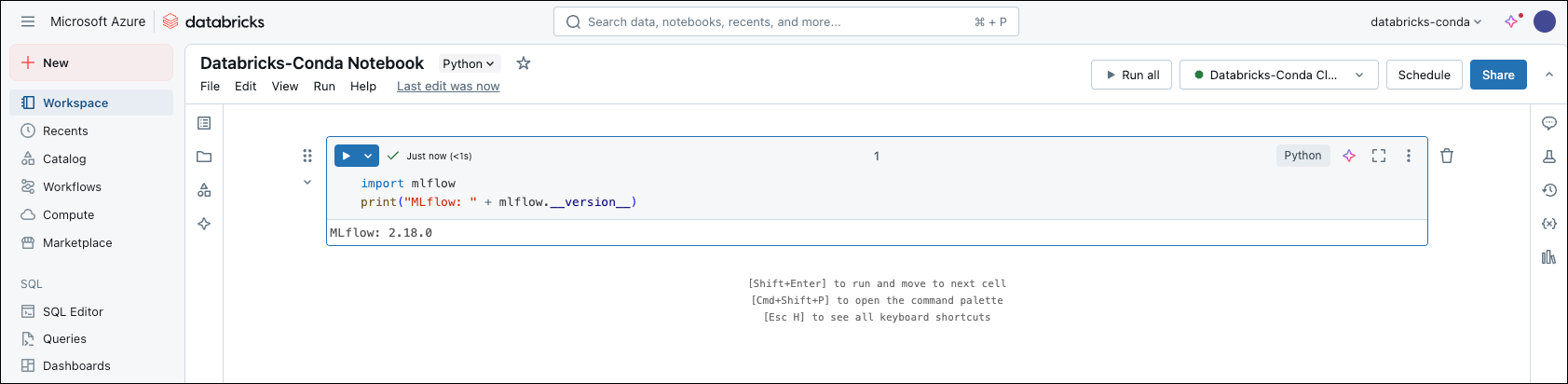
 2. In your notebook, verify the installation:
```py theme={null}
import mlflow
print("MLflow: " + mlflow.__version__)
```
2. In your notebook, verify the installation:
```py theme={null}
import mlflow
print("MLflow: " + mlflow.__version__)
```